ptg
193
Complete to close the dialog and apply the stamp. Read about changing
information in the sidebar “Who Are You?”
If you move your pointer over the Stamp tool on the Comment &
Markup toolbar (not over the down arrow), the last stamp you selected
during a session is displayed. Click the Stamp tool and the displayed stamp
is active.
The default stamp categories include the following:
•
Dynamic stamps display the username, the date, and time the stamp
was applied.
•
Sign Here stamps are specic formats used for common communica-
tions.
•
Standard Business stamps are a collection of labels you commonly use
to indicate a document’s status, such as a condential or preliminary
document, instead of adding note comments or a watermark.
•
Favorites can include any stamp from any of the default categories,
as well as any custom stamps you like. Keep the favorites together for
quick selection.
•
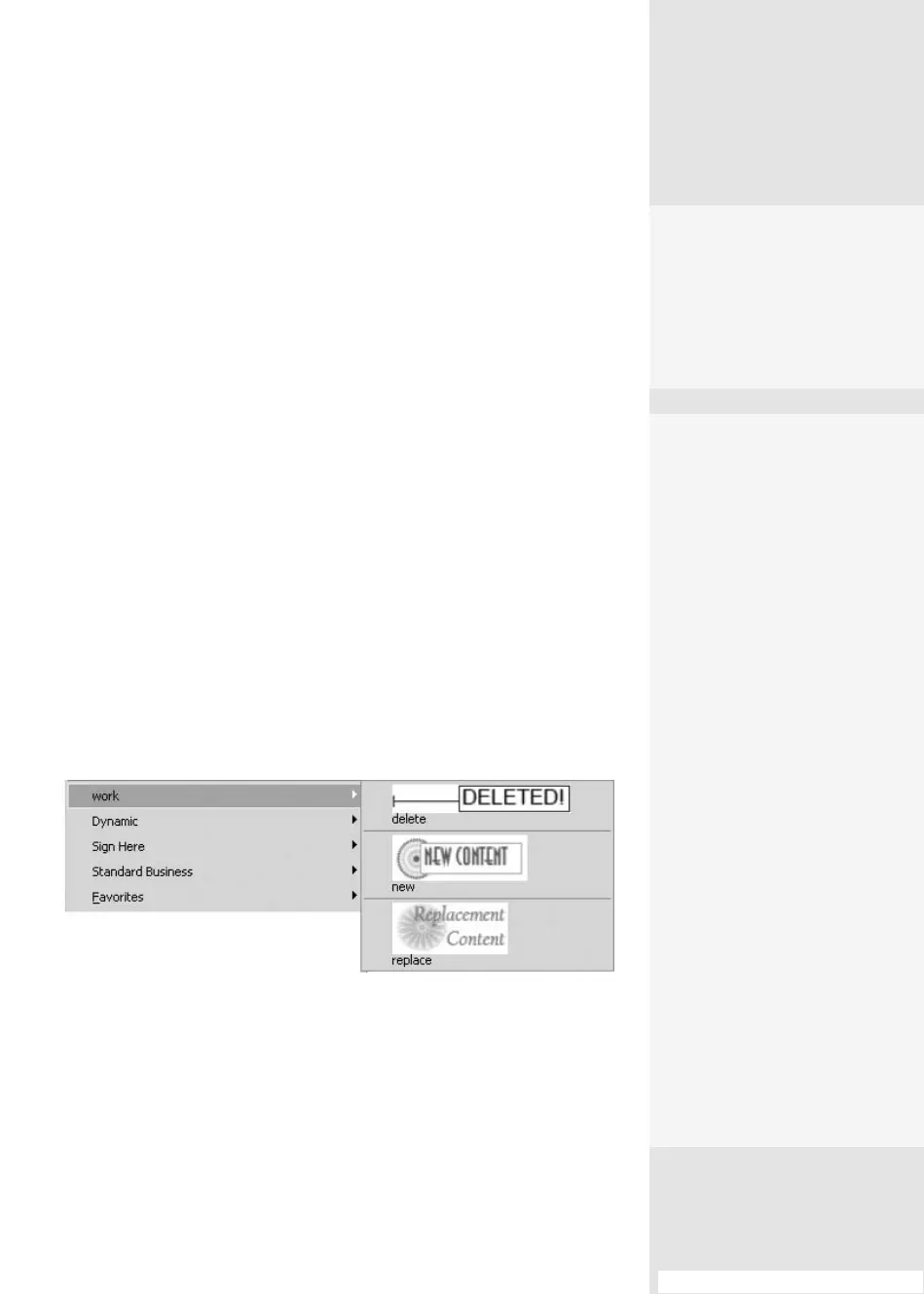
Custom is a category holding your own stamps, which you can rename;
in Figure 73b, the Custom category has been renamed work; if you
haven’t designed any custom stamps, the Custom category isn’t listed.
Figure 73b Add categories or change category names as you expand your stamp
collection.
#73: Using and Managing Stamp Tools
Who Are You?
The Identity Setup dialog
doesn’t allow you to change
the login name used for
stamps or other types of
comments. To revise the
name, do the following:
1.
Choose Edit > Prefer
-
ences > Commenting
(Acrobat > Preferences >
Commenting) and dese-
lect the option “Always
use Log-in Name for
Author name” in the Mak-
ing Comments section
of the dialog. Click OK to
close the preferences.
2.
Right-click (Control-click)
a comment in your docu-
ment to open the short-
cut menu and choose
Properties to open the
Properties dialog. Select
the General tab, type a
new name in the Author
field, and choose Make
Current Properties
Default. Click Close to
dismiss the dialog.
5.
Click the stamp in the
menu to select it, and
then click the document
page to apply the stamp.
Double-click the stamp to
add a comment as well.
From the Library of Daniel Dadian



 To Next Page