ptg
205
3. Click Create PDF Comment Summary to generate the summary.
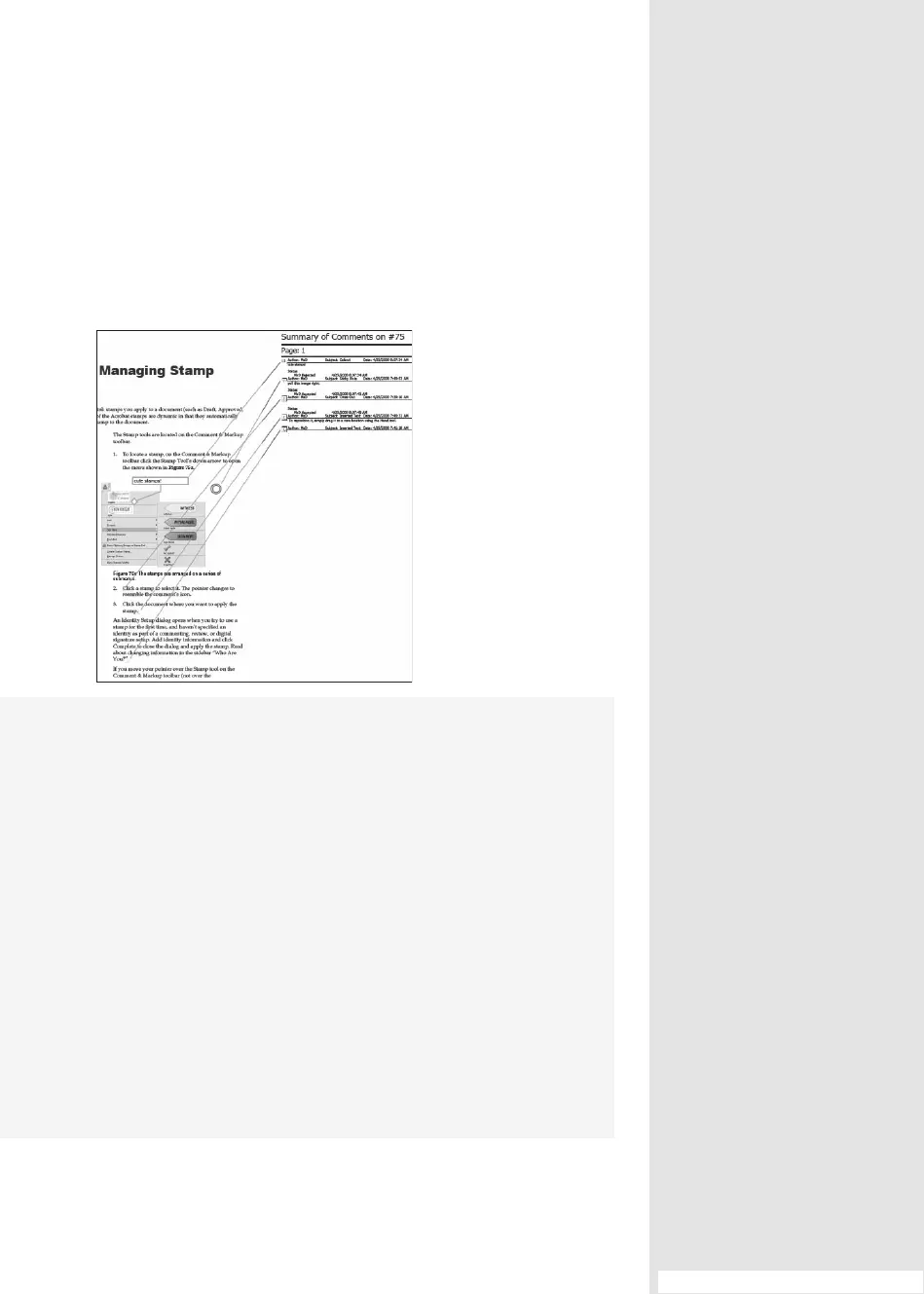
4. Acrobat opens the summary as a PDF le named Summary of Comments
[lename] and lists all the comments information sorted according to
the option you chose (Figure 77b). Save this le for reference.
Figure 77b The summary
document is created using
the settings you selected.
Choosing a Comment Summary Layout
You can generate a summary of comments in one of several ways using the
Summarize Options dialog. Choose an option depending on the characteristics
of the document and its comments, how you like to work, and what you intend
to do with the summary:
•
Choosing the “Document and comments with connector lines on separate
pages” option is good when you have long comments, although with a
printed paper copy you have to follow the lines across pages.
•
In a short document or one with short comments, use the “Document and
comments with connector lines on single pages” option.
•
Use the Comments only option to print just the comments added to a docu-
ment. If you are the originator of a document and have circulated it to a group
for feedback, having a printed list of comments can serve as a to-do list.
•
If you have finished a project and want a paper copy for archiving, or want
to work on it away from your computer, choose the “Documents and
comments with sequence numbers on separate pages” option.
#77 Setting Comment Status and Creating Summaries
From the Library of Daniel Dadian



 To Next Page