ptg
13
If you need to track down content in multiple folders, or are search-
ing for a particular phrase or group of words for redaction (described in
#62, “Redacting Content”), use the Search function. Choose Edit > Search
or use the Shift+Ctrl+F (Shift+Command+F) shortcut keys to open the
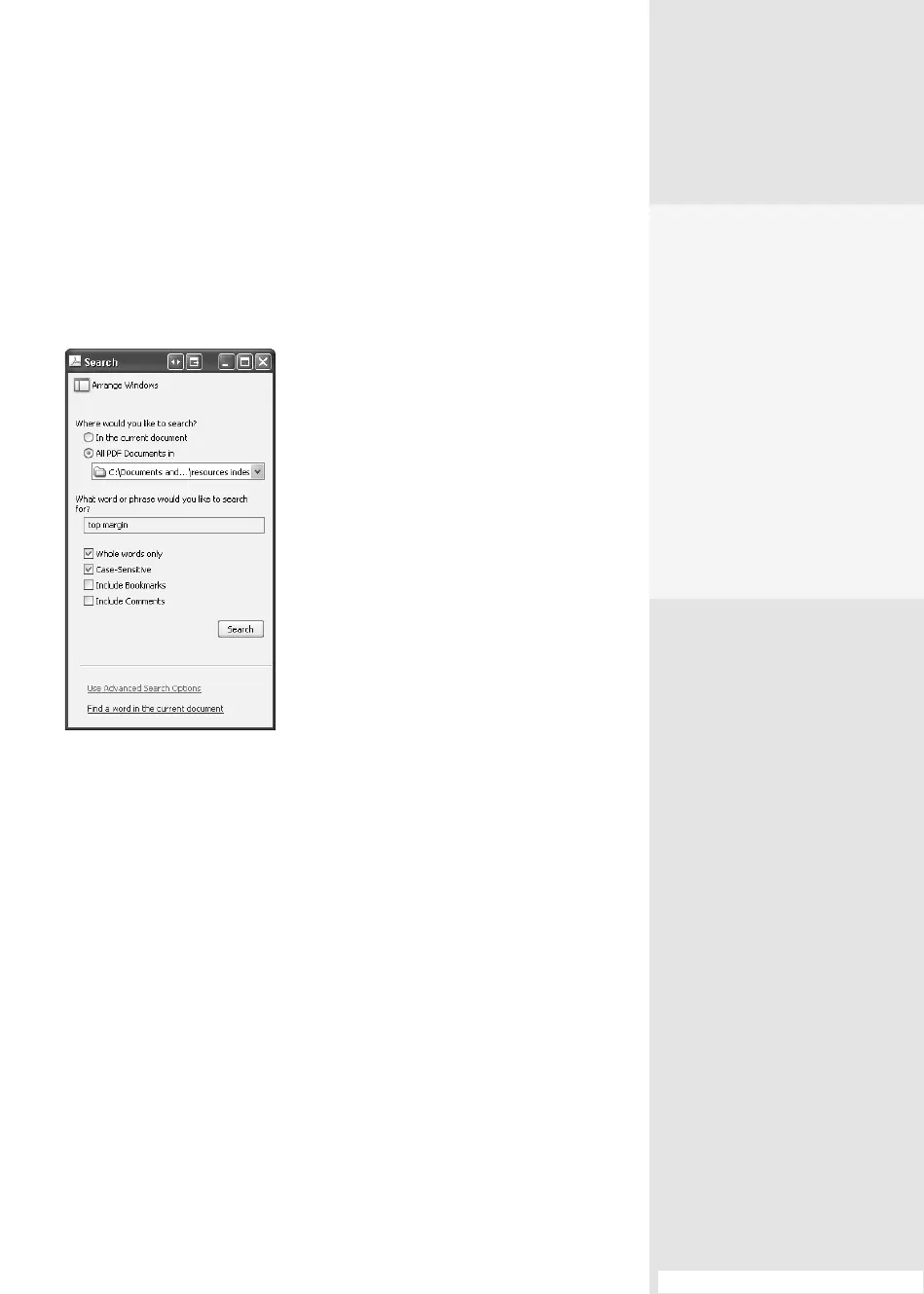
Search window (Figure 6b).
Figure 6b The Search window offers
several ways to search for content.
Tip
Click Arrange Windows at the top of the Search window to lock the Search
and Acrobat windows into place.
Follow these steps to conduct a search:
1. Type the word or words you want to find in the first field. You can’t
search using wildcards such as (*) or (?).
2. Select the file or folder you want to search by clicking the appropriate
radio button. Choose from the currently active or selected document
or all the files in a specified folder.
3. Choose search options by selecting the check boxes. You can select
whole words, request case-sensitive results, and include bookmarks
and comments.
#6: Conducting Searches
Taking a Shortcut
Shortcut keys allow you to
work quickly through a long
list of search results in the
Search window. In Windows,
open the first document, and
then press F3 to jump to the
next and subsequent hits.
Press Ctrl+] to go to the next
document; press Ctrl+[ to go
to the previous document.
In a document, press Ctrl+G
to go to the next result; press
Ctrl+Shift+G to go to the
previous result.
(continued on next page)
From the Library of Daniel Dadian



 To Next Page