ptg
235
Tip
You can Shift-click or Ctrl-click (Command-click) to select multiple elds
at one time, either on the form or the Fields pane, as in the gure.
2. If you have a lot of work to do with the form using dierent tools, click
Add New Field to display the list of form tools and choose Show
Tools on Toolbar. You’ll see the list of form tools on the toolbar, as in
Figure 87a. To collapse the toolbar, click Hide . Refer to Table 12.1
for descriptions of the tools.
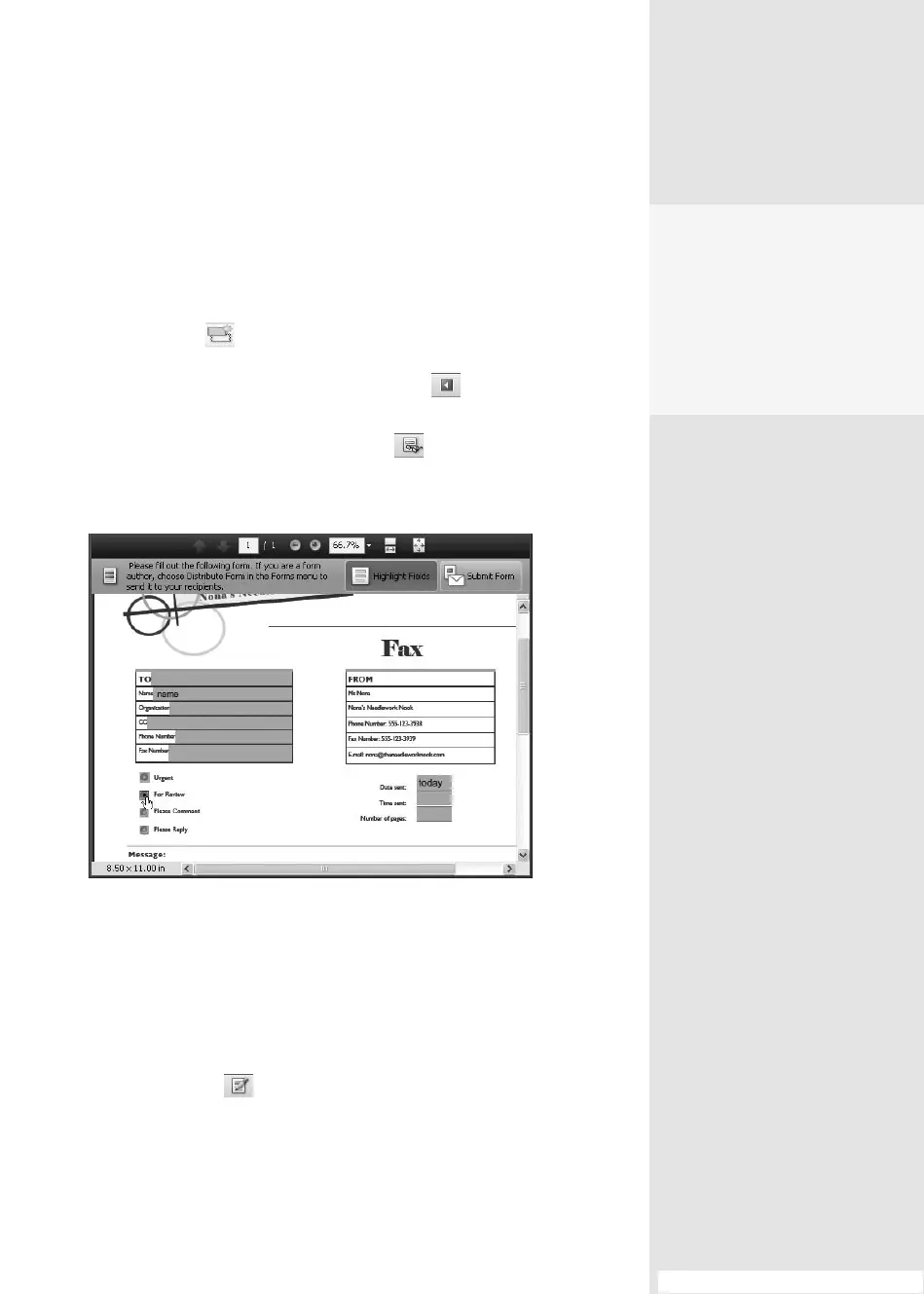
3. When you have nished, click Preview
on the Form Edit mode
toolbar to show the form as it appears to a recipient, including instruc-
tions and actions on the Document Message Bar (Figure 87b).
Figure 87b The Preview shows the form as it appears to your user,
including active form fields.
4. In the Preview, click and type to test the elds. When you’ve nished
testing, choose Forms > Clear Form to remove the content you’ve
added. To show a background identifying the active form elds, click
Highlight Fields.
5. Click Edit Layout to restore the Form Edit mode if you need to
make more changes and adjustments.
6. When you’ve nished working with the form, be sure to save it. Click
Close Form Editing to return to the basic Acrobat program window.
#87: Working in Form Edit Mode
Left or Right
Usually a field is associated
with a label to its left side.
The conversion process
doesn’t inherently recognize
when a label follows a form
field placed to its right.
From the Library of Daniel Dadian



 To Next Page