ptg
CHAPTER ONE Getting Started, Staying Organized
16
Click the Search button to search the document properties for the files
in the selected folder. Acrobat returns results that contain all additional
search criteria only. You can remove criteria by clicking the green check
mark to deselect it.
When you create a PDF, technical data that is part of the source docu-
ment is converted along with the text and images you see on the page.
You can add more types of data from within Acrobat by modifying the
Document Properties.
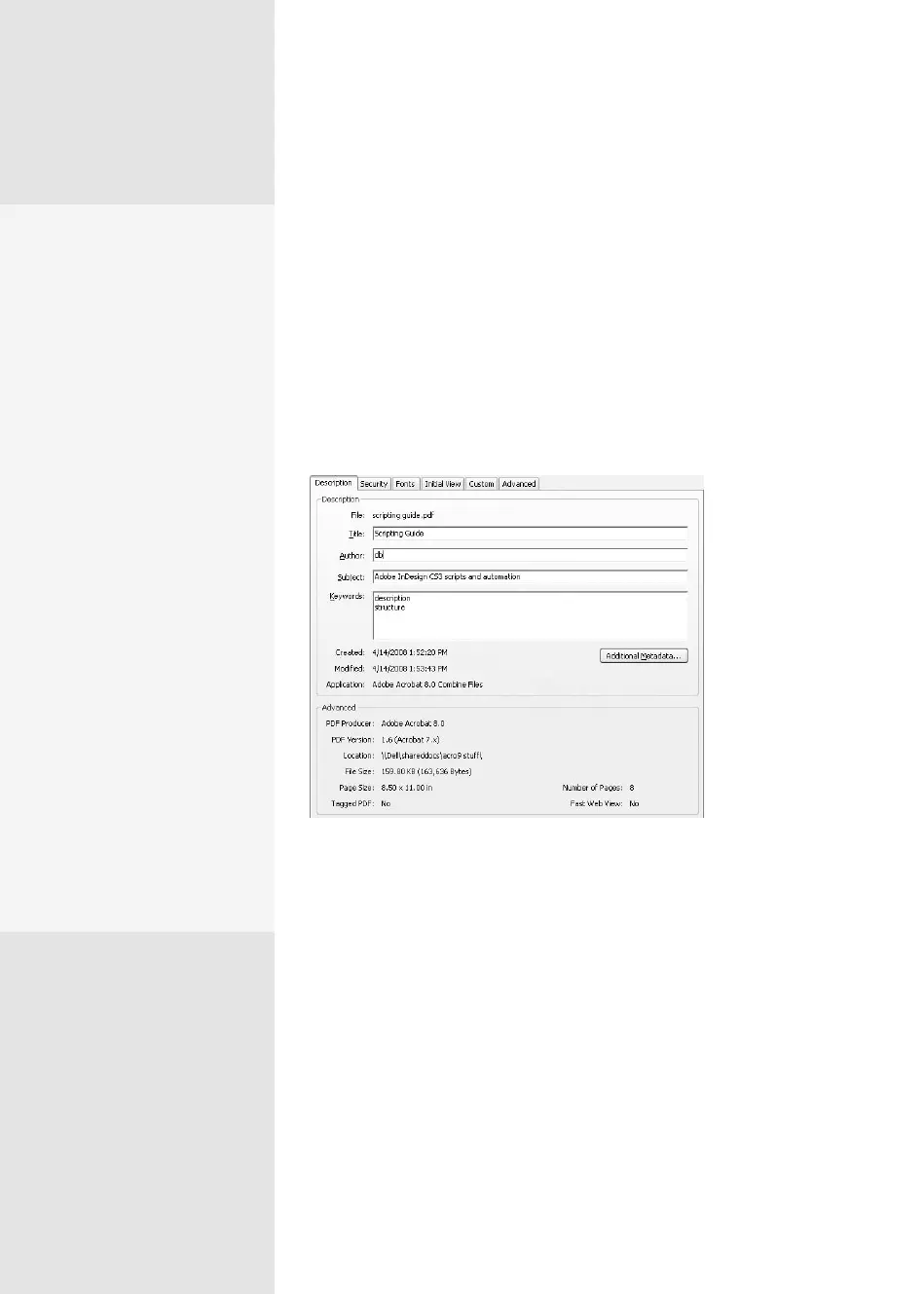
Open the document you want to alter, and then choose File > Proper-
ties, or use the shortcut Ctrl+D (Command+D) (Figure 7b).
Figure 7b Add search terms and categories in the
Properties dialog.
Enter the additional information you want to use for searching and
organizing in the appropriate fields. If you are working with images, click-
ing the Additional Metadata button opens the Document Metadata for
[filename] dialog to add further information about the image.
Click OK to close the Properties dialog. Then, save the document to
save the information you added in the dialog.
Develop a System
If you are working with hun-
dreds of documents or PDF
images, developing a sys-
tem before embarking on a
document properties adven-
ture is the smart thing to do.
Decide if a term is used as
a subject or a keyword, not
both. If you search using a
subject term and have used
it as a keyword in some doc-
uments, your search results
are limited.
If you want to use an
author’s name, decide
beforehand if the first name,
first name and initial, or
full name of the author is
to be used. This way, any-
one working with the files
understands your properties
system. Unless you create a
naming and description sys-
tem that is understandable
to all using the documents,
it’s a waste of time to make
the effort to include addi-
tional descriptions.
From the Library of Daniel Dadian



 To Next Page