ptg
319
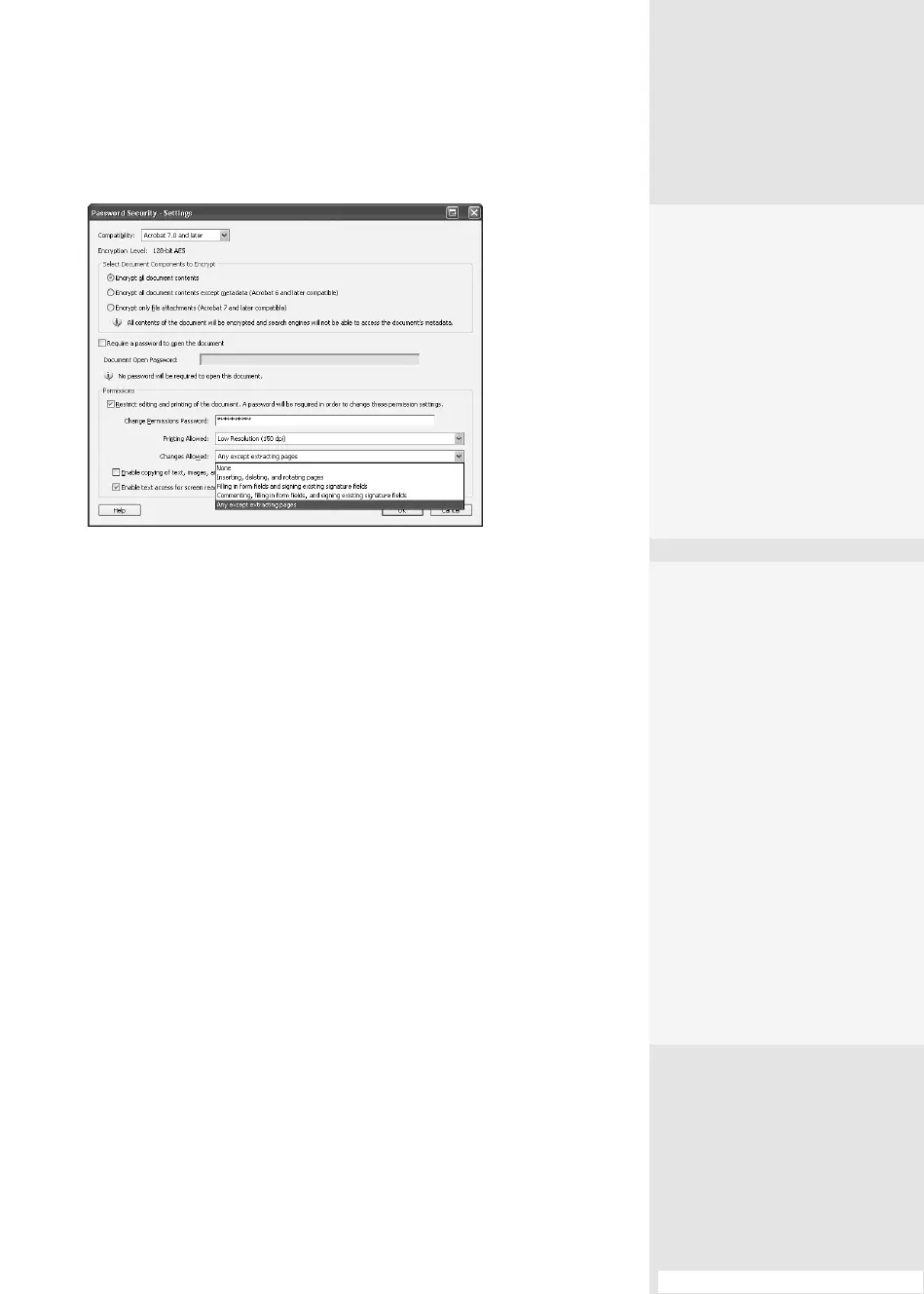
Figure 119a Choose the restrictions to apply to the document
from the options based on the compatibility level chosen earlier.
5. Click OK to close the Password Security – Settings dialog. In the con-
rmation dialog, retype the password and click OK. Click OK again to
dismiss the encryption information dialog.
Tip
When you set both passwords, you must conrm both in separate dialogs.
6. Save the document to set the security settings.
After you convert the document to a PDF, you must enter the pass-
word in a Password dialog to open it in Acrobat if you used a Document
Open password.
When the document opens, you see a security icon at the upper left of
the Navigation pane. Click the icon to open the Security Settings dialog,
which explains that the document has attached passwords (Figure 119b).
Click Permission Details to open the Securities tab of the Properties dialog.
#119: Using Security Levels and Passwords for a Document
•
To prevent users from
accessing items in your
file, deselect the “Enable
copying of text, images,
and other content” check
box.
•
Choose “Enable text
access for screen reader
devices for the visually
impaired” to allow read-
ing of the content in your
document.
Removing Security
Regardless of the method
you use to encrypt or secure
a document, you can change
or remove the protection
from within Acrobat if you
have the rights:
1.
Choose File > Properties
> Security.
2.
From the Security
Method pop-up menu,
choose No Security, and
then click OK.
3.
Click OK to confirm that
you want to delete the
security and remove the
passwords from the docu-
ment, and close the dialog.
From the Library of Daniel Dadian



 To Next Page