ptg
37
#14: Adding Specialized Media Content
Note
In addition to the new menu and toolbar commands, both the Word
and PowerPoint PDFMakers now include a separate tab in the Acrobat
PDFMaker settings dialog you use to set video settings. Read about the
settings in the sidebar “Specify Video Settings.”
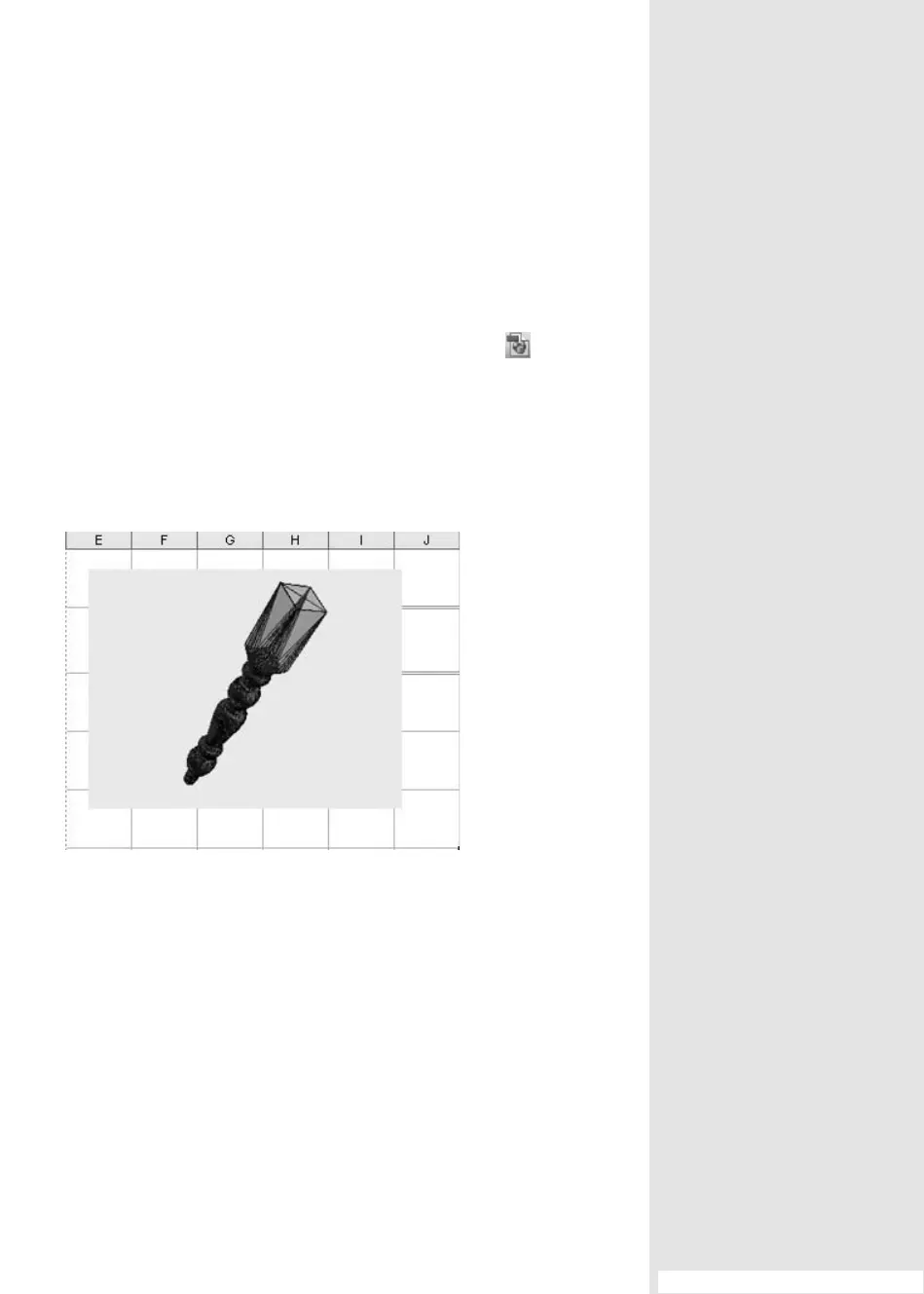
To insert a 3D model, click Insert Acrobat 3D Model
or choose
Adobe PDF > Insert Acrobat 3D Model to open the dialog. Click Browse
for Model to locate a 3D file (choose from many major CAD formats); click
Browse for Script to locate a JavaScript for the model if required, and click
OK to place the model on the page (Figure 14c). When you convert the
document to PDF, the PDFMaker uses your settings to generate a 3D PDF
document.
Figure 14c Insert a 3D model in a file, like a spreadsheet.
Both 3D models and Flash video (inserted as FLV format) can be
inserted either in the source files or after a file has been converted to PDF.
There are many more options for configuration in Acrobat—check them
out in Chapter 13 ”Using Flash Video and 3D Media.”
From the Library of Daniel Dadian



 To Next Page