ptg
39
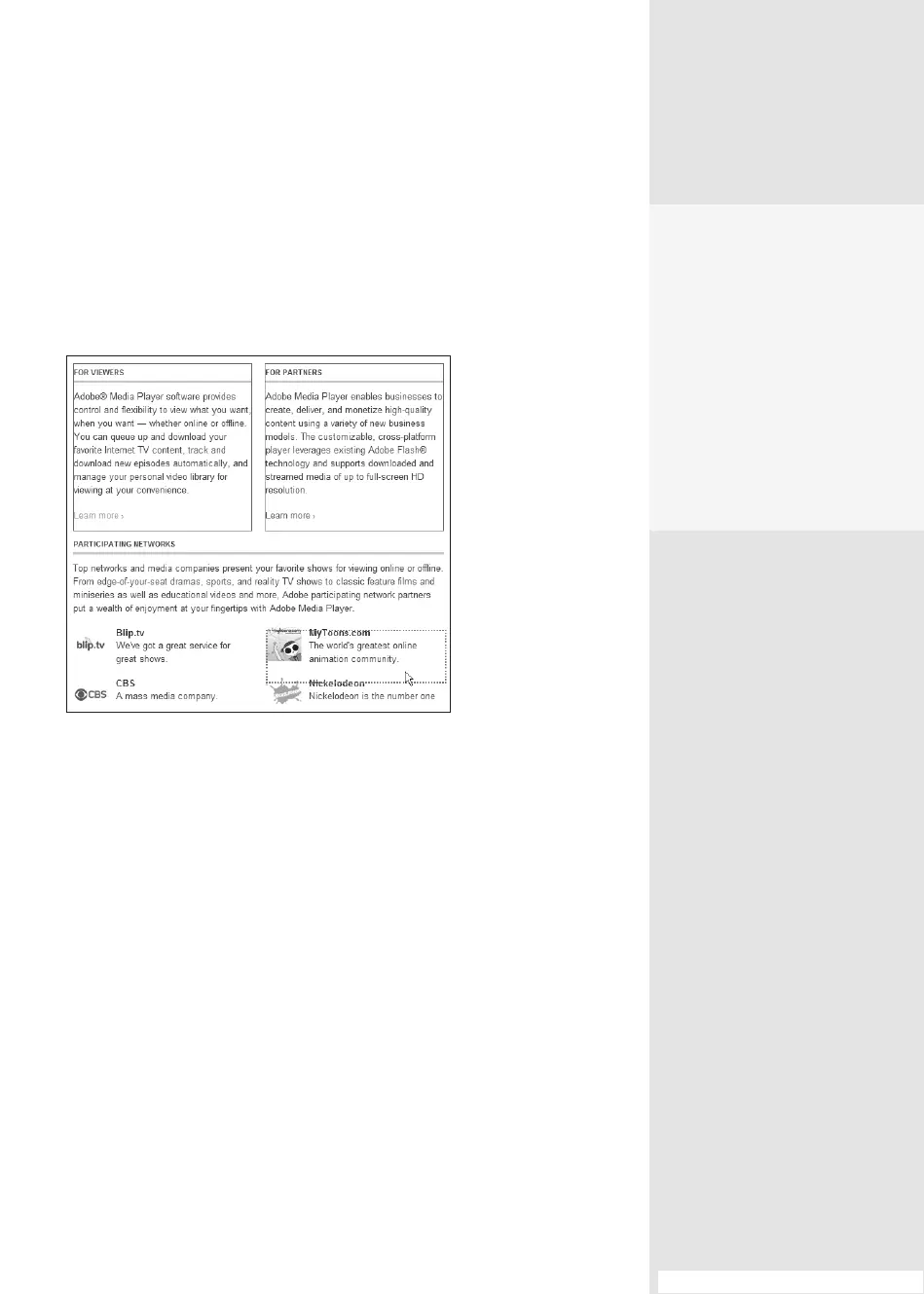
and then click to select all the items you want to convert (Figure 15b).
Each item you click is framed in blue; the active area under the tool is
outlined with a red hatched box.
When you’ve made your selections, right-click (Control-click) and
choose either Convert to PDF or Add to Existing PDF options. Very slick!
Figure 15b Select only the objects you want on the page for
conversion to PDF.
Browsers Behaving
Badly
So you’ve selected bits of
several Web pages and con-
structed your PDF files, and
now you find you can’t work
in the browser properly.
There’s no mystery—check
to be sure you have dese-
lected the Select Object tool
on the PDFMaker. Now try
again.
#15: Making PDF Documents from Web Pages
From the Library of Daniel Dadian



 To Next Page