ptg
57
#22: Creating a PDF from a Scan in Acrobat
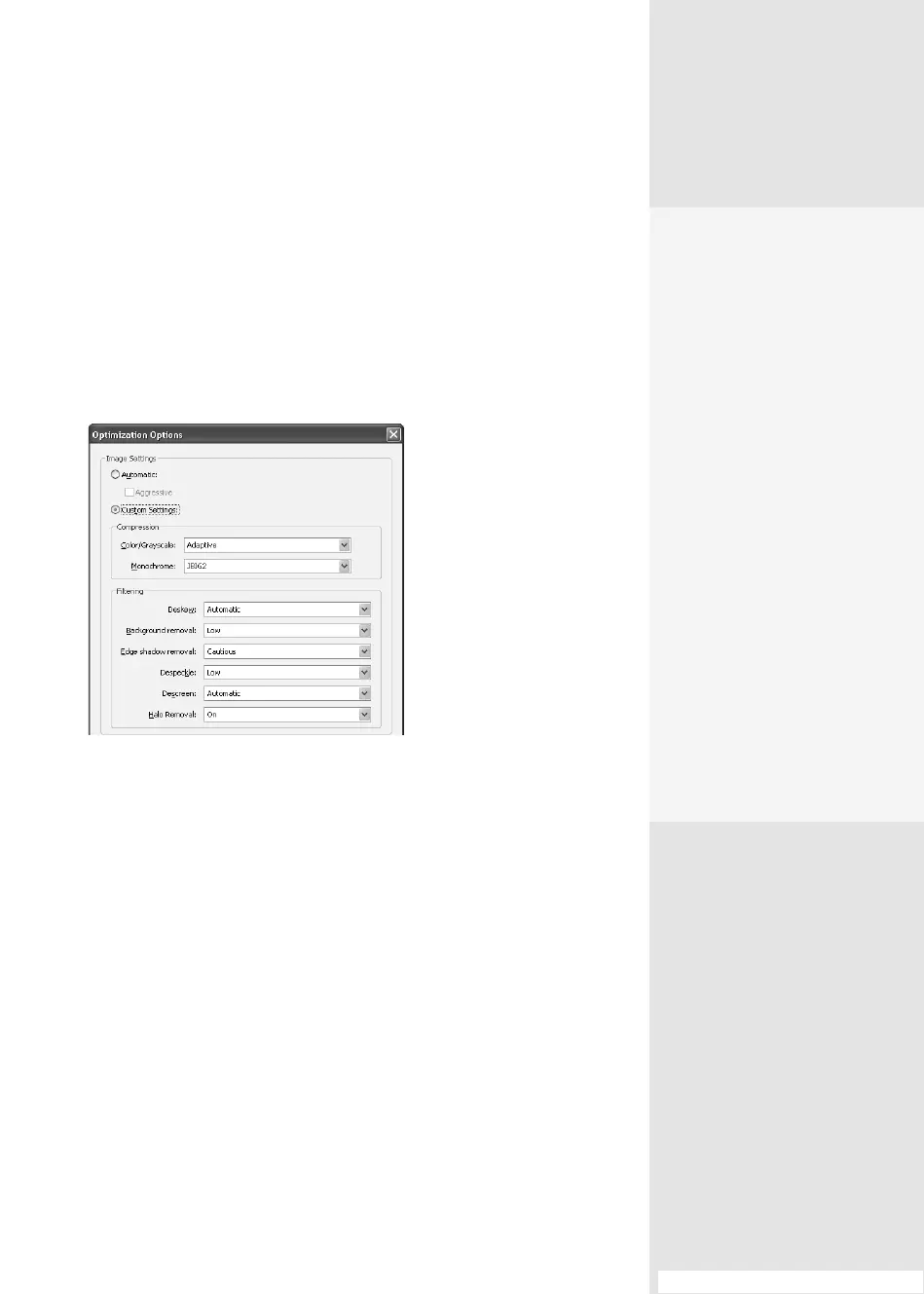
3. To optimize the document’s content, particularly for images, drag the
Optimization slider left (to decrease) or right (to increase) le size and
quality. Click Options and set compression and lter settings in the
Optimization Options dialog (Figure 22b). Click Custom Settings to
activate the Compression and Filtering settings, make the desired
adjustments, and click OK to dismiss the dialog and return to the Con-
gure Presets dialog. (You can read more about lters in the sidebar
“The Art of Scanning.”)
Figure 22b Specify different ways to improve the
appearance of a scanned page or image.
4. Finally, choose options in the Text Recognition and Metadata section
of the dialog. The default option for a text preset is to create a search-
able document, meaning the contents of the document are converted
to words and images. Image presets, on the other hand, don’t use any
default selections. Click Options and then change the conversion
options. (See #61, “Extracting Active Text from an Image” to learn how
that’s done.)
When you have nished, click OK and Acrobat automatically starts
the scan. The scanned page opens as a PDF le in Acrobat. Select the
command again to scan the next image, and so on.
Checking Your
Scan Results
Many of the files you convert
to PDF are composed of text
and images that you can
manipulate using a variety
of tools. PDF files created by
scans using older versions of
Acrobat or from some pro-
grams, such as Photoshop,
are images only; you can’t
make any changes to the
file’s contents. Here’s a quick
way to tell the difference.
Click the Select tool on the
Select & Zoom toolbar. Then
click an area of text on the
document. If you see the
flashing insertion point, you
know the page contains text.
If you click a text area on the
document and the entire
page is selected, you have an
image PDF.
From the Library of Daniel Dadian



 To Next Page