ptg
C H A P T E R T H R E E Creating PDF Files in Distiller and Acrobat
62
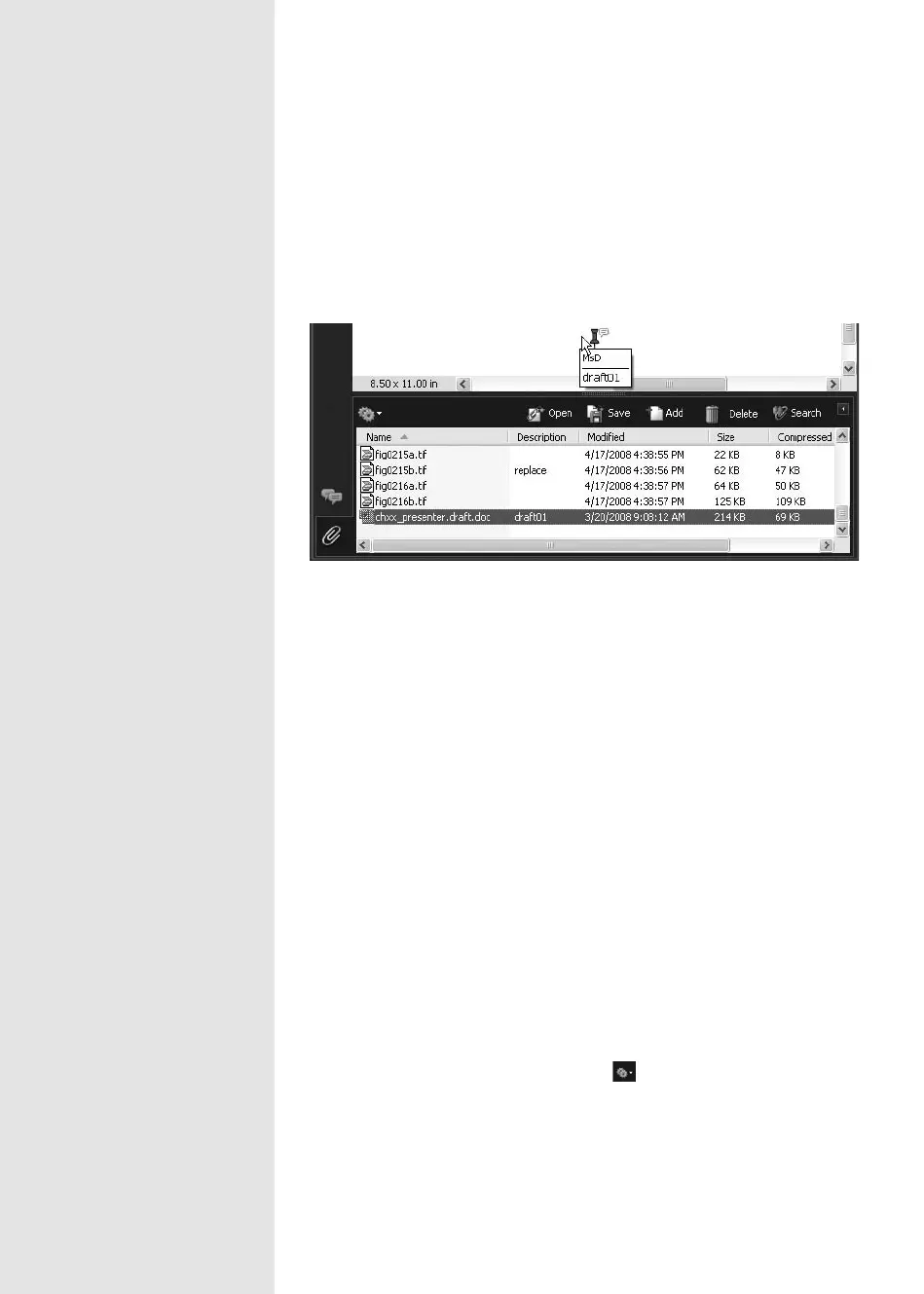
Voilà! The attachment icon displays where you clicked earlier, and
if you move the pointer over the icon, you can see information about
the attachment in the form of a tooltip as well as in the Attachments
pane (Figure 24b).
Figure 24b Move the pointer over the icon to see information about the attachment,
or read basic information about the item in the Attachments pane.
5. Save the document. Files attached using the Attach a File as a Com-
ment tool are listed in both the Attachments and Comments panes
(see Chapter 10, “Commenting in a PDF Document,” for information
about adding comments and #75, “Working with the Comments List,”
for working with the Comments pane).
Managing Attached Files
Whether you attach a document from PDFMaker or embed it within Acro-
bat using the Attach File as a Comment tool, you can manage the attach-
ments in the Attachments pane.
Click the Attachments icon in the Navigation pane at the left of the
program window to display the pane horizontally below the Document
pane (shown in Figure 24b).
Here are some ways to handle attachments and attaching les to PDF
documents:
•
You can add descriptive labels to any of the listings in the pane. Select
the listing, click the Options menu to open it, and choose Edit
Description. Type a description and click OK to add the information to
the Description column of the attachment.
Why Bother with Attachments?
Consider your workflow when deciding whether it is necessary to use
attachments:
•
If you move the PDF document on your hard drive, the attached files or
pages automatically move with it, saving you time in moving documents.
•
You can attach more information about content in your PDF without having
to convert the entire document. For example, create a PDF executive sum-
mary and attach detailed documents, spreadsheets, and so on.
•
You can search attached files using the Acrobat Search function, a signifi-
cant time-saver when you’re trying to locate information in a big project.
•
You can attach a great deal of accessory material to one PDF document,
great for large projects containing multiple information sources.
•
You can quickly see information about the attachment in the Attachments
pane.
•
You can protect attached information when e-mailing it by using a Security
Envelope (see #125, “Using Secure ePaper,” to learn how to use this special
type of security).
From the Library of Daniel Dadian



 To Next Page