Chapter 6 Autel Enterprise App 125
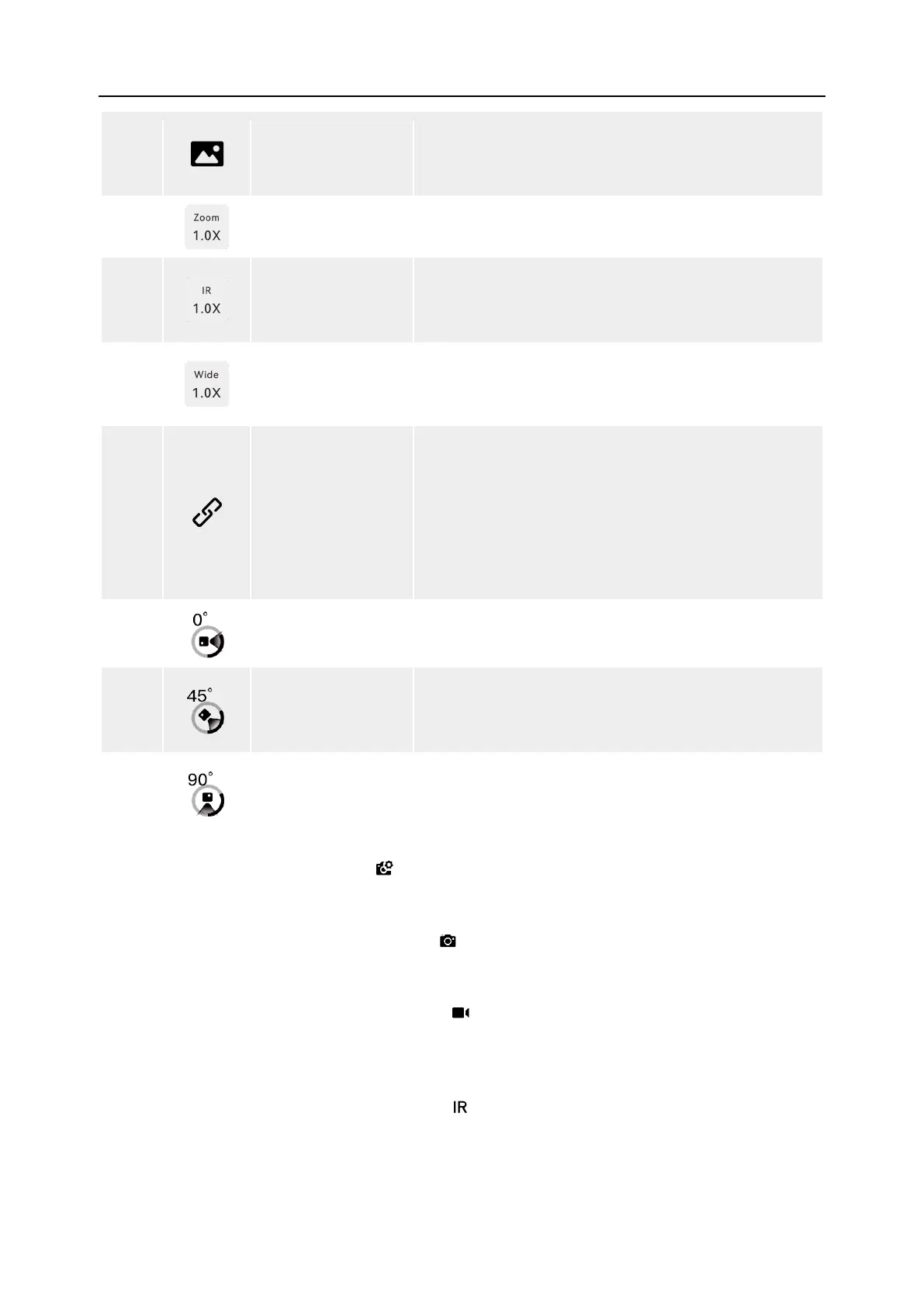
7
Album
Tap this icon to view materials from the aircraft's
album and the local album and download or delete
8
Zoom Camera
On the "Zoom Camera" interface, tap this dynamic
icon to adjust the zoom factor of the zoom camera.
9
Thermal Camera
Zoom
On the "Thermal Camera" interface, tap this
dynamic icon to adjust the zoom factor of the
infrared thermal imaging camera.
10
Wide Angle
Camera Zoom
On the "Wide Angle Camera" interface, tap this
dynamic icon to adjust the zoom factor of the wide
11
Linked Zoom
Tap this icon to adjust the zoom factor of zoom and
thermal camera simultaneously, resulting in the
synchronous enlargement or reduction of camera
images.
The zoom camera will be adjusted to 1.8x
automatically, the thermal camera will be adjusted
12
Gimbal 0°
Tap
this icon, and the gimbal returns to the
horizontal centering state.
13
Gimbal 45°
Tap
this icon, and the gimbal rotates obliquely
downward, forming an angle of 45° with the
horizontal direction.
14
Gimbal 90°
Tap this icon, and the gimbal rotates directly
downward, forming an angle of 90° with the
horizontal direction.
On any camera interface, tap the " " icon to enter the "Camera Settings" interface. On the
“Camera Settings” interface, you can perform the following operations:
View Photo Properties
On the “Camera Settings” interface, tap the " " icon to view the size and format of (zoom/wide
angle) photos.
Set Video Properties
On the “Camera Settings” interface, tap the " " icon to view the resolution, frame rate, and
format of (zoom/wide angle) videos and set video encoding.
Video encoding options are H.264 and H.265. The default option is H.264.
Set Infrared Shooting
On the “Camera Settings” interface, tap the " " icon to view the size and format of infrared
photos or videos and set the image mode and radiometric measurement function.
Set Image Mode
Two image modes are available, that is, “Manual” and “Auto”.




 To Next Page