146 Chapter 6 Autel Enterprise App
Coordinated Turns
When enabled, the aircraft will switch from one main route to an
adjacent main route along the optimal arc-shaped path.
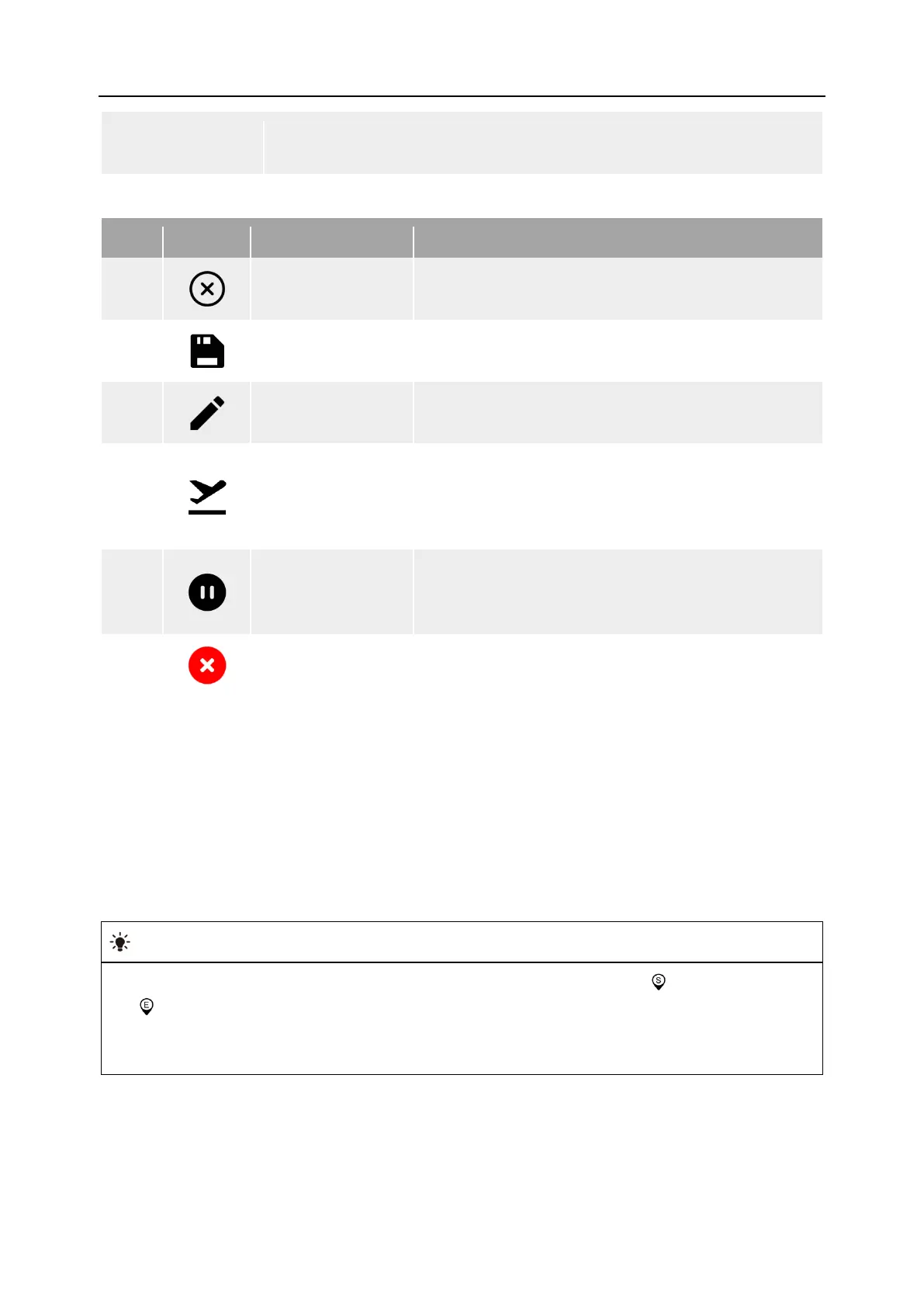
Table 6-16 “Polygon Mission” Icons and Details
1
Clear
Tap this button, and then tap the "Confirm" button
in the pop-up window to reset the polygon mission.
2
Save Route
Tap this icon, and the currently edited polygon
mission will be saved to “Mission”.
3
Edit Route Tap this icon to edit the saved polygon mission.
4
Execute Mission
Tap this button, and the aircraft will enter the "Pre-
flight Check" interface. After the check is completed,
the aircraft will take off to perform the polygon
mission.
5
Pause Mission
When executing a polygon mission, tap this icon,
and the aircraft will pause the polygon mission and
hover at the current position.
6
Exit Mission
Tap this icon, and the aircraft will abort the current
polygon mission and automatically return.
Add a Polygonal Area
On the map of the polygon mission interface, find the center point of the mission to be executed
and tap it to automatically generate a square area. You can tap the "+" icon between two white
points to add side lines for the area. You can drag the white points to adjust the positions of the
corner points of the polygon, which allows you to modify the area of the polygon. You can also
drag the "cross arrow" in the center of the polygonal area to move the polygon.
When adding a polygonal area, the polygon mission settings interface will pop up on the right
side of the polygon mission interface.
A polygonal area includes two waypoints, that is, the starting point ( ) and the end point
( ).
For the settings of other operations for a polygon mission, see “6.9.2 Rectangle Mission
” in




 To Next Page