12-5
Troubleshooting
Clearing Jams
Rear Side of the Machine
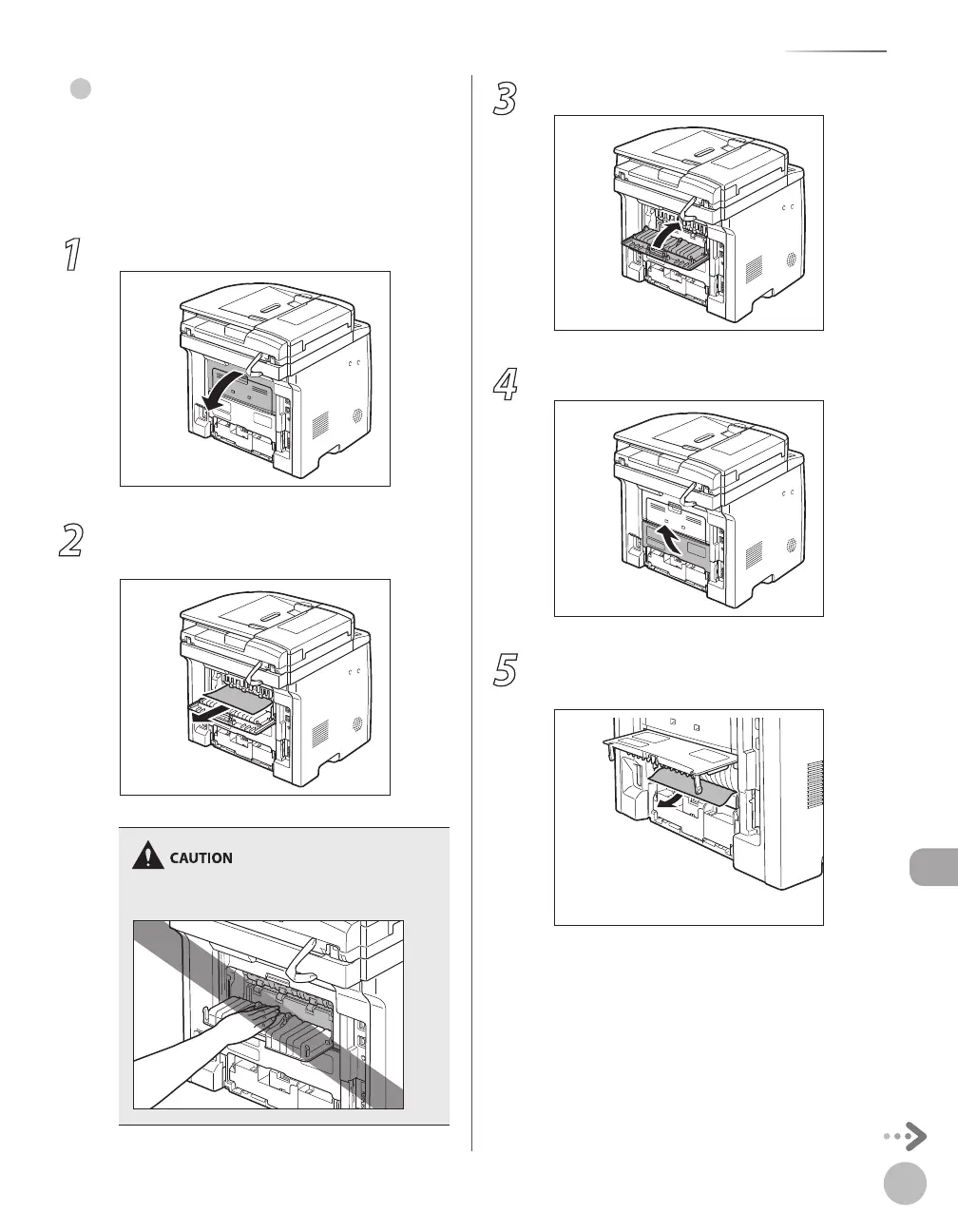
When <OPEN PRINTER COVER/OPEN REAR COVER>
or <PAPER JAM/LIFT PANEL TO OPEN> appears on
the display, remove jammed paper from the rear
cover and duplex unit cover.
1
Open the rear cover.
2
Hold both sides of any jammed paper and
gently pull it out.
Be careful not to touch the surroundings of the
sub-output tray.
●
3
Close the rear cover.
4
Open the duplex unit cover.
5
Hold both sides of any jammed paper and
gently pull it out.















 To Next Page