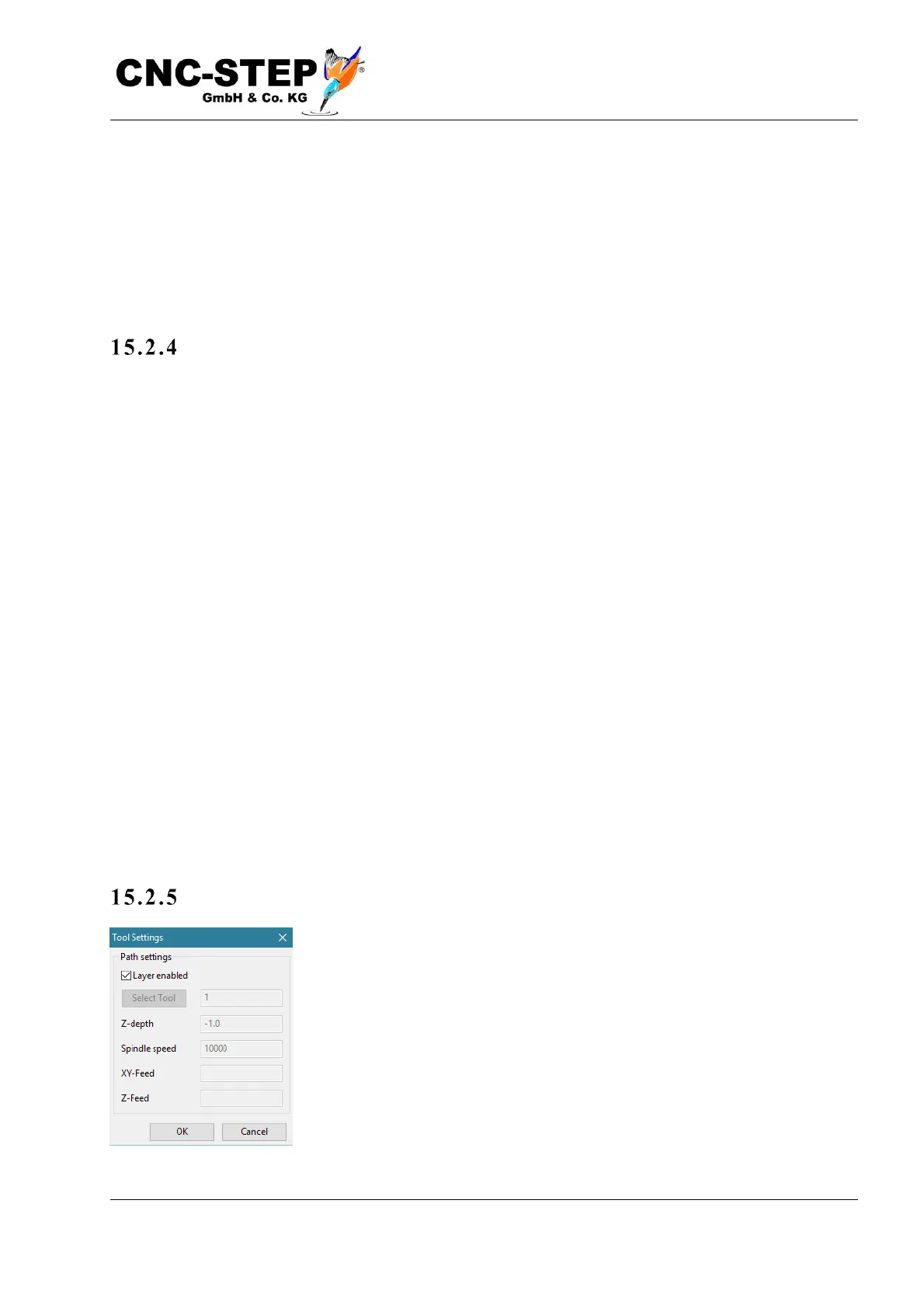
The top list shows all the pens used. A pen in a HPGL file is originally a tool, and each of these
pens can be assigned different properties. If you do not change anything, the same settings apply to
all pens, tool 1 is used for all pens, and the workpiece origin is in the lower left corner.
By clicking on "Start conversion", the HPGL file is converted to G-code and loaded as an NC
program in KinetiC-NC.
Outp u t fi le
The NC file is created in the same directory as the HPGL file to be imported. Therefore, make sure
that the HPGL file is in a folder with write permissions. Do not import from a CD or DVD or a
folder where you do not have write permission.
(KinetiC-NC HPGL Import Filter)
(Filter Version: V1.0)
(converted from: C:\plotter\out\222.plt )
(circle mode JK relative)
%
N10 G64 (constant velocity mode)
N20 G21 (metrical)
N30 G90
N40 G0 Z10 (move to secure Z-hight)
(Tool Change)
N50 M6 T1
N60 M3 S10000
N70 G0 Z10
N80 G0 X0.3048 Y0.254
The generated G code is commented on, and also contains information about the original file.
Cust o mizi ng t he i mport pro c ess
You can adapt the global values to your needs and the material.
If the import file contains several pens, you can configure these
individually.


 To Next Page