
 Need help?
Do you have a question about the CNC-Step KinetiC-NC and is the answer not in the manual?
Explains the meaning of icons used in the manual for special information.
Explains safety measures and symbols for operating the CNC machine.
Lists the necessary hardware and software for operating the KinetiC-NC control.
Details PC capabilities needed for reliable signal response in CNC control.
Instructions on connecting the 5V power supply to the CncPOD via USB.
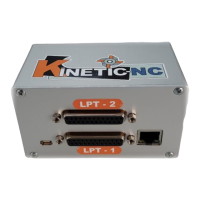
Describes the function of LPT ports for connecting axes and extensions.
Explains how to connect the CncPOD to the PC for data transmission via network.
Guides through installing WinPCAP, a driver for network communication.
Covers the installation of the main KinetiC-NC software and its components.
Explains the necessity of entering user details for support and optional features.
Details how to select the machine model for automatic configuration.
Describes the process of establishing a connection between the CncPOD and the software.
Explains user login for accessing software functions and managing permissions.
Guides on setting machine parameters or loading pre-defined ones.
Covers manual adjustment of machine parameters if standard settings are insufficient.
Explains how to test and control machine functions, including emergency stop.
Guides on checking the function of reference switches and motor directions.
Describes how to test output functions like spindle and coolant.
Advises on backing up settings to prevent data loss and facilitate recovery.
Details the process of updating the hardware module's firmware to match software.
Provides guidance on the initial launch of the KinetiC-NC software.
Explains the importance of user login for accessing specific software functions.
Explains how to define the workpiece zero point for machining operations.
Guides on performing reference movements (homing) for axis initialization.
Describes how to set and adjust feed and spindle speeds during operation.
Overview of the main screen layout for program execution and control.
Explains the visualization of tool paths and machine movements in 3D.
Details how to use mouse controls for navigation and interaction within the graphic display.
Explains the function of various buttons and icons for controlling the software.
Describes how to manage feed rates and spindle speeds during operation.
Explains how to manage workpiece offsets (G54-G59) for accurate positioning.
Details how emergency stop and alarm indicators function and their meaning.
Overview of the setup screen used for configuring machine parameters and controls.
Explains the diagnostic screen for monitoring inputs, outputs, and machine status.
Guides on loading NC programs for execution.
Instructions on creating new NC program files using the built-in editor.
Explains how to import 2D drawings (DXF/HPGL) into G-code format.
Covers loading machine parameters and software settings from external files.
Details how to set machine-specific parameters like axis resolution and speeds.
Explains management of zero offsets (G54-G59) and parking positions.
Guides on managing tool lists, radius, and length compensation.
Explains how to configure keyboard shortcuts for controlling the software.
Describes programming and using macros for custom machine functions.
Covers user management, rights, and password settings.
Details the calibration process for PWM output, used for spindle speed or laser power.
Allows customization of the graphical user interface appearance and text display.
Explains the process of logging into the software with different user accounts.
Describes how to lock the machine operation for security when leaving it unattended.
Guides on registering the software for user identification and support.
Provides recommendations and steps for updating the software.
Explains how to send a support request with problem details and system information.
Instructions on accessing the PDF user manual via the software.
Instructions on accessing the PDF reference manual for advanced users.
Details the process of milling parts from plate or sheet material.
Step-by-step guide on setting the zero point for a workpiece.
Explains the homing procedure to establish machine axis reference points.
Guides on how to start the CNC program after setting up.
Explains how to view running time and part counts.
Covers processing of materials other than plate/sheet, like blocks or castings.
Details the use of a height probe for setting zero points and measuring tool length.
Explains how to manage tools, especially when using multiple tools.
Covers the use and setup of a tool length sensor for automatic measurements.
Describes manual tool changes using tool holders and their advantages.
Explains setup and use of rotary axes for cylindrical engraving.
Details the setup and operation of a tangential knife cutting tool.
Explains why certain software functions might be inaccessible or greyed out.
Addresses issues related to loss of connection between the PC and CncPOD.
Lists common error messages and their potential causes and solutions.
Explains the function of the safety door and its impact on machine operation.
Describes how to use maintenance mode for troubleshooting while overriding safety functions.
Details the DXF import filter for converting CAD drawings to G-code.
Explains global settings for importing CAD data, affecting all layers.
Covers specific settings for milling operations during CAD import.
Covers specific settings for drilling operations during CAD import.
Details the HPGL import filter for converting plot files to G-code.
 General
| Brand | CNC-Step |
|---|---|
| Model | KinetiC-NC |
| Category | Controller |
| Language | English |

 To Next Page
