Gra phi c di s play
In the upper left window, the tool and its path are displayed in
three-dimensional space after an NC program has been loaded.
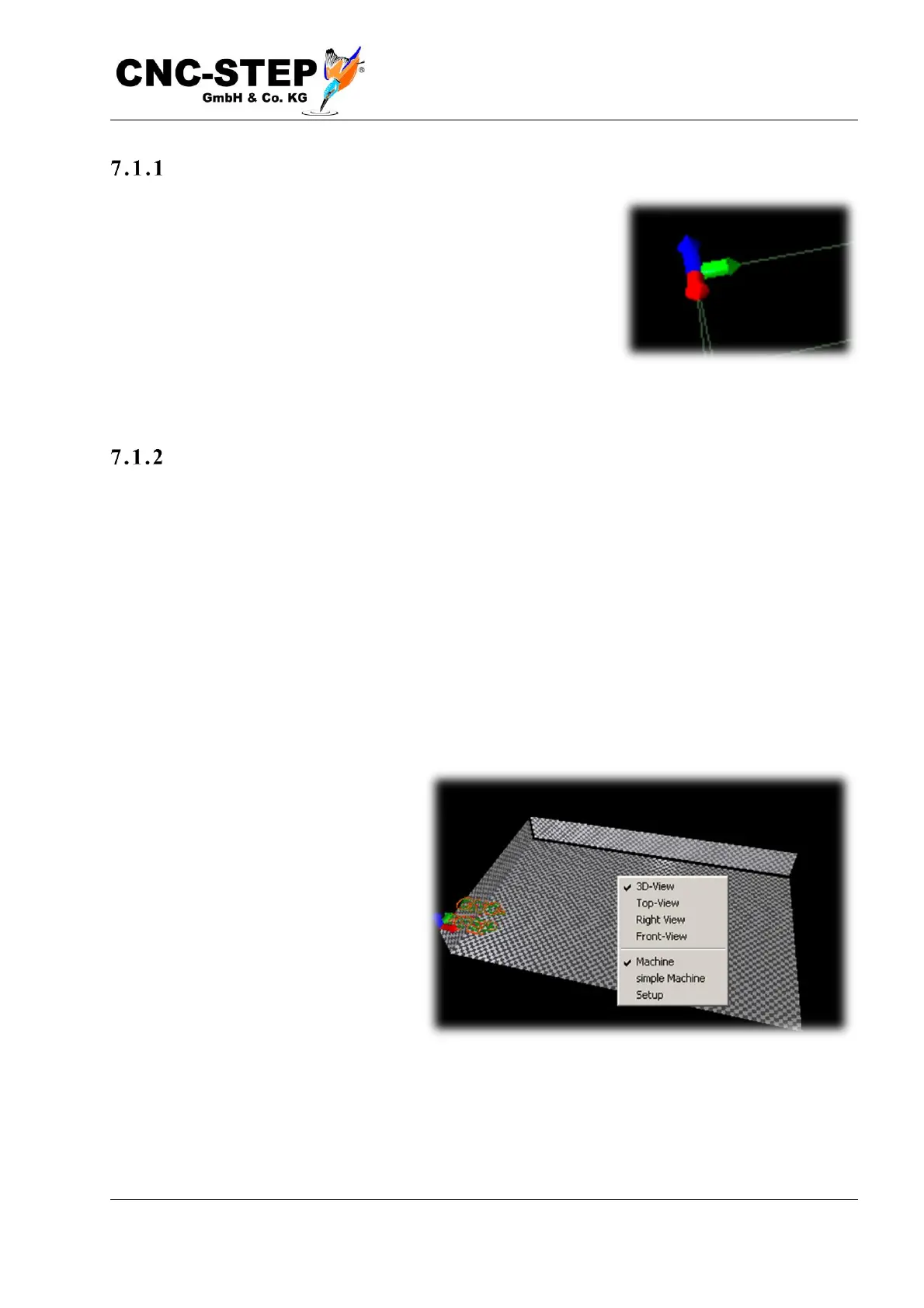
The "tripod" with the red, green and blue arrow represents the
position of the coordinate origin. Rapid traverse sections are shown
in dashed red, milling paths with green lines (if several tools are
used, possibly in different colors).
Mo use o pera tion
After clicking with the left mouse button in the window, you can:
Move the display up / down and left / right by dragging the mouse while holding down the button.
• Use the mouse wheel to move closer or farther away from the subject (zoom).
• Dragging while holding down the right mouse button turns the viewing angle.
• Double-click with the left mouse button to center the object in the window and set the
center of rotation in the workpiece, double-click sets the zoom so that the complete machine
room is displayed, which is represented by a cuboid of thin, gray lines. Also, the center of
rotation is set in the middle of the working space.
• Double-clicking with the right mouse button opens a small menu.
The "Machine" option displays the
working space graphically. If this
option is deselected, only the
workpiece (if a program is loaded) and
the zero point are displayed. The
"Simple Machine" option draws the
workspace as thin, gray lines. If this
option is deselected, the machine
workspace is displayed as a
checkerboard pattern.


 To Next Page