Ro undi ng
If "Position rounding" is not active, the maximum distance travelled is the selected distance
beginning with the start position, for example, with increments of 10mm from 481 to 491mm. In the
input field directly under "step size", any number can be entered that is not in the list, eg 3mm.
Incidentally, the axes can always be moved manually at any time, as long as no program is running,
if you are on another page, using the hotkeys. By default, these are the arrow keys on the keypad of
the keyboard. The buttons on the Setup page, however, give you better control over the speed and
can, for example, gently touch the edges of the workpiece in small increments.
Ze ro ing dis play
With the zero buttons next to the coordinates or by entering a number after double-clicking on the
coordinate, you can again change the workpiece zero point. By clicking on the buttons "to park
position" and "to zero point" on the left side under the arrow buttons, the machine moves directly to
the zero point or the parking position. If you want the Z-height to remain constant, you can also
choose "only X + Y" instead of "all axes". Attention use this function only if you are sure that the
way to it is free! If a collision threatens, you can stop the movement by pressing the button again, or
of course with the emergency stop button.
The MDI
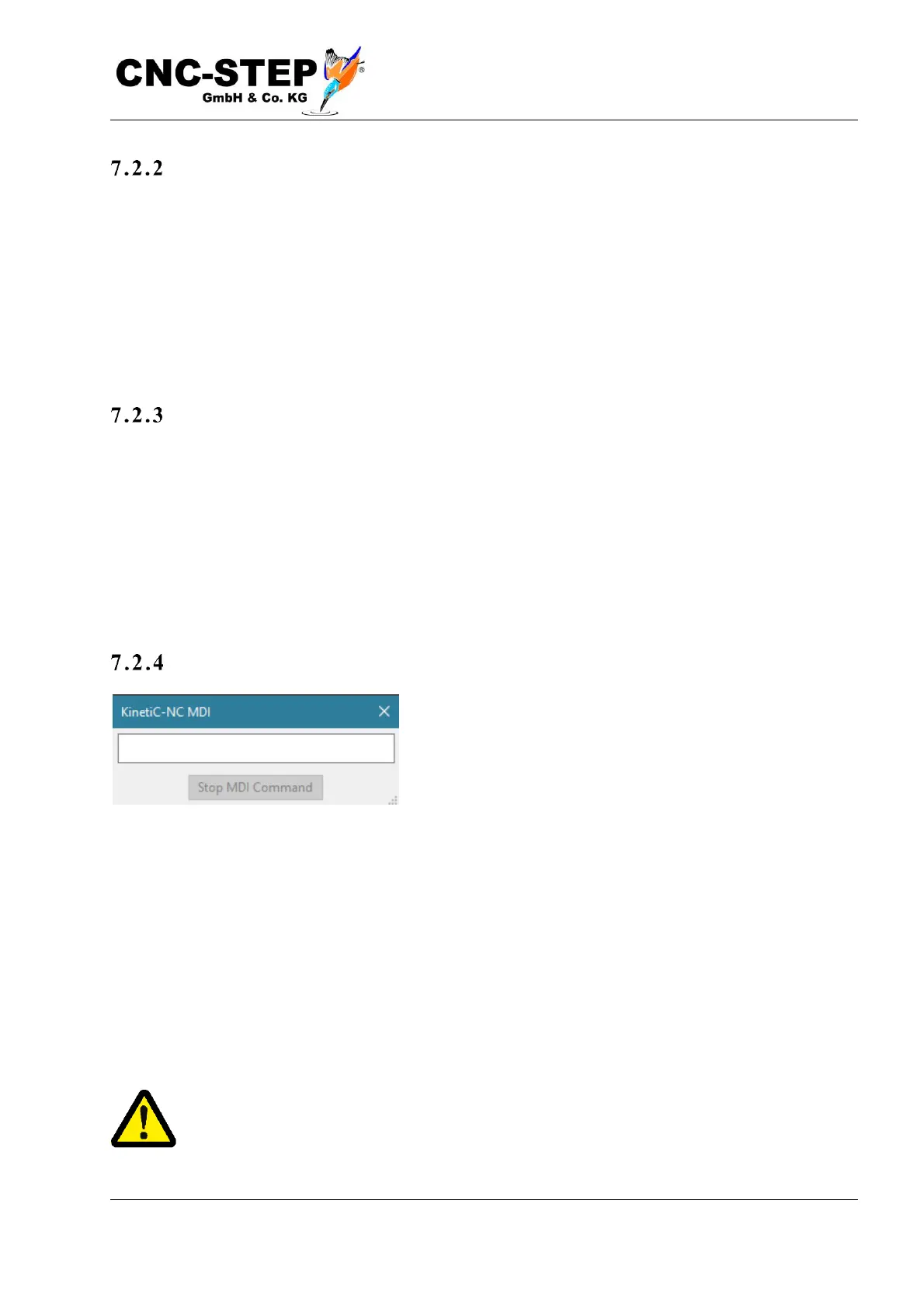
The "MDI" button at the top center opens a window with a
text entry field. Here you can enter G-code commands
directly. This can be useful for approaching certain
locations or entering commands that enable a particular
mode or function.
If a G-command has been typed in and confirmed, it can be aborted by pressing the "Stop MDI
command" button.
While a command is being processed,
the next command can be typed. This will be executed immediately after the previous command has
been completed.
Repeat
By using the cursor keys up, you can scroll through the list of already entered commands to repeat
faster and safer commands.
Attention, it is explicitly warned against misusing the MDI input to type programs in
"real time". Too easily mistype it and risk a collision. Pay close attention to what you
typed in and prefer to check it again before pressing Enter, especially on G0 commands.


 To Next Page