Machine Selection -> Plug & Play
If you purchased the software together with a machine, chose the machine type that best suits yours.
Later, you will no longer need to perform any manual parameter settings, except perhaps to install
additional purchased options.
If your machine does not match any of the models in the list, please select "CncPod Default
Settings". You then have to enter at least the most important parameters such as travel distances,
maximum speeds and resolutions of the axes themselves. For special machines or self-construction,
refer to the optional Reference Manual for Advanced Users, as the detailed description of all setting
options would go beyond the scope of this manual. In the following, only the most important
features are explained.
After selecting the machine model, the main window of
the software opens. It is usually recommended to always
turn on the machine before starting the software. If this
has not already been done or there are problems with the
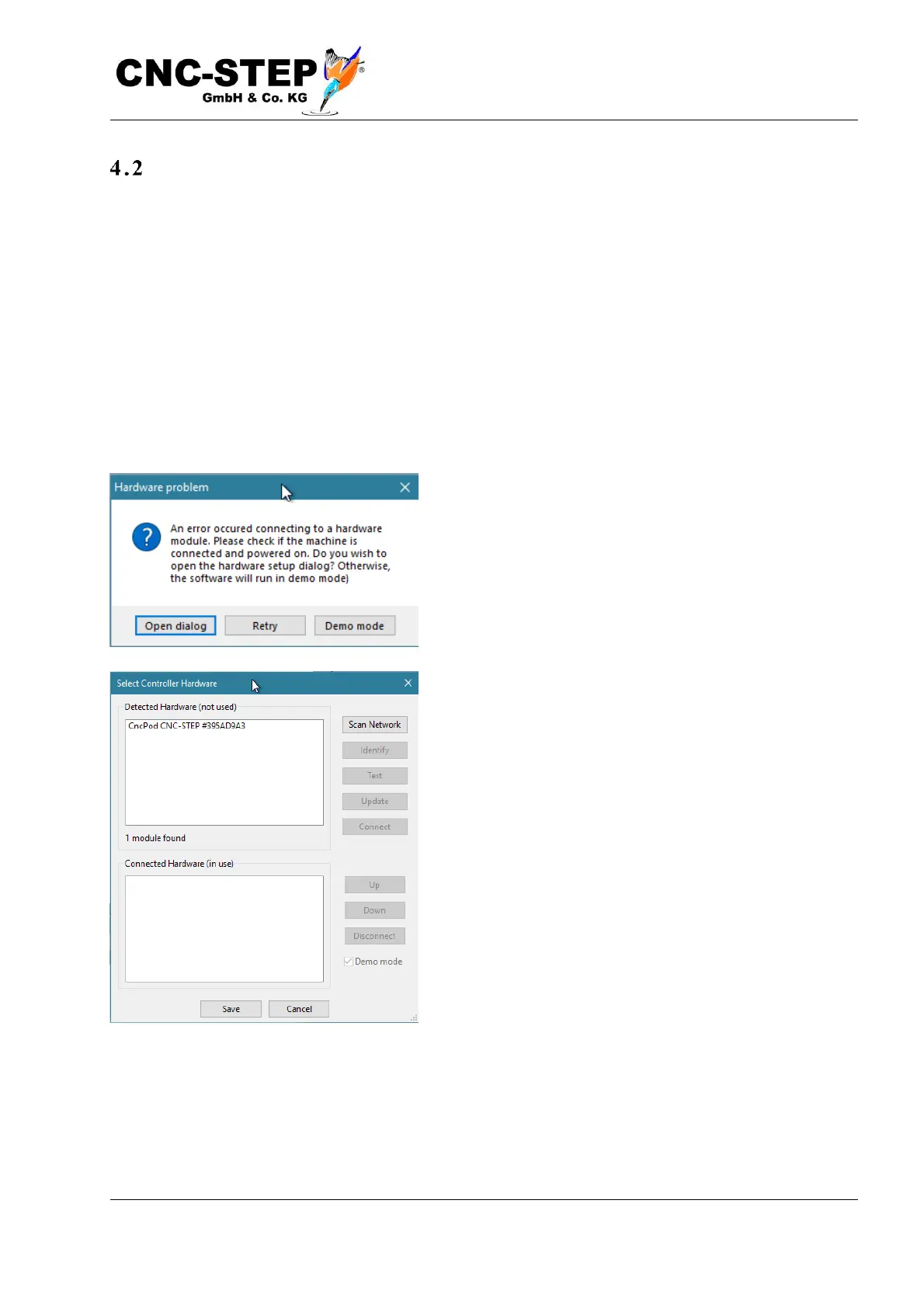
connection, the following dialog appears:
Turn the machine on and click on the button "Scan
Network". The hardware selection dialog will then
appear as shown on the bottom right. This is necessary
because the CncPod does not have an "exclusive" port
but shares the infrastructure of the possibly larger
computer network. It is possible that several machines
are connected in a network, or that a machine in addition
to the CncPod also uses other hardware modules. Each
module has a unique number (MAC address), so that the
software can remember the assignment of "its" modules.


 To Next Page