Chapter 11 System Management
11.2 Functions in the Action Area for System
ETERNUS Web GUI User’s Guide
455
Copyright 2011 FUJITSU LIMITED P2X0-1090-02ENZ0
11.2.1 Change User Password
This function changes the current user's (your) password.
The procedure to change the password is as follows:
1 Click [Change User Password] in [Action].
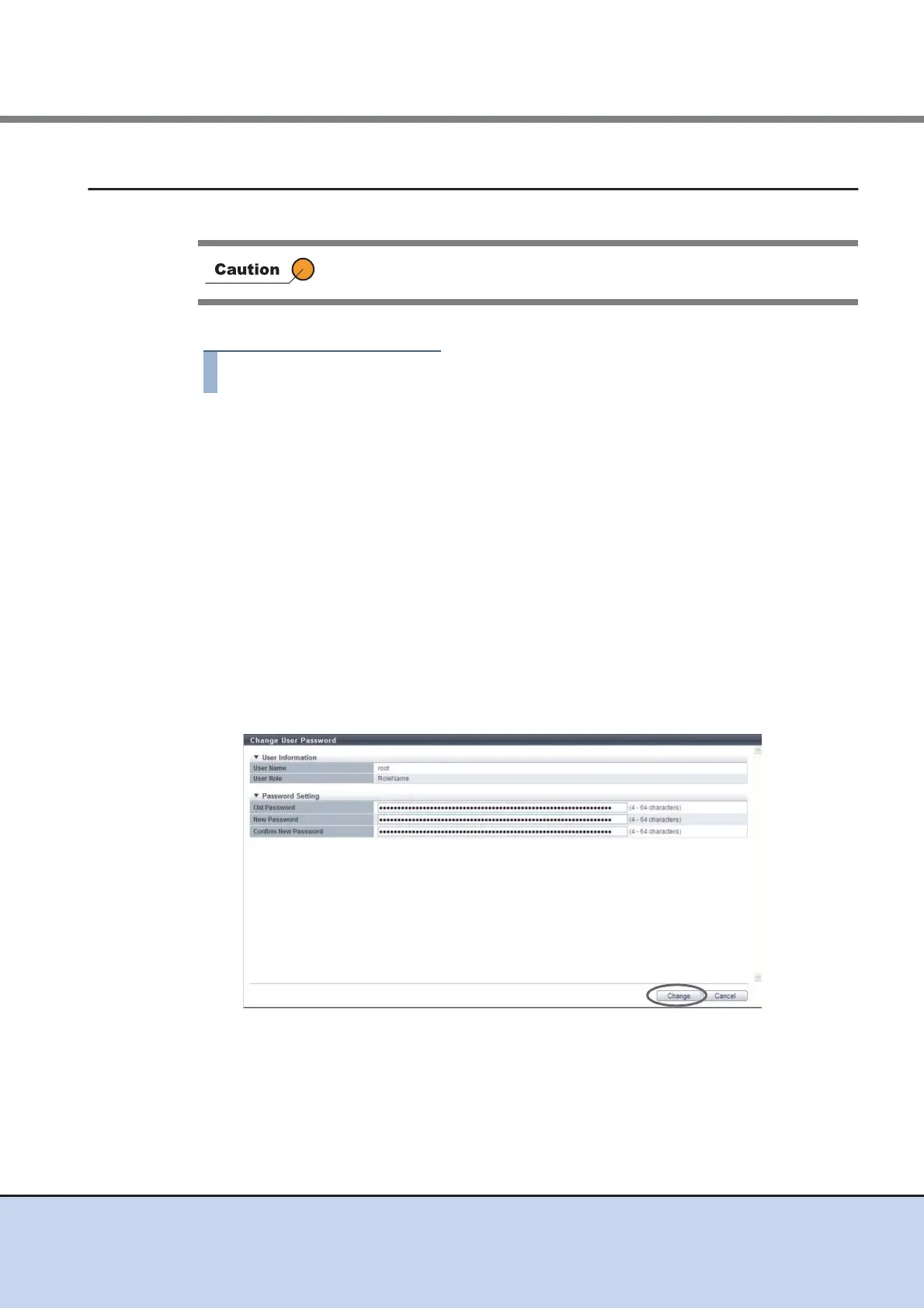
2 Specify the parameters, and click the [Change] button.
• Old Password
Enter the current password.
The following input condition applies:
- 4 - 64 alphanumeric characters and symbols ('!', '-', '_', '.')
• New Password
Enter a new password.
Entered letters are case-sensitive.
The following input condition applies:
- 4 - 64 alphanumeric characters and symbols ('!', '-', '_', '.')
• Confirm New Password
Enter the same character string as the value entered in the "New Password" field for
confirmation.
→ A confirmation screen appears.
When RADIUS Authentication is used for login, the password cannot be
changed.



 To Next Page