Chapter 11 System Management
11.2 Functions in the Action Area for System
ETERNUS Web GUI User’s Guide
456
Copyright 2011 FUJITSU LIMITED P2X0-1090-02ENZ0
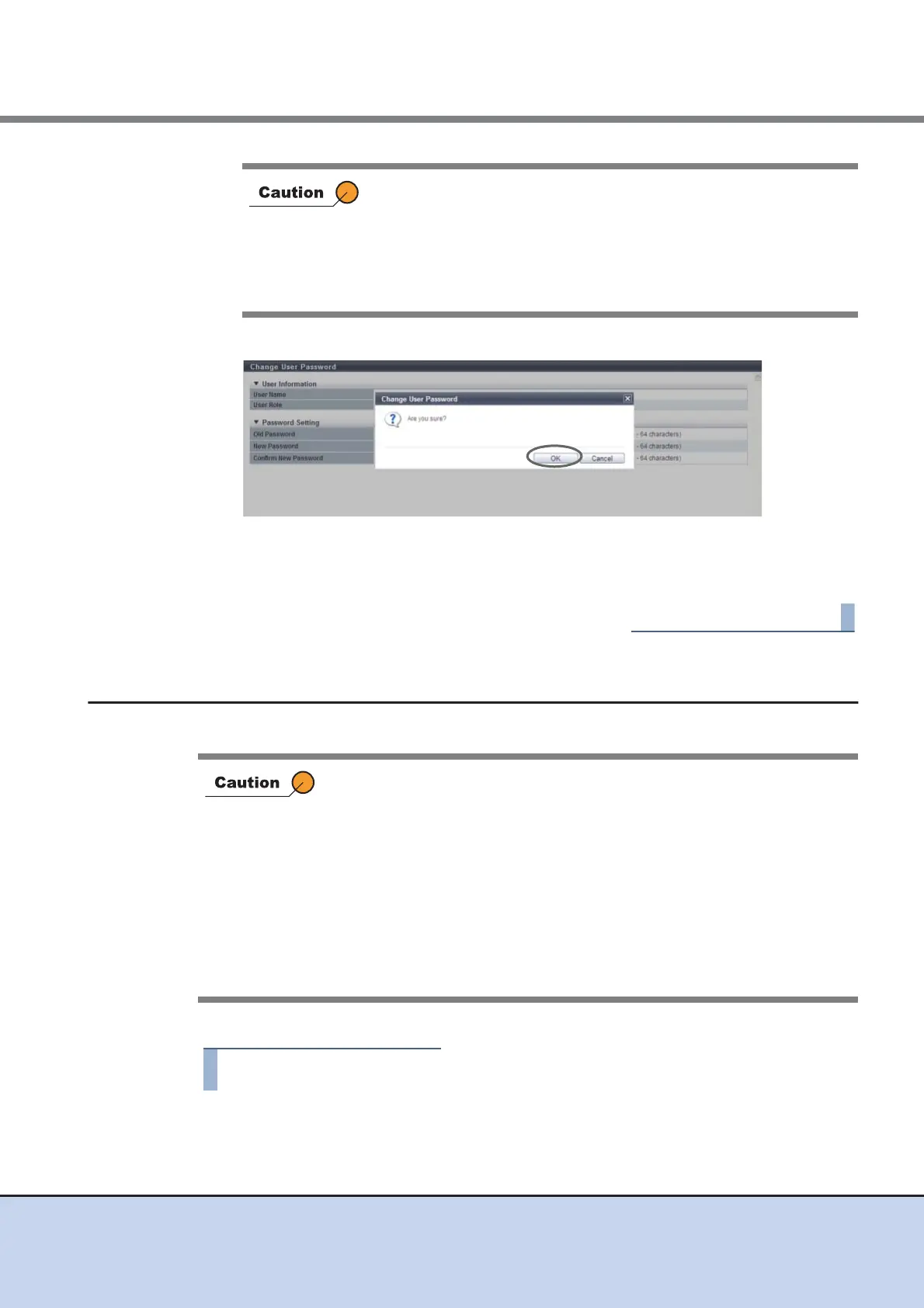
3 Click the [OK] button.
→ Changing of the user password starts.
4 Click the [Done] button to return to the [System] screen.
11.2.2 Set SSH Public Key
This function registers, changes, or deletes the current user's (your) SSH client public key.
The procedure to set the SSH public key is as follows:
1 Click [Set SSH Public Key] in [Action].
In the following cases, an error screen appears:
• When a parameter does not satisfy the input conditions
• When the registered password does not match "Old Password"
• When "Old Password", "New Password", and/or "Confirm New
Password" is not entered
• When "New Password" does not match "Confirm New Password"
• When using the SSH Client Key authentication, create a pair of the SSH
client public key and the SSH client secret key in advance, using the
creation tool. One public key can be registered per user account. When
this function is executed, the public key is registered in the ETERNUS
DX Disk storage system.
• The following types (formats) of public keys can be used:
- RSA for SSH1 (OpenSSH)
- DSA for SSH2 (IETF)
- RSA for SSH1 (IETF)
The maximum of encryption strength of the supported public key is
4096-bit.



 To Next Page