bizhub C652/C552 4-16
4.9 The [Guidance] key
4
4.9 The [Guidance] key
Press this key to view and check descriptions of various functions and operating procedures. When the
[Guidance] key is pressed, the Guidance screen for the displayed screen appears.
0 From the Help main menu screen, you can find the target Guidance screen based on the function or
purpose.
0 Refer to the left panel of the Guidance screen to check the position of the displayed Guidance screen
in the menu structure.
0 Press [Close] in the Guidance screen to move up one level in the menu structure. Press [Exit] to exit
Guidance mode and return to the screen that was displayed before the [Guidance] key was pressed.
Press [To Menu] to display the Help main menu.
0 In the Main Menu and Guidance Menu screens, select items by pressing the button or by pressing the
key in the keypad.
0 The Guidance screens cannot be displayed when the following operations are being performed:
Scanning, printing a proof copy, preview of a finished copy, operating in Enlarge Display mode, or
operating in Accessibility mode
0 While the Guidance screen is displayed, the following keys on the operation panel are disabled:
[Start], [C], [Interrupt], [Proof Copy], [Access], [Mode Memory], and [Enlarge Display]
% Press the [Guidance] key.
Settings
Function Check descriptions by selecting a Guidance menu grouped by function
type and name.
Search by Operation Check descriptions by selecting a Guidance menu grouped by operation
type.
With [Go to function] displayed, the function for the selected operation can
be set. However, when the fax/scan function is used, for example, [Go to
function] displayed on a Guidance screen for the copy function, for exam-
ple, cannot be selected as it is a different function from the one in use.
Function Map Check descriptions from a navigation destination of the current screen or
the menu structure it belongs to.
Other Functions Check descriptions by selecting a Guidance menu grouped by useful func-
tion.
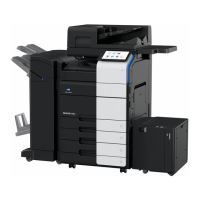
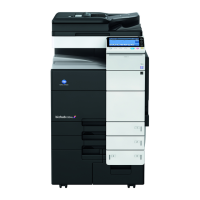
Name and Function of
Parts
Check the description of the main unit and its options.
Service/Admin. Informa-
tion
Check the name, extension number and E-mail address of the administra-
tor.
Consumables Replace/
Processing Procedure
Check procedures for replacing the toner cartridge, imaging unit or waste
toner box, adding staples or discarding punch-hole scraps by viewing an-
imations. Press the target button, and then press [Start Guidance].






 To Next Page