bizhub C652/C552 5-20
5.4 Application
5
5.4.1 Sheet/Cover/Chapter Insert
OHP Interleave
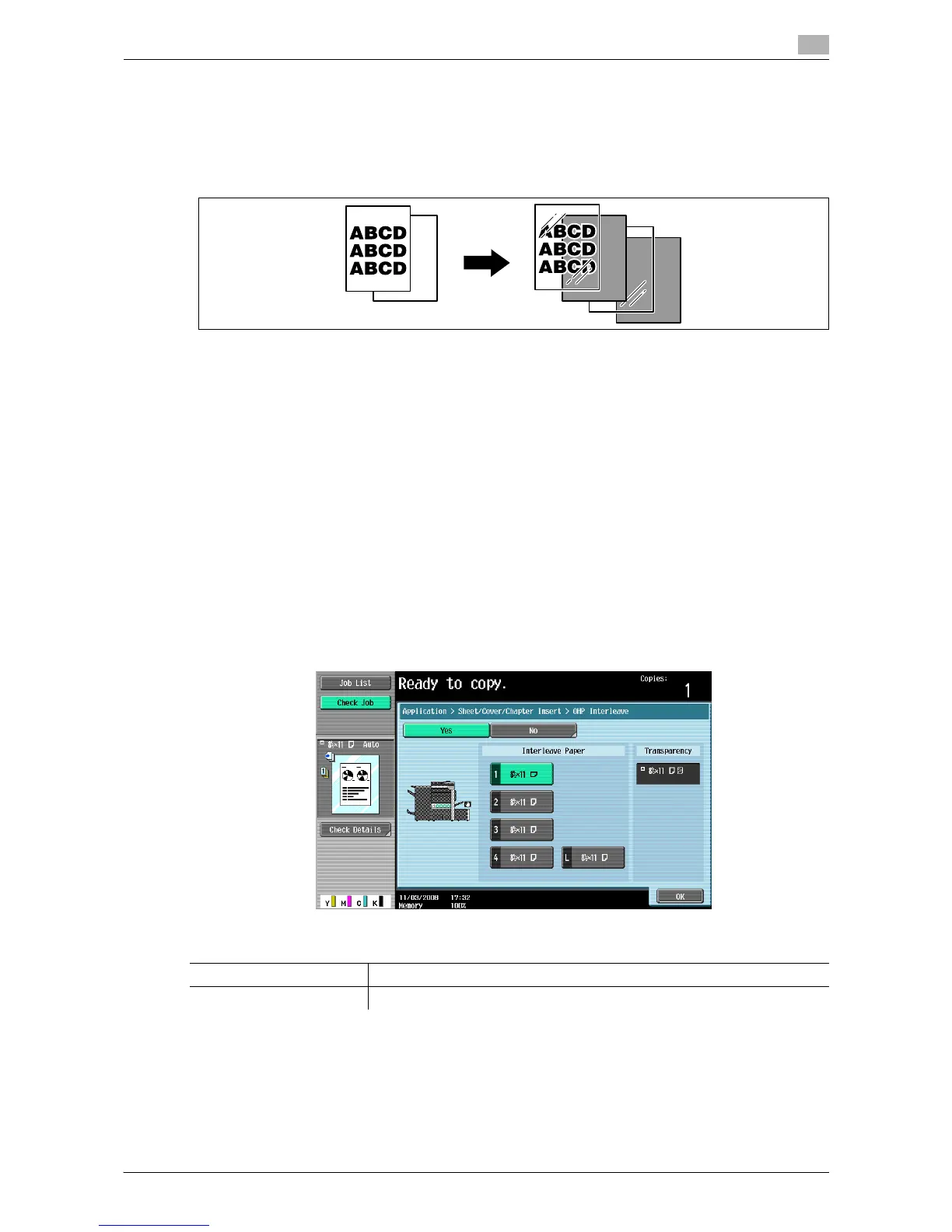
Prevent copies printed onto OHP transparencies from sticking together because of the heat produced during
copying by having paper (interleaves) inserted between the transparencies.
0 Printing on OHP transparencies is possible only in black.
0 Use interleaf paper with the same size as the OHP transparencies.
0 The number of copies is fixed to one. You cannot change this setting.
0 The Finishing function is not available.
0 Load transparencies into the bypass tray.
0 Do not use a transparency that has been through the machine even once. It may lead to reduced print
quality, a paper jam or a damage to the machine. (Even if a transparency has been discharged without
printing, it cannot be reused.)
1 Load the original.
2 Press [Basic] ö [Color] ö [Black].
3 Load transparencies into the bypass tray. Load the interleave paper into the desired paper tray.
4 Set the paper type of the bypass tray to [Transparency] and press [OK].
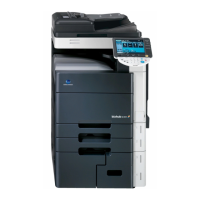
5 Press [Application] ö [Sheet/Cover/Chapter Insert] ö [OHP Interleave].
d Reference
Setting Black for Color Settings:
Press [Basic] ö [Color] ö [Black].
Settings
Interleave Paper Select the paper tray loaded with paper with a transparency interleaf.
Transparency Indicates the paper size of the loaded transparency.






 To Next Page