bizhub C652/C552 9-7
9.2 Troubleshooting table
9
Main messages and their remedies
If any message other than those listed below appears, perform the operation described in the message.
Connecting the authentication
unit to the computer starts the
hardware uninstall wizard
Is the USB port to which the au-
thentication unit is connected the
same as the one used when in-
stalling the driver?
If you connect the authentication
unit to a different USB port from
the one used when installing the
driver, the hardware uninstall
wizard may start. Use the same
USB port as the one used when
installing the driver.
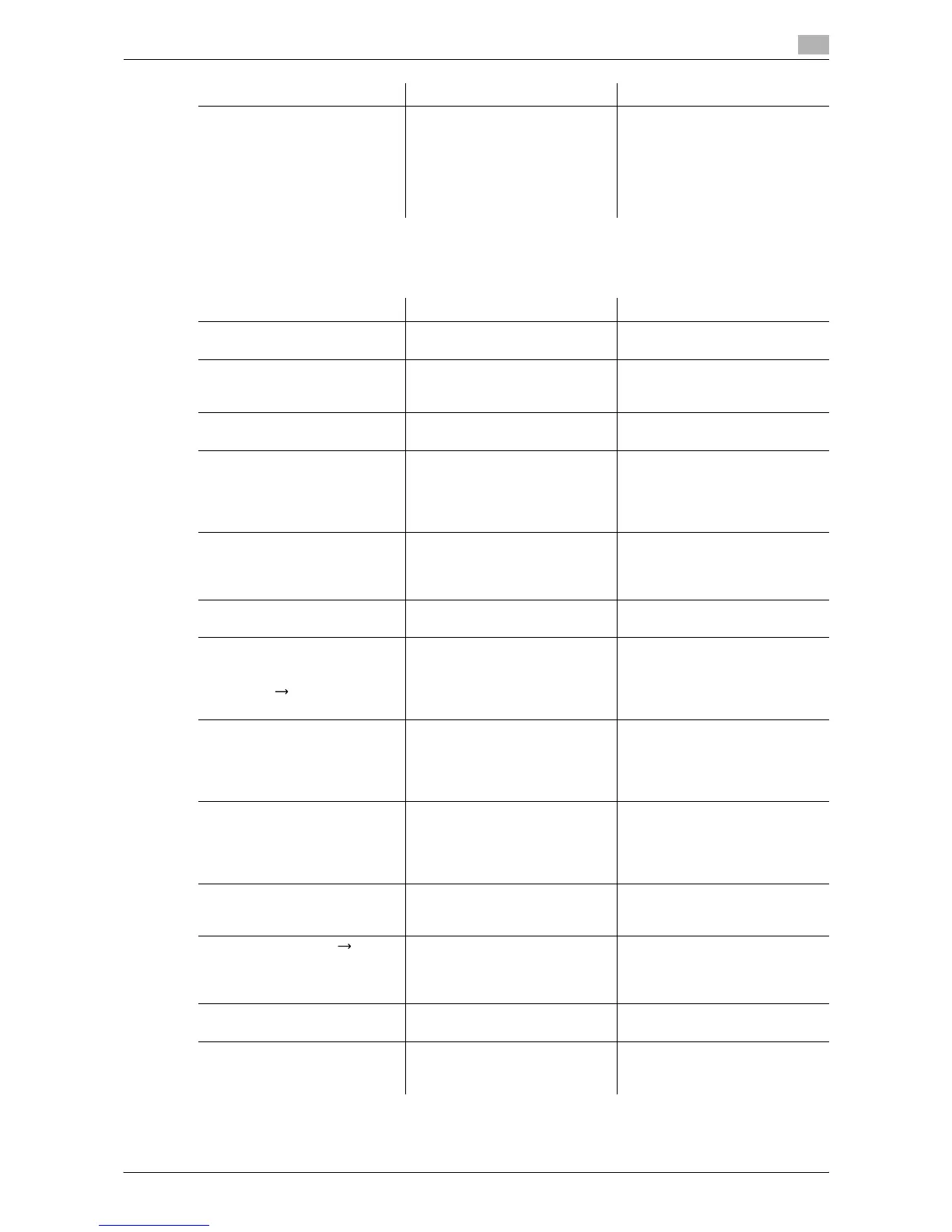
Description of problem Check points Remedy
Message Cause Remedy
Originals left on original glass. The original has been left on the
original glass.
Remove the original from the
original glass.
Paper of matching size is not
available.
Select the paper size.
Paper of a suitable size is not
loaded in a paper tray.
Either select paper of a different
size or load paper of a suitable
size.
Place paper in Bypass Tray. Paper of a suitable size is not
loaded in the bypass tray.
Load paper of the appropriate
size into the bypass tray.
The original size cannot be de-
tected
Select the paper size.
(1) The original is not positioned
correctly.
(2) An original with a nonstandard
size or with a size too small to be
detected is loaded.
(1) Position the original correctly.
(2) Select the correct paper size.
The image will not fit in the se-
lected paper size.
Change the direction of the orig-
inal
The image does not fit in the pa-
per.
Turn the original 90° and load it.
Cannot be set with XXX. Functions that cannot be used
together are selected.
Make copies using only one of
the functions.
The output tray has reached its
capacity.
Remove paper from the tray in-
dicated by .
Since the maximum amount of
copies for the indicated finisher
output tray has been exceeded,
the machine is unable to make
copies.
Remove all paper from the indi-
cated tray.
Enter the login user name and
password and then touch
[Login] or press the [Access]
key.
User authentication settings
have been configured. Copies
cannot be made unless a user
name and correct password are
entered.
Enter the correct user name and
password. (p. 4-9)
Enter Account Name and pass-
word, and then touch [Login] or
press the [Access] key.
Account track settings have
been configured. Copies cannot
be made unless an account
name and correct password are
entered.
Enter the correct account name
and password. (p. 4-9)
Your account has reached its
maximum allowance.
The limit on the number of pages
that can be printed has been
reached.
Contact the administrator of the
machine.
The part indicated by is
open.
Ensure that it is properly closed.
Since a machine door or cover is
open or an option is not installed
correctly, the machine is unable
to make copies.
Make sure that all doors and
covers of this machine and op-
tions are closed securely.
Check covers. The exit cover of the finisher is
open.
Securely close the exit cover of
the finisher.
Install the Imaging Unit and
close all doors
The indicated Imaging Unit is not
installed correctly.
Reinstall each consumable and
replaceable part. Or contact your
service representative.






 To Next Page