bizhub C652/C552 4-19
4.11 The [Proof Copy] key
4
Using a preview image to check the copy result (Advanced Preview)
Check the finishing image of a copy in the touch panel before printing. This prevents copy errors from
occurring.
0 When you scan the original using the Program Jobs function, scan all originals, press [Finish], and then
preview the finishing state.
0 When you attempt to scan the original with an insert page specified, the machine scans the original first,
and then the insert original. When this process is complete, you can preview the finishing state.
0 To use the Book Copy or Booklet function, no preview is available. Check the finishing state after
printing.
1 Load the original.
2 Select the desired copy settings.
3 Press the [Proof Copy] key.
4 Press [Preview on Screen] for the proof copy method and then select the original direction.
5 Press the [Start] key.
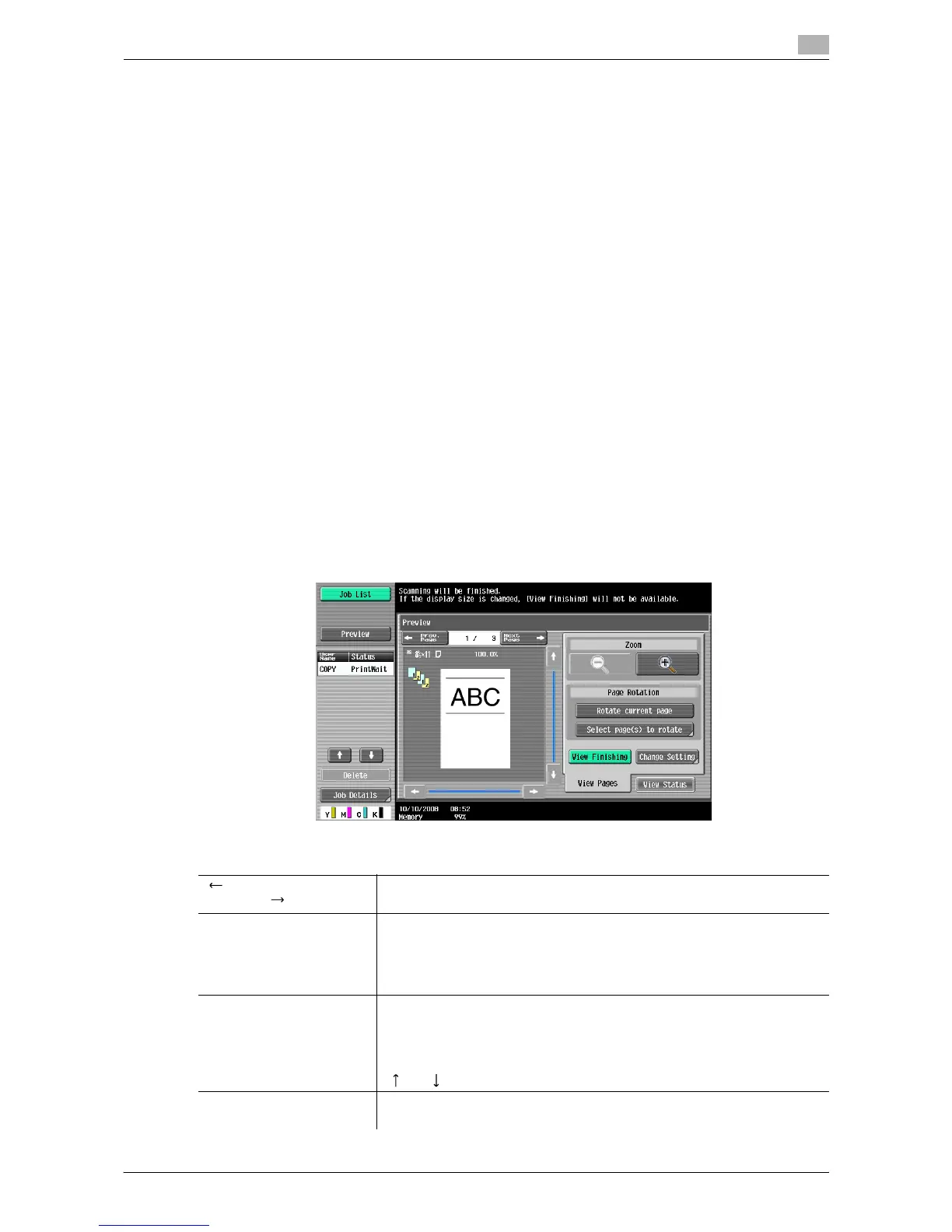
The Preview (View Status) screen appears.
6 Check the preview image.
% To change the settings, press [View Pages]. Go to Step 7.
% To start printing, press the [Start] key.
% To scan another original, press [Finish], load the original, and then press the [Start] key.
7 Change the settings, and then press [View Status].
Settings
Prev. Page/
Next Page
Switch from the current screen to either the previous or the next screen.
Zoom Enlarge the preview image and check the details. Press [+] and [-] to
change the zoom ratio from full size to 2, 4 or 8 times the normal size. To
select a different area to be enlarged, touch the scroll bar arrows on the
right and at the bottom side of the image.
The finishing state cannot be displayed if you change the display size.
Page Rotation Rotate the preview image 180 degrees in order to correct the orientation of
the original if necessary.
Pressing [Rotate current page] rotates the currently displayed page.
Pressing [Select page(s) to rotate] displays the Scanned Page List. Select
the page to be rotated. Up to eight scanned pages can be displayed. Press
[ ] or [ ] to change the selection.
View Finishing View the finishing settings using icons or in text on the preview screen, and
check the finishing state.






 To Next Page