bizhub C652/C552 5-11
5.1 Basic
5
Offset Yes/No Specify whether to separate each set of copies from another set in the output
tray when copying multiple sets of multi-page originals.
If no finisher is installed:
If the following conditions are met, printed copies are fed out and sorted in an
alternating crisscross pattern.
•8.5 e 11, A4 or B5 paper is used
• Paper of the same size and type is loaded with the w orientation in one pa-
per tray and with the v orientation in another tray
• Auto paper selection is specified for the paper size setting
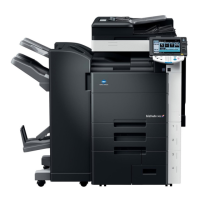
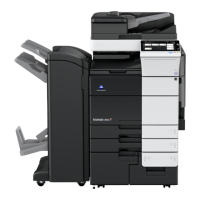
If a finisher is installed:
The copies are fed out and stacked on top of each other with each set shifted
to separate it.
Fold/Bind Staples copy outputs in the center the paper or fold them in the center before
discharging.
<Half Fold> <Center Staple & Fold> <Tri-Fold>
Staple Staples copies in corner or at two points before they are output.
Punch Punches holes in copies before they are output.
Position Setting Configure desired staple or hole-punch positions.
Select Auto, and the machine automatically judges the staple or punch posi-
tions for the paper relative to the original direction loaded.
• A staple or hole-punch position is set along the long side of the paper if the
original length is 11-11/16 inch or less.
• Staple or hole-punch positions are set along the short side of the paper if
the original length is more than 11-11/16 inch.
• Staple or punching positions are set on the upper or left-side end.
• Be sure to load the original so that its top side is placed in the back.
• If desired, press [Original Direction], and then select the original direction.
Settings
1






 To Next Page