30 7. Enabling the P.I.P. window (Picture In Picture) – Programming Manual
7.
ENABLING THE P.I.P. WINDOW (PICTURE IN PICTURE)
Press the
Shift
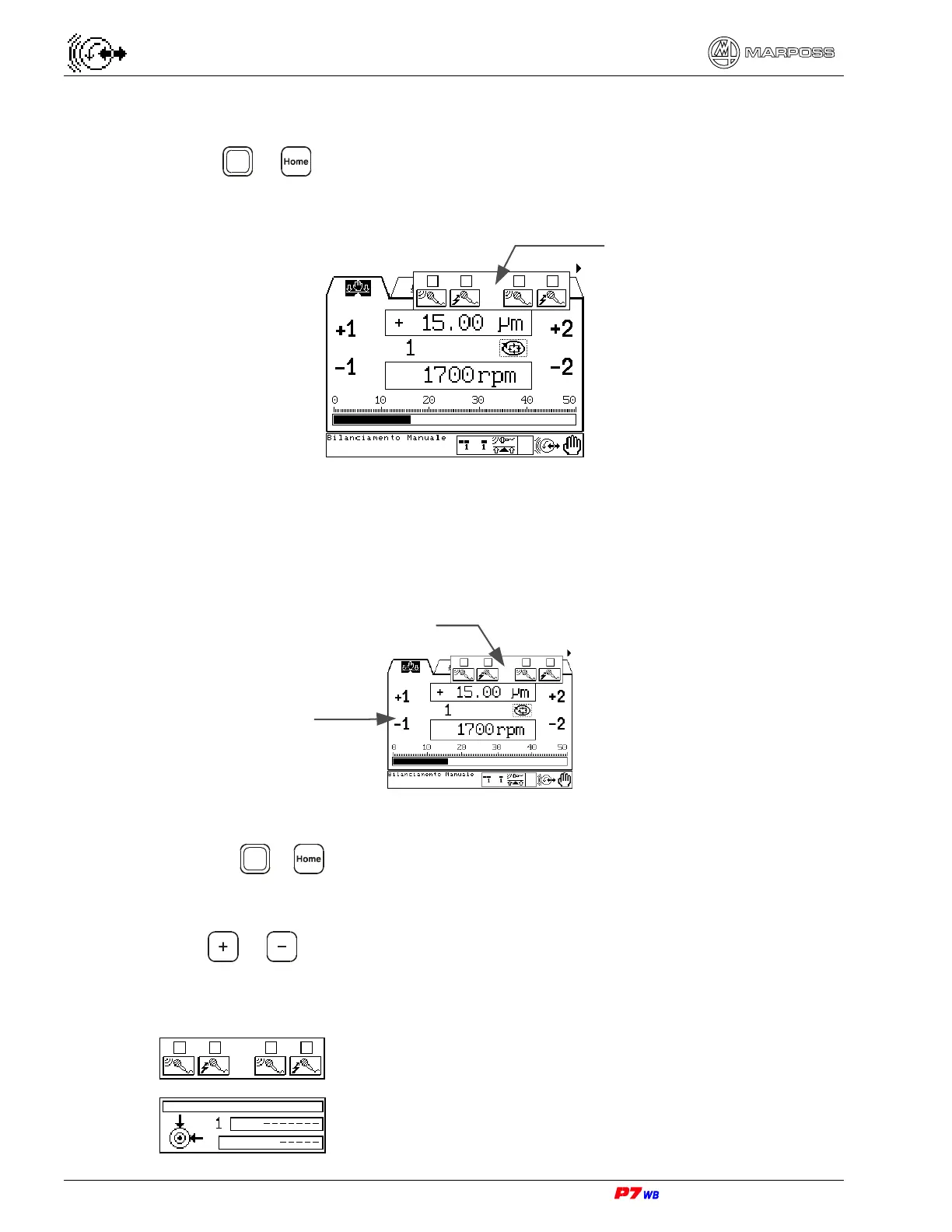
+ keys to make a P.I.P. (Picture In Picture) window appear on
display. The P.I.P. window views the main information relevant to each process
control present in the application.
The P.I.P. window allows simultaneously monitoring either different situations of a
same process control.
Examples:
Main display screen and P.I.P. window relevant to “Wheel Balancing” control
How to select the type of P.I.P. window (information to be displayed)
• Press the
Shift
+ keys to highlight the window (a dotted line is displayed on the
window outline and a flashing icon on the display bottom left indicates the process
control relevant to the P.I.P. window.)
• Press or to select the type of P.I.P. window (information to be displayed)
For the Wheel Balancing control it is possible to select one of the following
windows:
Status of Gap & Crash controls
Balancing cycle parameters (vibration value, wheel
rotation speed, balancing status)
P.I.P. window
Status of GAP and
Crash controls
Manual Balancing
page.



 To Next Page