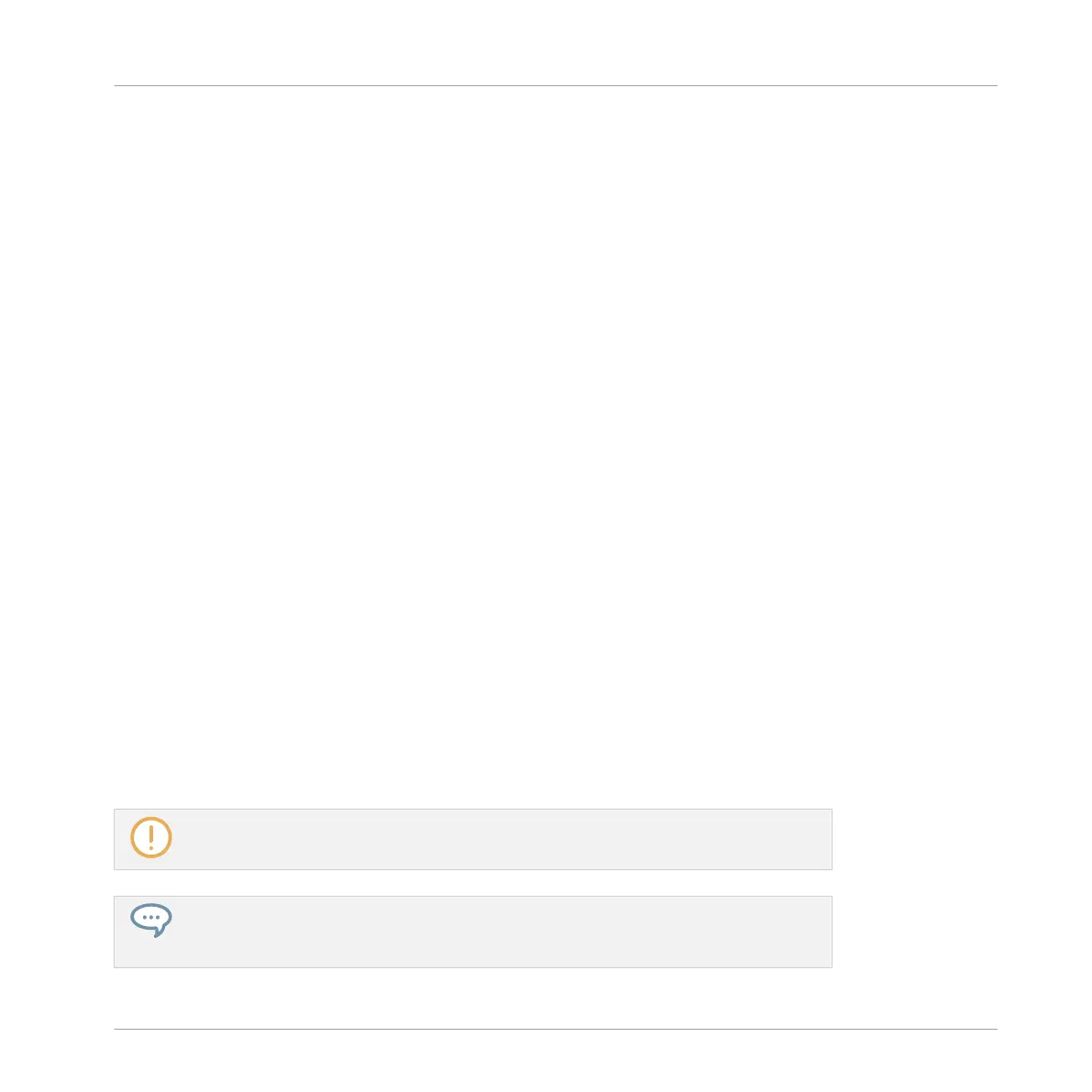
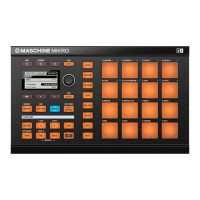
4. While holding NAV, turn the Control encoder or press the dimmed pads to select the de-
sired Plug-in slot.
The name of the selected Plug-in appears in the display — if there are no Plug-ins in the
channel this will read (NONE).
→
You are now ready to load, insert, remove or replace a Plug-in as described in the follow-
ing paragraphs.
Loading a Plug-in in Place
To load a Plug-in into the selected Plug-in slot, do the following:
1. Press SHIFT + BROWSE to open the Plug-in Browser and browse the available Plug-ins.
2. Press F1 to select FILTER.
3. If you have selected the first Plug-in slot of a Sound, press the Left/Right Arrow button to
select the 1/2: TYPE parameter, turn the Control encoder to select TYPE from INTERNAL,
NI or EXTERNAL, then press the Right Arrow button to select the 2/2: SUBTYPE parame-
ter, and turn the Control encoder to select the SUBTYPE from INSTRUMENT or EFFECT.
The display shows the number of available Plug-ins corresponding to your selection.
4. If you have selected any other Plug-in slot, simply turn the Control encoder to select the
TYPE from INTERNAL, NI or EXTERNAL.
The display shows the number of available Plug-ins corresponding to your selection.
5. Press F2 (LIST) to show the filtered list.
6. Turn the Control encoder to browse the available Plug-ins corresponding to your selection.
7. When you have found the Plug-in you want to use, press the Control encoder to load it.
The Plug-in is loaded into the selected Plug-in slot.
8. Press SHIFT + BROWSE again to leave the Plug-in Browser.
If the selected Plug-in slot was not empty, the previous Plug-in will be replaced with the
new Plug-in!
Instead of using the Plug-in Browser, you can also use the common Browser to load a
particular preset for a Plug-in. Please refer to section ↑3.2, Searching and Loading Files
from the Library for more information.
Working with Plug-ins
Plug-in Overview
MASCHINE MIKRO - Manual - 271


 To Next Page