Getting started 51
Continue with step 8 when you select 'Yes'.
Continue with step 9 when you select 'No'.
8 After you select 'Yes', press the key for 'Next'.
The screen displays 'Finish' and 'Back'.
Press the key for 'Finish' if you want to use the DHCP server. The network
settings are now received from the DHCP server. The wizard finishes here.
Press the key for 'Back' and continue with step 10 if you want to configure the
network settings manually.
9 After you select 'No', press the key for 'Next'.
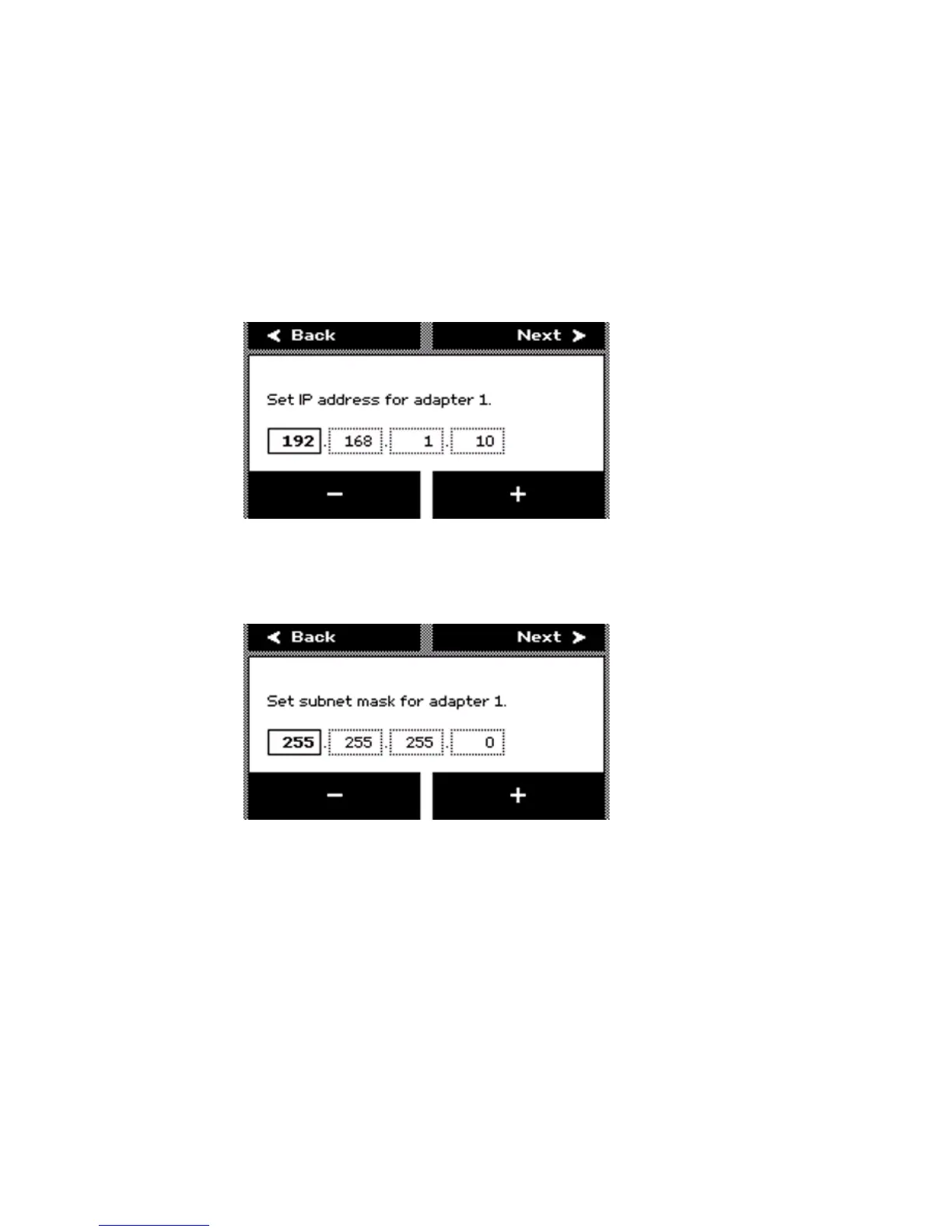
10 The screen displays 'Set IP address for adapter [number]'.
Press the keys for '-' and '+' to define the IP address.
After you finish an octet, press the key for 'Next' to go to the next octet.
11 Press the key for 'Next' after you finish the last octet. The screen displays 'Set
subnet mask for adapter [number]'.



 To Next Page