70 • Basic Operations Sam4POS Operators Manual v2.33
Corrections & Voids
Clear
Touch the CLEAR key to erase numeric entries or clear an error condition.
Void Item
Use the VOID ITEM key to void an item previously entered in a transaction. When a main item is voided, the
condiments associated with the item are also removed.
To void a previous item:
Touch the item or condiment where it is displayed – note that the item touched is now selected and
highlighted.
Touch VOID ITEM key to remove the selected item or condiment.
If there is no Void Item key on the keyboard, you can press & hold on the item you wish to void, then
select Void Item from the selection on the dialog.
On a % discount or Surcharge transaction, you must FIRST void the discount or surcharge, then you may void the
items from the transaction.
Note: The signed on employee must have the authority set to “Allow Void Item”.
Cancel
Use the cancel function to completely abort a transaction in progress. No totals or counters are updated for items
registered prior to cancelling a transaction. Cancel cannot be used after tendering or finalization. Employee
authority determines if the Cancel function is allowed. Cancel does not open the cash drawer.
Touch CANCEL to abort a transaction in progress.
Transaction Void
A VOID MODE key must be placed on the keyboard. If the Void Mode key is set for manager control, entry of
the manager password is required. The Void Mode key can also be set for Pop-Up or Stay-Down operation.
On the SAP-630 & SAP-530, you can turn the key lock the VOID position.
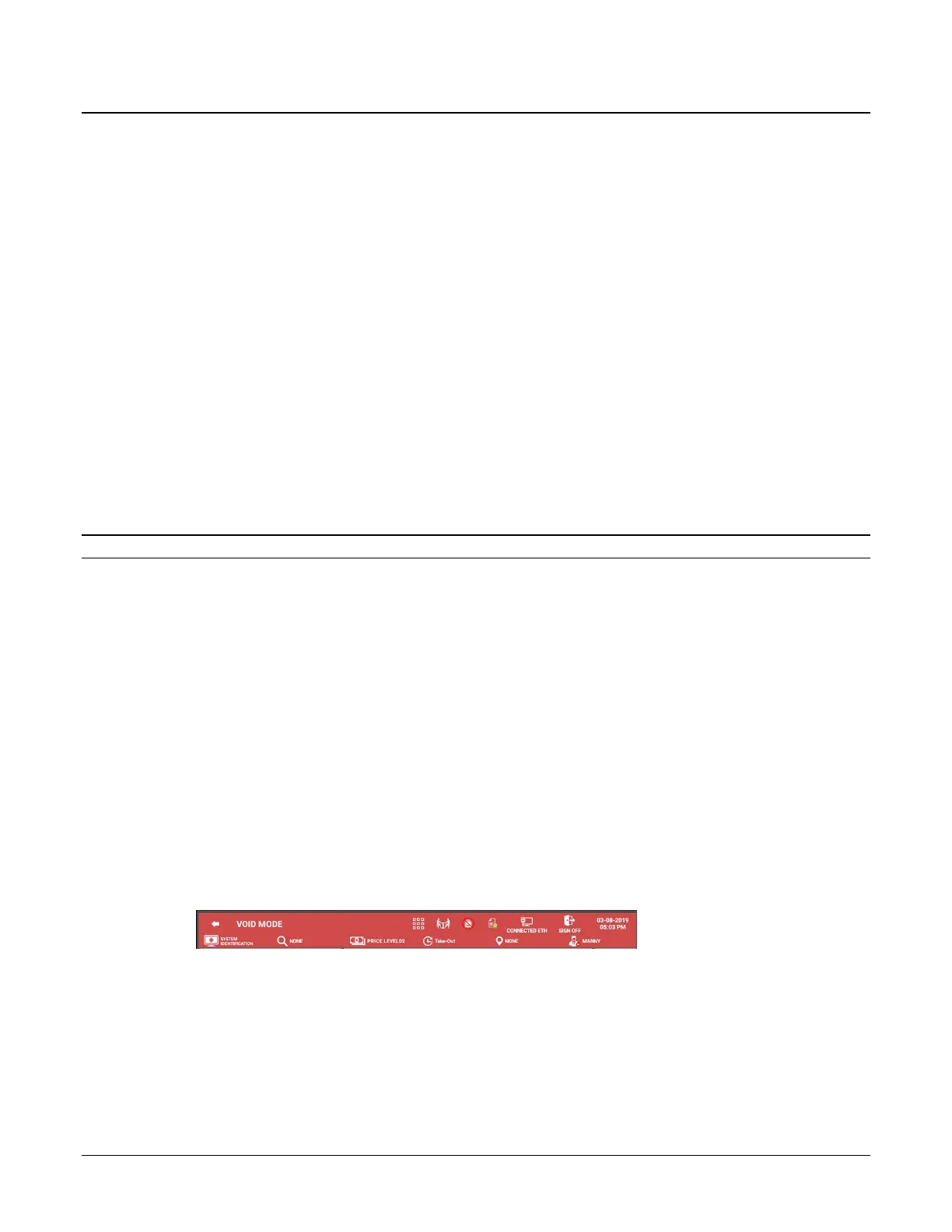
1. Touch the VOID MODE key. If required enter the manager password. The header ribbon will turn red
and show VOID MODE for the header title.
2. Enter Items to be voided. Finalize the transaction using the appropriate tender key.
3. If the Void Mode key is set for pop-up, the terminal will return to the normal Register Mode.
4. If the Void Mode key is set for stay-down, void additional transactions as necessary.
5. Touch the VOID MODE key again to exit Void Mode.


 To Next Page