Sam4POS Operators Manual v2.33 Using the Table Map • 143
Opening a Table
• Open the Table Map and select the appropriate Seating Zone.
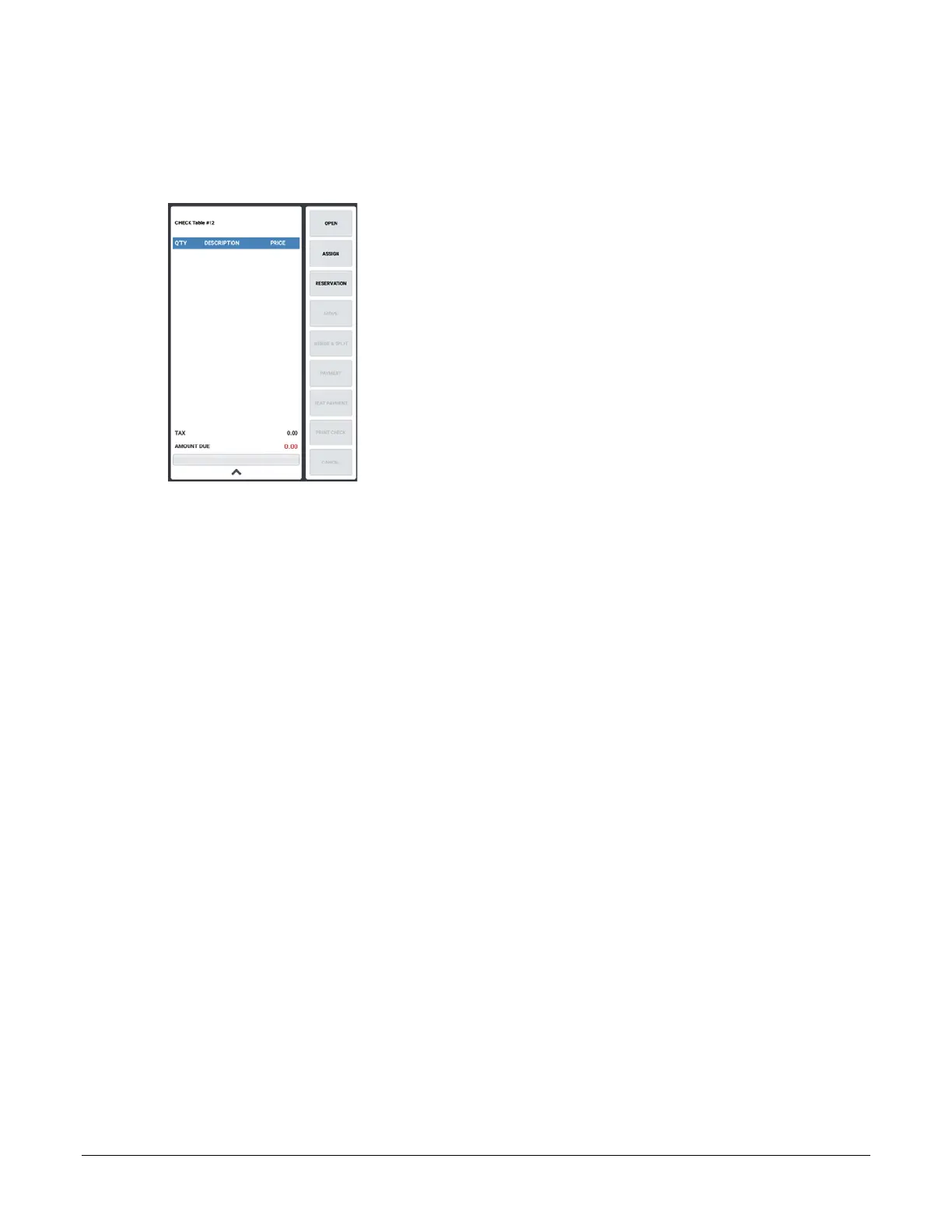
• Touch a Table to open the check associated with the table:
• Touch the OPEN button to open the check for the selected table.
o Alternately, you can double-tap a table on the table map to open the table.
• The ASSIGN button will assign the table to the currently signed on employee.
• The Reservation button is not used at this time.
Entering Table Guest Counts
• If required, enter the guest count at the prompt and touch ENTER. If the guest count is not required, but
you want to enter a guest count, press the Guest # key to enter the count.
Storing the Table
• When the desired items are added to the table, press the corresponding Store Table key to service the
Table.
• Alternately, if the Table Map icon is pressed while another table is open, the current table is stored.
Move Balance to another Table (Combine Tables)
• Open the Table Map, Select the active table you wish to move and touch the MOVE button, then touch
the open table you want to move it to. The order will be moved to the selected open table.
• You can merge tables using this operation as well. Open the Table Map, Select the active table you wish
to move and touch MOVE, then touch a different active table you want to move it to.
• When the MERGE confirmation dialog appears, touch YES to merge the two tables; the tables will be
merged together; pressing NO on the MERGE dialog will abort without merging the two tables.


 To Next Page