MRD 3187B - User Manual
Page 172 (245)
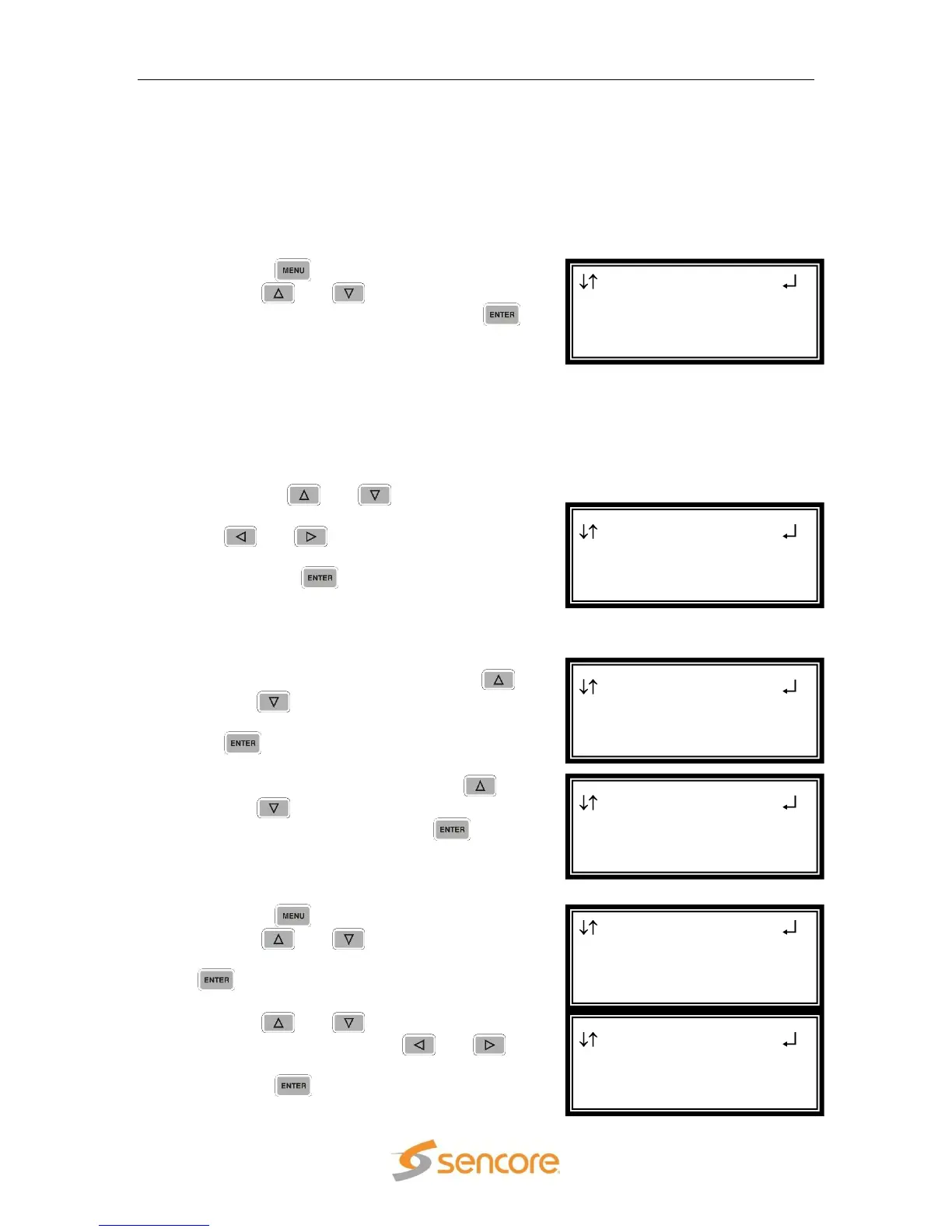
4.27 Panel Lock
Description: The MRD 3187B has the option to lock out the front panel with a user
defined password. Follow the steps below to the MRD 3187B front panel. A
Locked front panel prevents the user from changing any of the settings. All menu
status displays are still available.
Locking
1. Press the
button.
2. Use the
and
buttons to move the
cursor to “Lock Panel” then press the
button.
Note: In order to lock the Front Panel, the unit must have a password. When Locking
for the first time, user is prompted to enter a password. The message “No
Password set. Please set Password” is displayed and the unit goes to the Set
Password menu.
Set Password Menu
To set the password, use the following steps:
1. Use the
and
buttons to
change the character and then the
and
buttons to move to the
next character.
2. Press the
button when finished,
to save the password. The unit goes to
the Lock Menu.
Lock Menu
1. The current password is displayed.
2. To change the password, use the
and
buttons to move to cursor to
the shown password and press the
button. The unit displays the Set
Password Menu.
3. To lock the front panel, use the
and
buttons to move to cursor to
“Lock Panel” and press the
button.
Unlocking
1. Press the
button.
2. Use the
and
buttons to move the
cursor to “Unlock Panel” then press the
button.
3. Use the
and
buttons to change
the character and then the
and
buttons to move to the next character.
4. Press the
button to unlock the front
panel.
To Unlock ←→
Enter Password
----------
Menu
Network Services
Network Interface
►Unlock Panel
Set Password ←→
Current Password
Sencore
►Lock Panel
Set Password ←→
Current Password
► Sencore
Lock Panel
Set Password ←→
----------
Menu
Network Services
Network Interface
►Lock Panel


 To Next Page