MRD 3187B - User Manual
Page 187 (245)
5.3.1 Input Setup
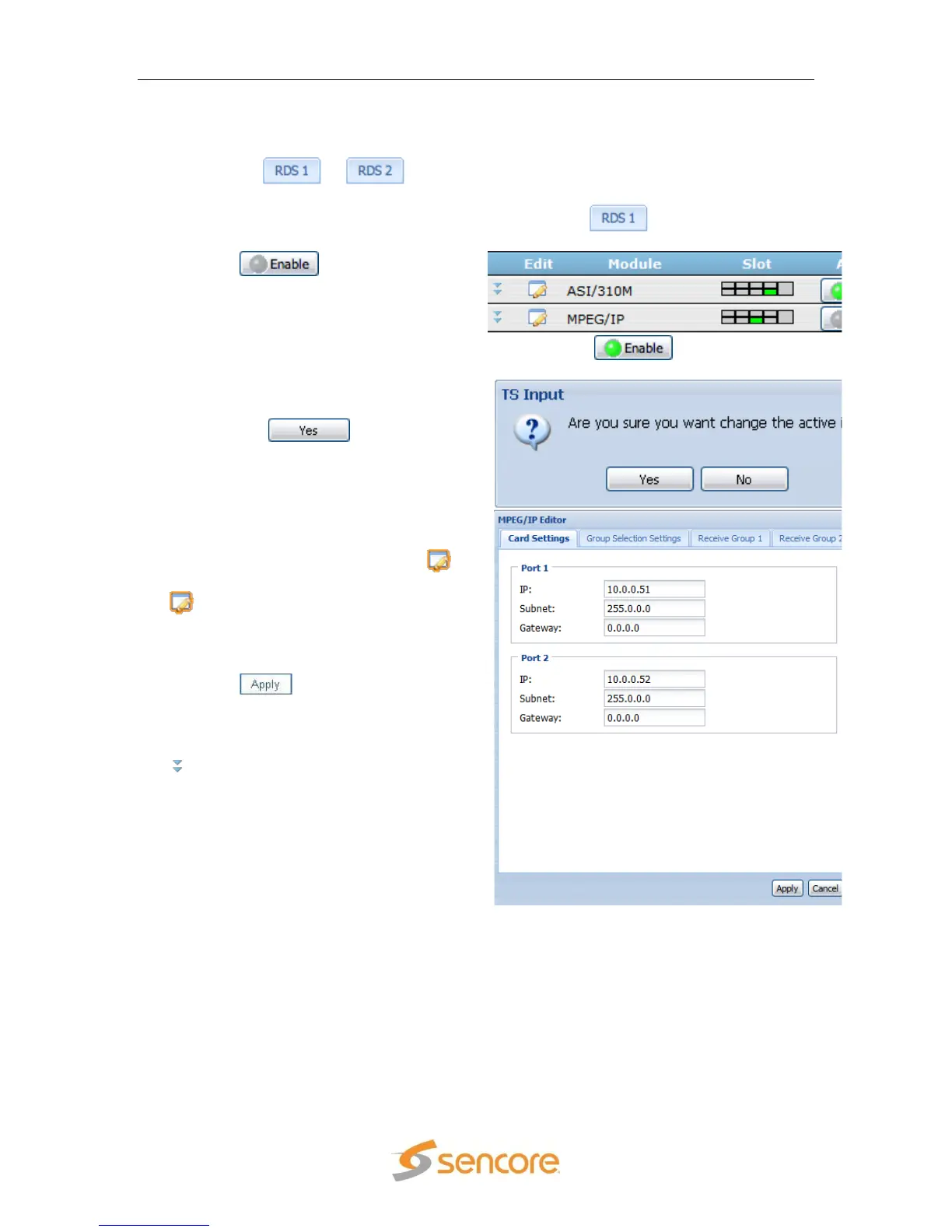
To set the desired input as active use the following steps:
1. Click on the or tab of the corresponding RDS that needs to be
configured.
Note: In a Configuration 1 MRD 3187B, there will only be a tab.
2. Click the button on the same
line as the input you wish to make
active.
Note: The input is already active if the button looks like this:
3. A dialog box will appear asking “Are you
sure you want to change the active
input?” Click to approve the
action.
4. Once the desired input had been set to
active, the specific options of that input
card can be set by clicking on the
icon next to the active input. When the
icon is clicked, an edit window will
appear with the specific options for that
card. Use the drop down menus and
input boxes to complete the edit form.
Click the button at the bottom of
the form to save the settings. The
current settings for any of the input
cards can be verified by clicking on the
button next to the desired input.
5.3.2 Services Setup
After the desired input has been selected and configured, now the session needs to be
setup.
All of the following options can be found under the “Services” heading.
Services
The “Services” edit menu defines which program is going to be decoded. These can
be setup in four different ways depending upon the application. The four different
setup options are: “Auto”, “PID-Locked”, “Priority”, and “No PSI.” Auto mode should
only be used if nothing is known about the PIDs in the TS. Priority mode is primarily


 To Next Page