MRD 3187B - User Manual
Page 48 (245)
Type of Overlay
3. Use the and buttons to move
the cursor to “Type:” then press the
button.
4. Use the and buttons to
select which overlay to display (“Off”,
“Closed Caption”, “Service”, “Table”,
“Subtitle”) then press the button
to save the selection.
Note: The “1” in “Overlay 1” refers to the RDS.
Overlay (Closed Caption)
Note: This menu changes depending on which overlay is set in “Type of Overlay”
above.
3. Use the and buttons to move
the cursor to “Overlay:” then press the
button.
4. Use the and buttons to
select the appropriate type of overlay
(“NTSC” or “DTVCC”), then press the
button to save the selection.
NTSC Closed Captions
Note: This option will only be available if the TYPE of overlay is set to,
“Closed Caption” and the “Overlay” is set to “NTSC.”
3. Use the and buttons to
move the cursor to “NTSC Srvc:”
then press the button.
4. Use the and buttons to
select the desired number of
closed caption to view (1-4), then
press the button to save the
selection.
DTVCC Closed Captions
Note: This option will only be available if the TYPE of overlay is set to,
“Closed Caption” and the “Overlay” is set to “DTVCC.”
3. Use the and buttons to
move the cursor to “DTVCC Srvc:”
then press the button.
4. Use the and buttons to
select the desired number of
closed caption to view (1-7), then
press the button to save the
selection.
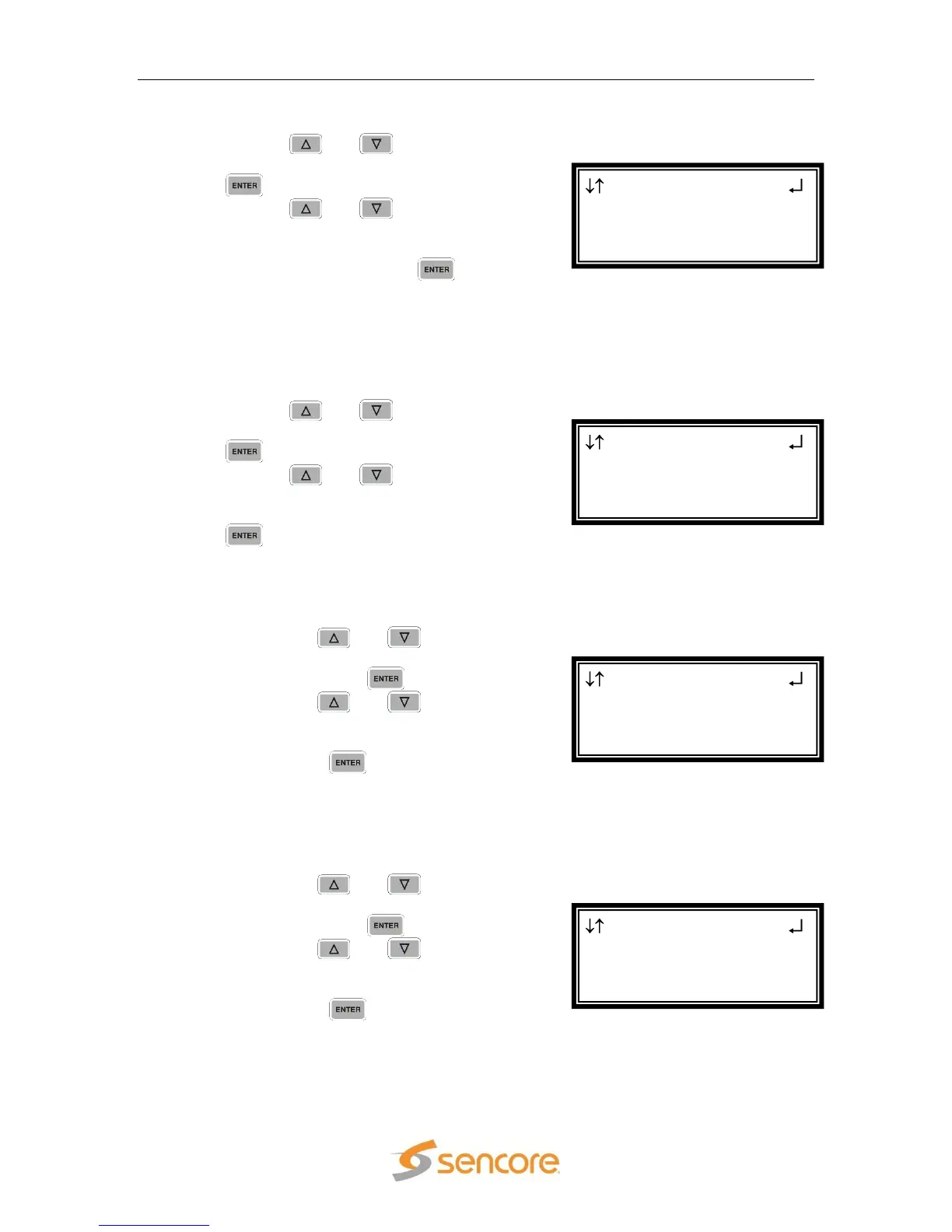
Overlay 1
Type:Closed Caption
Overlay:DTVCC
►DTVCC Srvc:1
Overlay 1
Type:Closed Caption
Overlay:NTSC
►NTSC Srvc:1
Overlay 1
Type:Closed Caption
►Overlay:NTSC
NTSC Srvc:1
Overlay 1
►Type:Closed Caption
Overlay:NTSC
NTSC Srvc:1


 To Next Page