but the system has to be setup and tested.
In such cases, the System Time can be hand-set, and then used as a User [x]-set System Time. For
more information on when to use this functionality, see "The "User/User" Reference" on
page161.
Note: TIP: If synchronization to UTC is NOT required, it is advisable to set a time
in the past or future, so as to avoid users inadvertently considering the distributed
time to be genuine.
Caution: Note that this mode of operation is intended for special use cases e.g.,
autonomous systems, where legally traceable time is not required: This time will
be inaccurate/not traceable, since it is not tied to any reference.
To hand-set the System Time, and configure this time to be a valid reference:
1.
Navigate to MANAGEMENT > OTHER: Time Management.
2.
In the System Time panel on the left, click the GEAR icon.
3.
Select Manual Time Set. Set your time & date, as needed:
System Time [DATE; TIME]: If you do not select Set Year Only, this box will show
the current time in the format: Year-Month-Day Hour:Minute:Second.
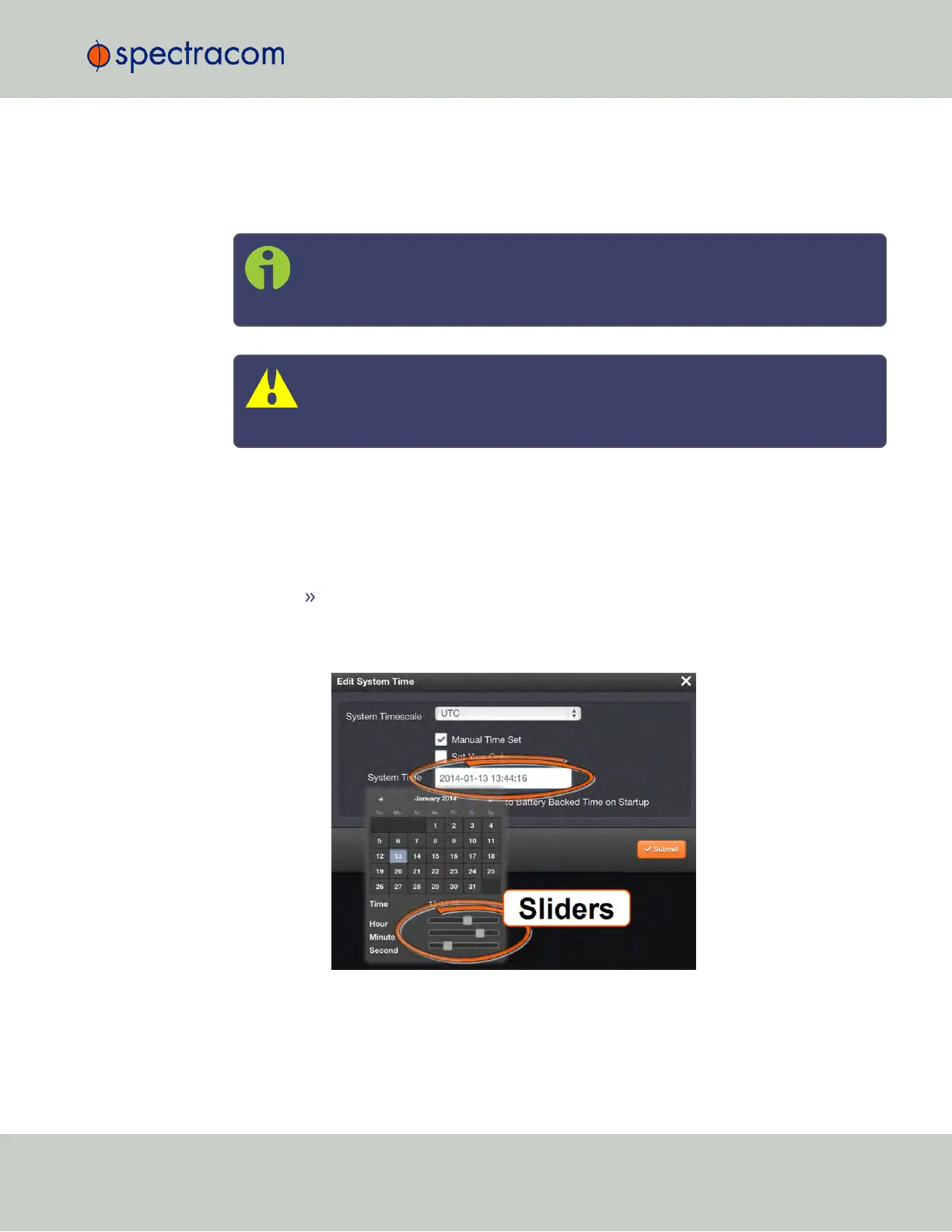
To set the time manually, click anywhere in the System Time field. A drop-down
calendar with time-setting sliders will appear:
The time in the System Time field will default to the current date and time. To set
the time, use the sliders. The time will display between the calendar and the
sliders, and also next to the chosen date in the field directly above the calendar.
To close the calendar, click anywhere in the Edit System Time window.
3.2 System Time
CHAPTER 3 • SecureSync User Reference Guide Rev. 23
145


 To Next Page