1.
In the Add or Change User window the Username field will be populated.
a.
To change it, type the new name.
b.
To change the user account’s password, type the new password in the Password
field and confirm it in the Repeat New Password field. Note that the password
requirements are configurable, see "Configuring Password Policies" on
page232.
c.
To change the user account’s user permission group, select the group from the
drop-down menu.
4.3.2 "user" Account Permissions
As outlined in "Managing User Accounts" on page227 – unlike "administrator" accounts –
"user" accounts are read-only accounts, i.e. they do not allow any editing rights and are restric
ted to reviewing status-related information.
Otherwise, the privileges assigned to admin groups are exactly the same whether logging in
via the WebUI, or connecting via SSH.
4.3.2.1 Account Differences, General
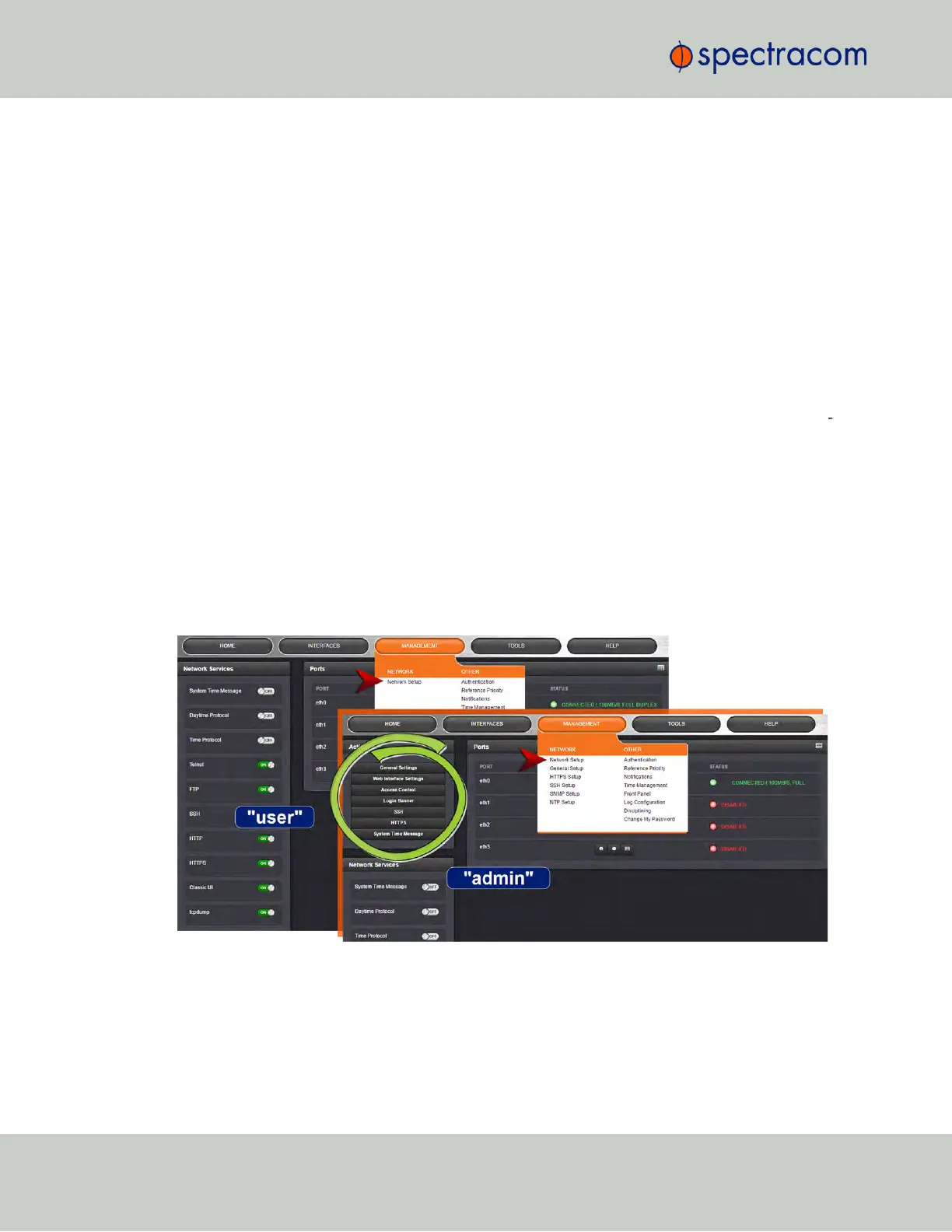
While most menus look the same to "admin" and "user" type accounts (except the
MANAGEMENT menu, see below), the screens and panels located below the main menus will
differ in such that the "user" UI will show fewer (if any) configuration options:
The status information presented, however, will be largely identical.
The most significant differences are visible in the MANAGEMENT menu, since most of the Setup
menus are hidden from "user" accounts:
230
CHAPTER 4 • SecureSync User Reference Guide Rev. 23
4.3 Managing Users and Security


 To Next Page