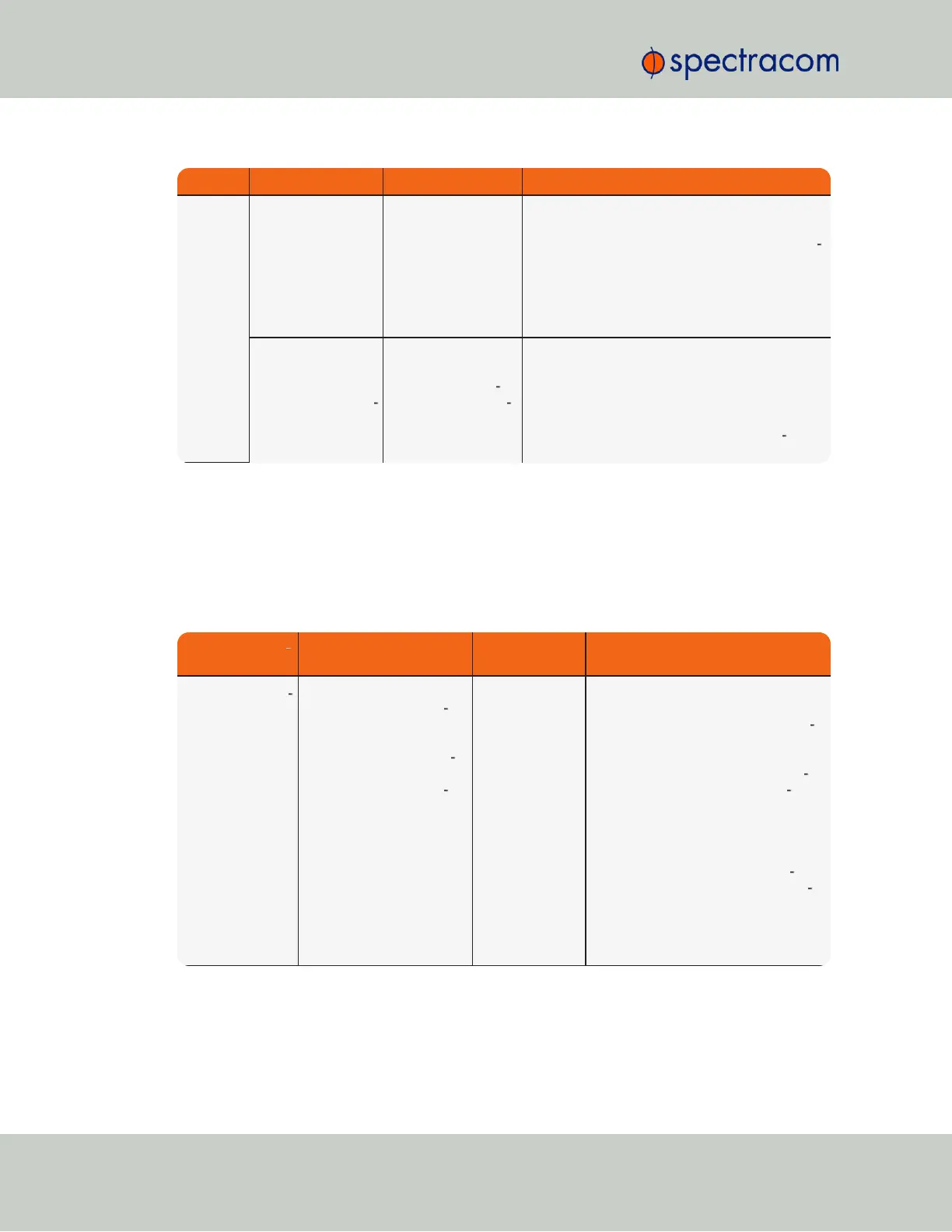
Verify Current Status Indication Troubleshooting
LEDs on
network
connector
Green “Good link”
is not solid green
SecureSync ICMP
test is failing.
SecureSync is not
connected to PC via
Ethernet connection
1) Verify one end of standard network cable is
connected to SecureSync’s Ethernet port and
other end is connected to a hub/switch. Or a net
work cable is connected to SecureSync and a
stand-alone PC.
2) Verify network settings of SecureSync are valid
for the network/PC it is connected with (IP
address is on the same subnet as the other PC).
Green “Good Link”
is solid green on
both SecureSync
and other end of net
work cable.
SecureSync ICMP
test is passing.
SecureSync is con
nected to PC via Eth
ernet connection
1) Disconnect SecureSync’s network cable and
ping its assigned address to ensure no response
(no duplicate IP addresses on the network).
2) Try accessing SecureSync from another PC on
the same network.
3) Network Routing/firewall issue. Try con
necting directly with a PC and network cable.
Table 5-2:
Troubleshooting network connection issues
5.1.5 Troubleshooting via Web UI Status Page
SecureSync’s Web UI includes pages that provide current “remote” status information about
SecureSync. The following table includes information that can be used as a troubleshooting
guidance if status fault indications or conditions occur.
Web UI Page loc
ation
Current Status Indication Troubleshooting
HOME page, Sys
tem Status panel,
Status row
SYNC indicator is not “lit”
(not Green).HOLD indic
ator is “lit” (Orange).—
OR—FAULT indicator is
“lit” (Red). Below the Sys
tem Status panel there is an
Out of Sync alarm state
ment
SecureSync is in
Holdover
mode—OR—
SecureSync is
now out of Time
Sync
All available Input References have
been lost. The Reference Status table
on the HOME page will show the cur
rent status of all inputs (Green is valid
and Red is invalid or not present).
1. Make sure the Input Reference Pri
ority table still has the desired ref
erence inputs Enabled, based on the
desired priority. See
"Configuring
Input Reference Priorities" on
page157
.
2. Make sure the desired input ref
erences are still connected to the cor
rect input port of SecureSync.
3. Verify GNSS antenna installation (if
applicable). See
"Troubleshooting
GNSS Reception" on page322
.
320 SecureSync User Reference Guide
APPENDIX


 To Next Page