2.
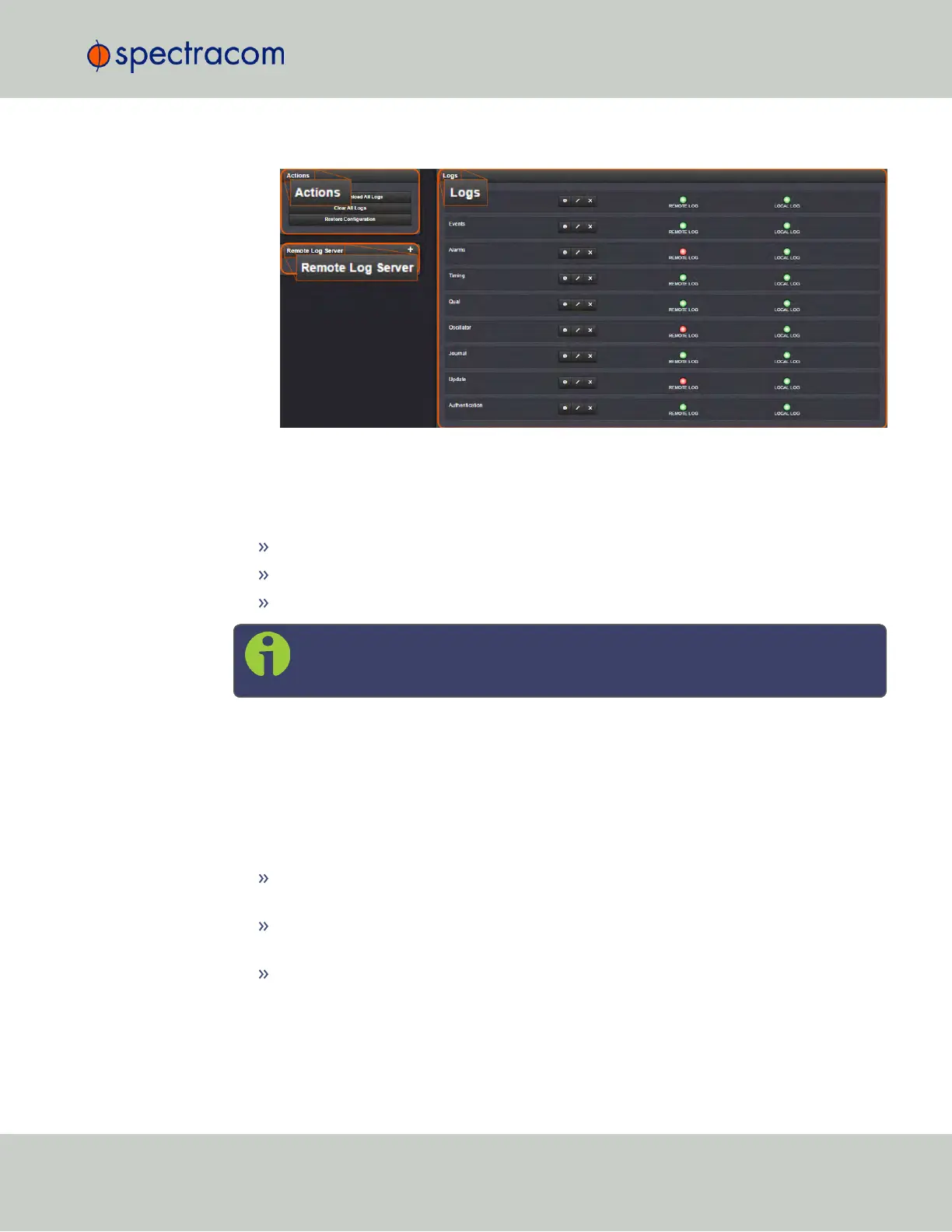
The Logs screen will appear. It is divided into three panels:
The Logs panel
The Logs panel on the right-hand side provides a logs overview, displaying the status of all
SecureSync logs.
To read a log, click the corresponding INFO button.
To configure a log, click the corresponding PENCIL button.
To clear a log, click the X-button.
Note: The Clear File feature does not delete any of the logs that have been sent to
and stored in a Syslog server.
A green indicator lamp shows if events of the corresponding log category are stored remotely
or locally.
The Logs Actions panel
The Actions panel on the upper-left corner of the Logs screen allows you to perform batch
actions on your logs:
Save and Download All Logs—Save and download all the logs on SecureSync. See
also: "Saving and Downloading Logs" on page295.
Clear All Logs—Clear all the logs on SecureSync. See also: "Clearing Selected Logs" on
page302.
Restore Configuration—Restore all log configurations to their factory settings. See also:
"Restoring Log Configurations" on page301.
The Remote Log Server panel
4.5 Quality Management
CHAPTER 4 • SecureSync User Reference Guide Rev. 23
293


 To Next Page