4.
Click the Submit button.
5.
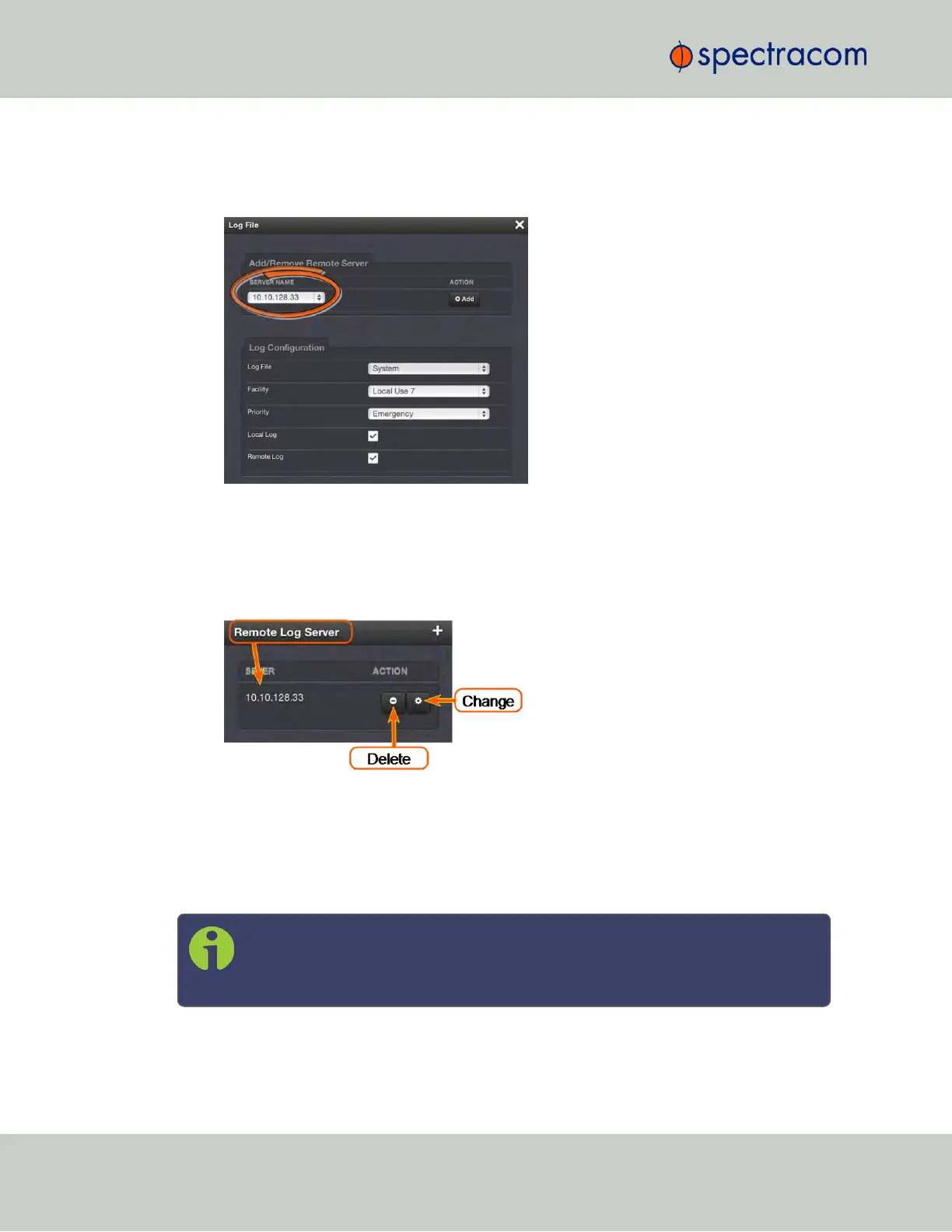
Your remote log server will appear in the Remote Log Server panel, and as a SERVER
NAME in any Log File configuration screen:
Changing or deleting a remote log server:
1.
Navigate to MANAGEMENT > OTHER: Log Configuration.
2.
In the Remote Log Server panel locate the remote server you wish to change or delete.
3.
Choose the MINUS button to delete the remote log server. Confirm by clicking OK in the
message window.
—OR—
3.
In the Remote Log Server panel, click the GEAR button to change the remote log server.
Type in a new IP address or host domain server (e.g. MyDomain.com).
Note: Clicking the Delete button in any of the Log file configuration windows
does NOT remove the chosen remote log server from the network; it merely
deselects the server as that particular log’s remote log server.
300
CHAPTER 4 • SecureSync User Reference Guide Rev. 23
4.5 Quality Management


 To Next Page