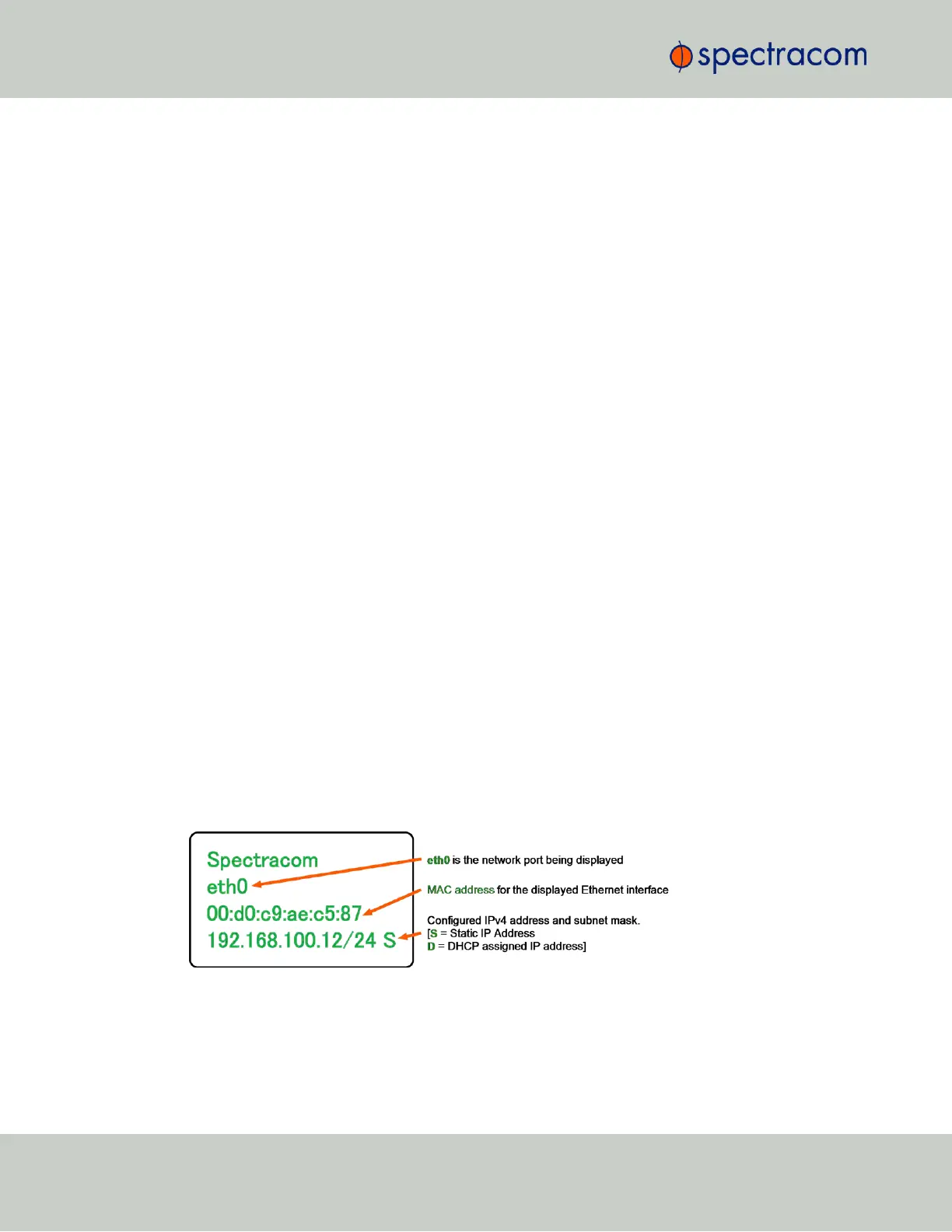
Step-by-step instructions:
A.
First, disable DHCP:
1.
Press the ü key.
2.
Using the arrow key, select Netv4 from the menu.
(To select a menu item, highlight it using the arrow keys, then press the ü key.)
3.
Select the Ethernet interface for which DHCP is to be disabled, such as eth0.
4.
Select DHCP from the next menu. The display will show State=Enabled and
Action=Disabled.
(The State is the current DHCP setting and the Action is the action to take. You can
only change the Action setting.)
5.
Press the ü key once to select the action, then again to apply it.
B.
Then, enter IP Address and Subnet Mask:
1.
Still on the Home > Netv4 > eth[0-3] menu, select IP Address, and
change "N=010.010.201.001/16” to the value of the static IP address and
subnet mask/network bits to be assigned (for a list of subnet mask values refer to
the table "Subnet mask values" on page52).
2.
Press the ü key once to enter the setting, then again to apply the new setting.
C.
Lastly, enter the Gateway Address (if required)
1.
Still on the Home > Netv4 menu, select the Gateway option (Home >
Netv4 > eth0 > Gateway).
2.
Press the ü key once to enter the setting, then again to apply the new setting.
3.
The display will change, allowing you to input an address at
N=000.000.000.001. Enter the gateway address here.
The address entered must correspond to the same network IP address assigned to
SecureSync.
After all addresses are entered, press the x key three times to return to the main display. It
should now resemble the following example:
48
CHAPTER 2 • SecureSync User Reference Guide Rev. 23
2.12 Setting up an IP Address


 To Next Page