4.
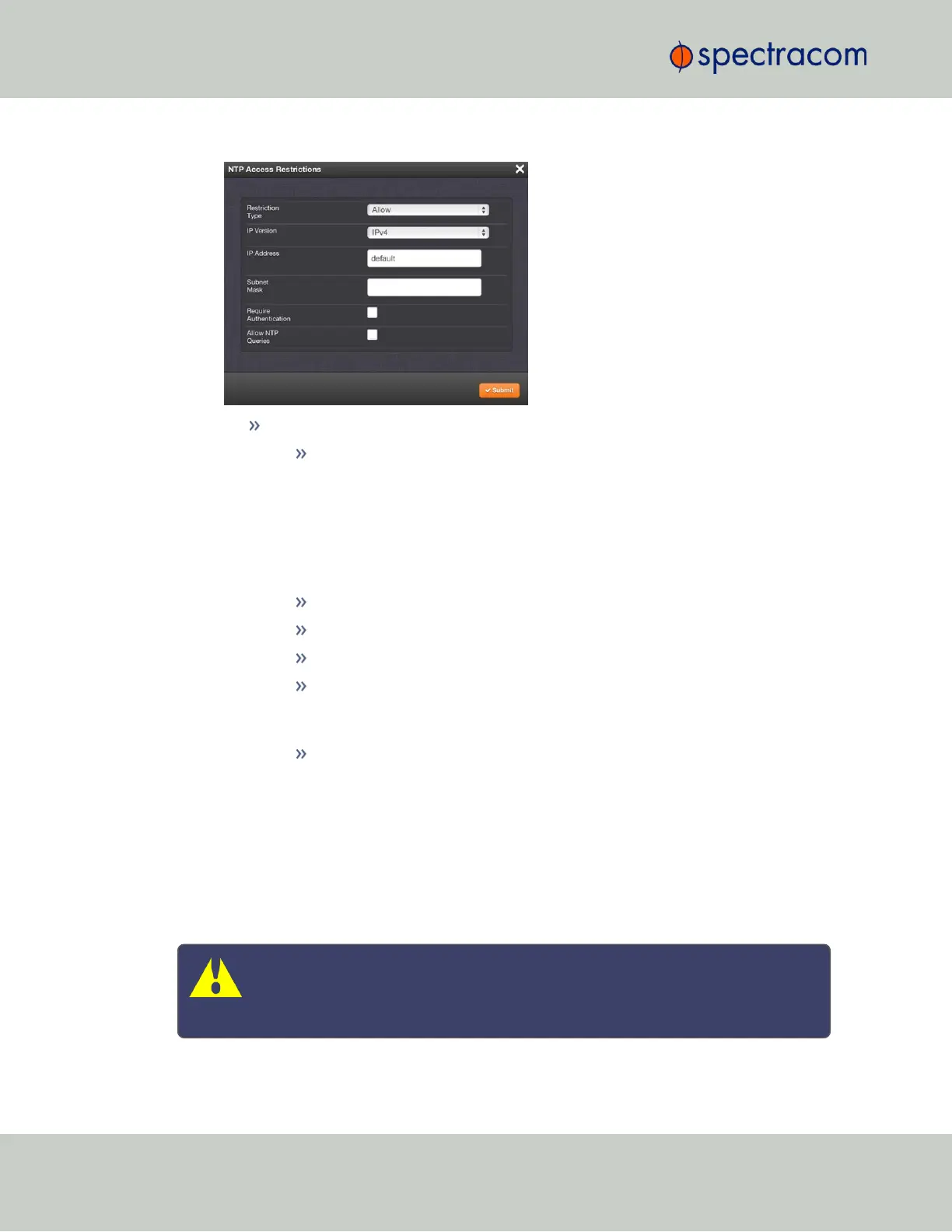
The NTP Access Restrictions window will display:
Fill in the fields:
Restriction Type—Choose either Allow or Deny.
If you select “Deny”, the configured portion of the network will not have
NTP access to VersaSync, but the rest of the network will have access to Ver-
saSync. If you select “allow”, the configured portion of the network will
have NTP access to VersaSync, but the rest of the network will not have
access to VersaSync. By default, VersaSync allows all IPv4 and IPv6 con-
nections.
IP Version—Choose IPv4 or IPv6
IP Address—Enter the appropriate hostname.
Subnet Mask—Enter the appropriate IP mask.
Require Authentication (checkbox)—Check this box if you want the addi-
tional security of authorized access. VersaSync to accept only authen-
ticated requests (MD5 or Autokey) from this user or network segment.
Allow NTP Queries (checkbox)—Check this box if you want to allow
external NTP queries into VersaSync services.
5.
Click the Submit button.
2.7.8.11 NTP Expert Mode
Advanced NTP configuration is possible via the NTP Expert Mode, which allows you to write dir-
ectly into the NTP.conf file (the syntax is similar to the one used with CISCO routers).
Caution: NTP Expert Mode should only be utilized by advanced users, as incor-
rectly altering the NTP.conf file can cause NTP to stop working (if NTP is con-
figured as an input reference, VersaSync could lose synchronization).
102
CHAPTER 2 • VersaSync User Manual Rev. 6.0
2.7 Configuring Network Settings


 To Next Page