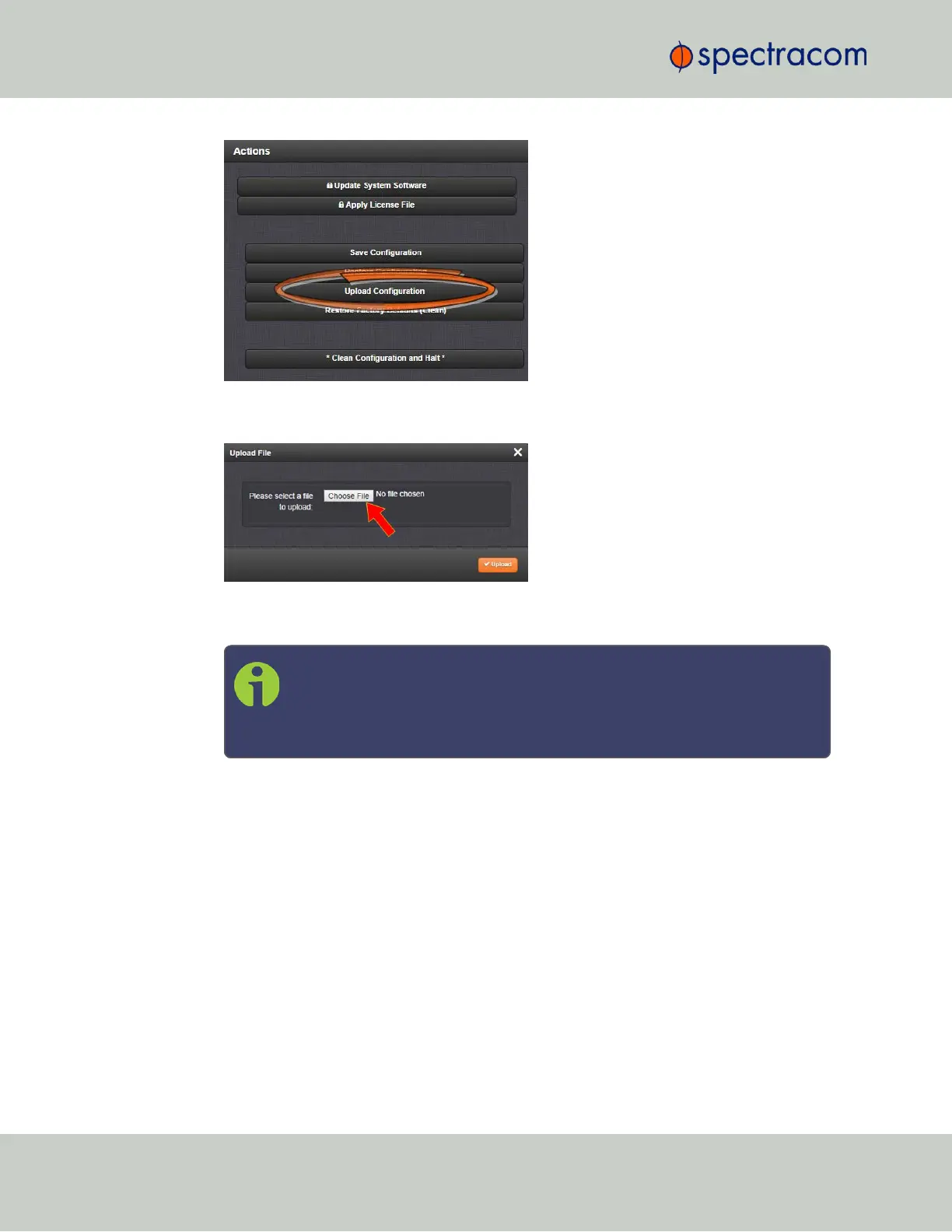
3.
Click Choose File in the window that displays, and navigate to the directory on your PC
where the bundled file is stored.
4.
Click the Upload button. VersaSync saves the uploaded bundled file in the
/home/spectracom/xfer/config/directory.
Note: When uploading files remotely via long distances, or when upload-
ing multiple files via several browser windows simultaneously, the upload
process may fail to complete. In this case, cancel the upload by clicking X,
and go back to Step2.
5.
To use the new configuration file for this VersaSync, click the Restore Configuration but-
ton, and follow the procedure described under "Restoring the System Configuration"
below.
4.8.2.4 Restoring the System Configuration
To restore the System Configuration:
1.
Navigate to TOOLS > SYSTEM: Upgrade/Backup.
2.
In the Actions panel, click Restore Configuration.
228
CHAPTER 4 • VersaSync User Manual Rev. 6.0
4.8 Resetting the Unit to Factory Configuration


 To Next Page