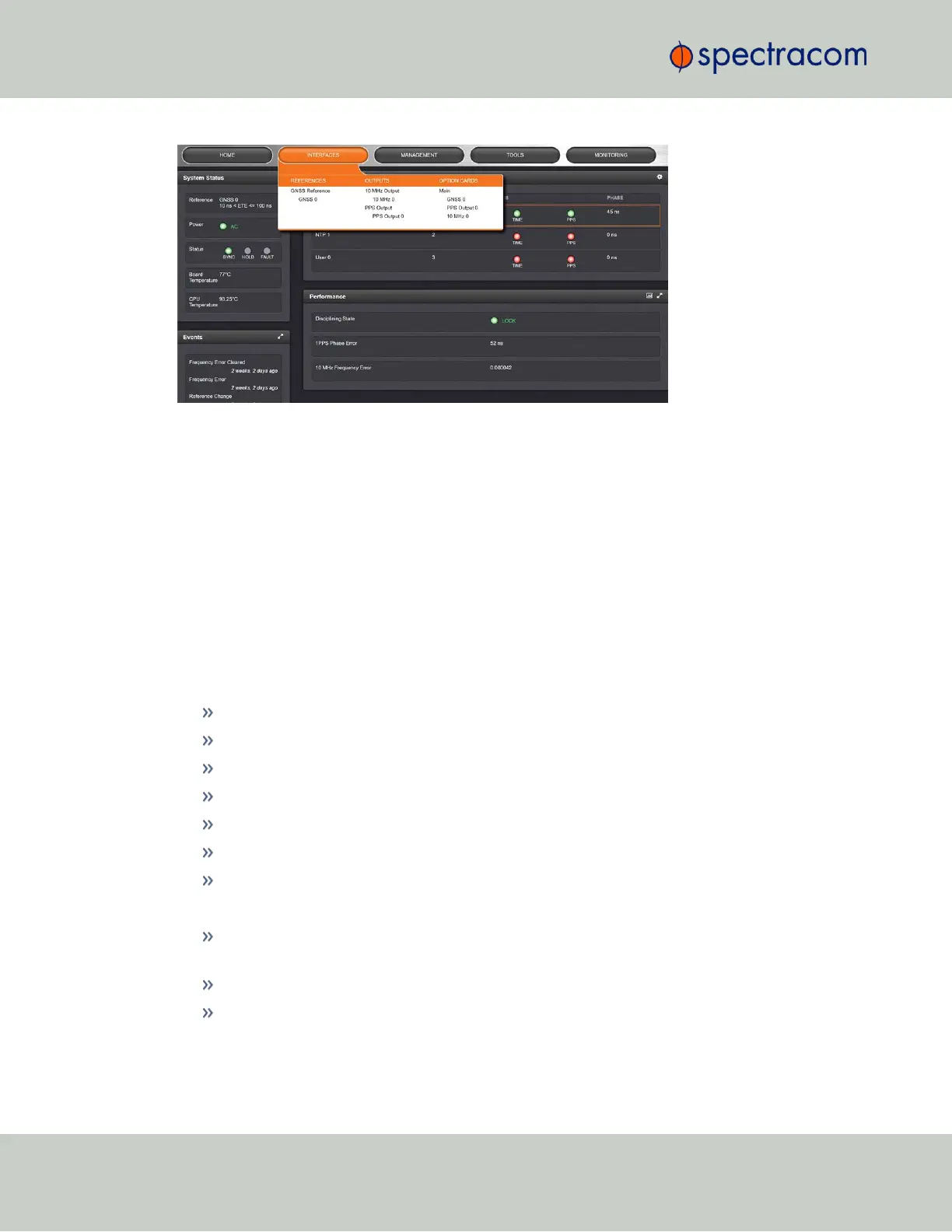
Clicking on any of the line items will open a status screen, providing real-time information on
the selected interface e.g., availability, performance data and events history.
To configure settings for the selected interface, click the GEAR icons or buttons provided on
most of the status screens. Icons like the INFO symbol provide access to more detailed status
information and history data.
The headings of each of the INTERFACES drop-down menus (white on orange) open overview
status screens for the respective menu items.
1.8.3 The Configuration MANAGEMENT Menu
The MANAGEMENT menu on the Web UI's Main screen provides access to VersaSync's con-
figuration screens and settings.
On the left side, under NETWORK, the following standard setup screens can be found:
Pin Layout
Network Setup
SSH Setup
SNMP Setup
NTP Setup
PTP Setup
GPSD Setup
Under OTHER, you can access non-network related screens:
Authentication: Manage user accounts, Security Policy, LDAP Setup, RADIUS setup, Login
Preference and Remote Servers. Change My Password is also available.
Reference Priority: Define the order of priority for timing inputs.
Notifications: Configure the notifications triggered by VersaSync’s events. A notification
can be a combination of a mask alarm and/or SNMP Trap and/or email.
18
CHAPTER 1 • VersaSync User Manual Rev. 6.0
1.8 The VersaSync Web UI


 To Next Page