Editing and Deleting Users
To edit or delete a user you have created:
1.
Navigate to MANAGEMENT > NETWORK: SNMP Setup.
2.
Click the row of the SNMP V3 panel that displays the community you wish to edit or
delete. The cursor will change from an arrow icon to a pointing finger to indicate that
the entry is clickable.
3.
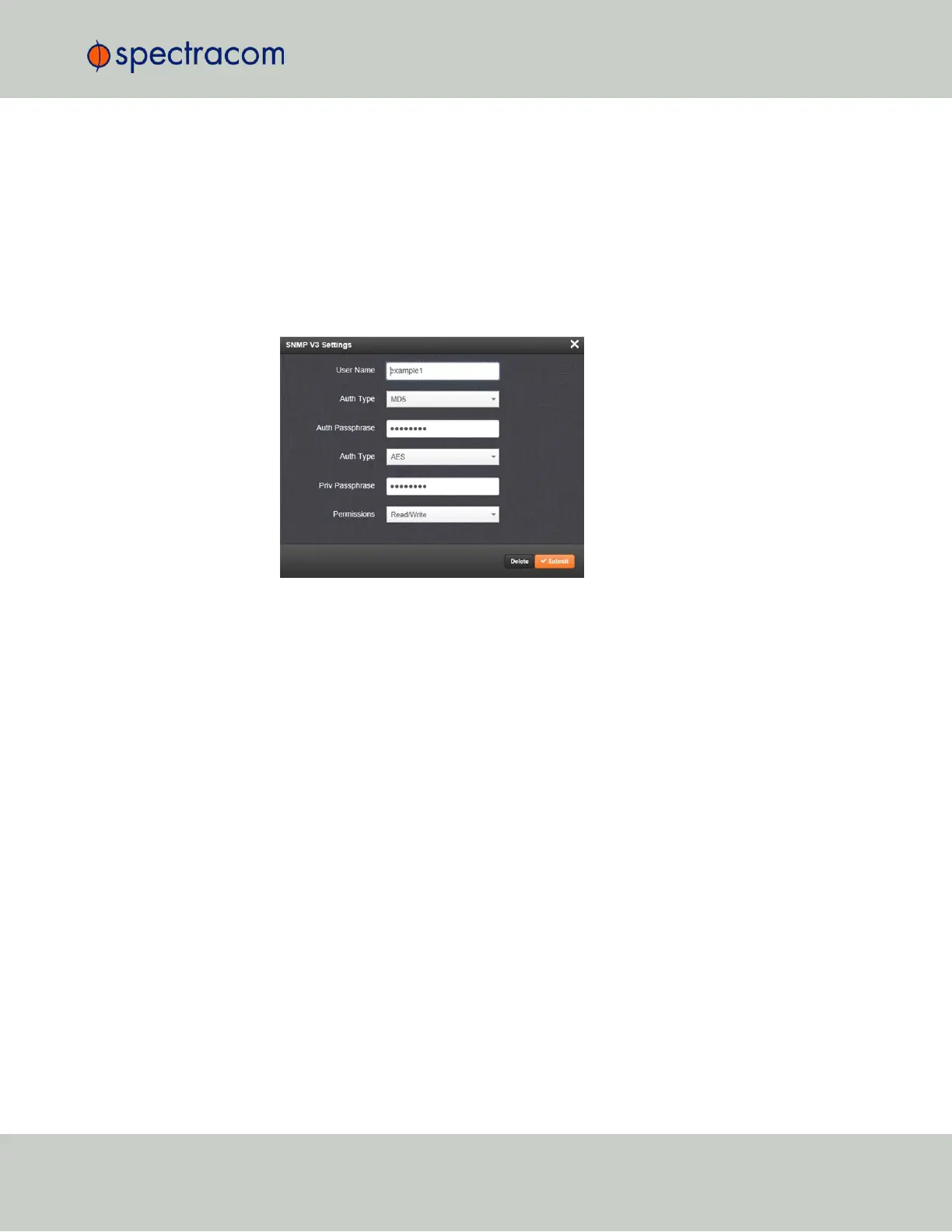
The SNMP V3 Settings window will display:
4.
Apply your changes and click Submit. OR: Click Delete to remove the User.
2.7.6.3 SNMP Traps
SNMP traps allow for automatic event notification, and as such are one way to remotely mon-
itor VersaSync's status.
SNMP traps indicate the status change that caused the trap to be sent and may also include one
or more objects, referred to as variable-bindings, or varbinds. A varbind provides a current
VersaSync data object that is related to the specific trap that was sent. For example, when a
Holdover trap is sent because VersaSync either entered or exited the Holdover mode, the trap
varbind will indicate that VersaSync is either currently in Holdover mode or not currently in Hol-
dover mode.
For testing purposes, a command line interface command is provided. This command,
testevent, allows one, several, or all of the traps defined in the VersaSync MIB to be gen-
erated. Refer to "CLICommands" on page241 for command details.
To define SNMP Traps (Notifications):
1.
Navigate to MANAGEMENT > NETWORK: SNMP Setup.
2.
In the SNMP Traps panel, click the PLUS icon in the top-right corner.
2.7 Configuring Network Settings
CHAPTER 2 • VersaSync User Manual Rev. 6.0
73


 To Next Page