onto your PC (updateXYZ.tar.gz).
Once you have uploaded the software bundle, the following checkbox options will be
presented:
Remove software bundle: Cancel the upgrade, and remove the uploaded software
bundle from the system.
Perform update: Perform the software upgrade.
Perform clean update: Factory settings will be applied during the upgrade; any
custom settings you may have applied previously will be overwritten! This also
includes the unit's static IP address (if you applied one): it will be replaced by the
default DHCP address (i.e., 0.0.0.0.) Also note that the browser session will ter-
minate: After reconfiguring the unit's IP address, you will need to login to the
Web UI in a new browser session.
6.
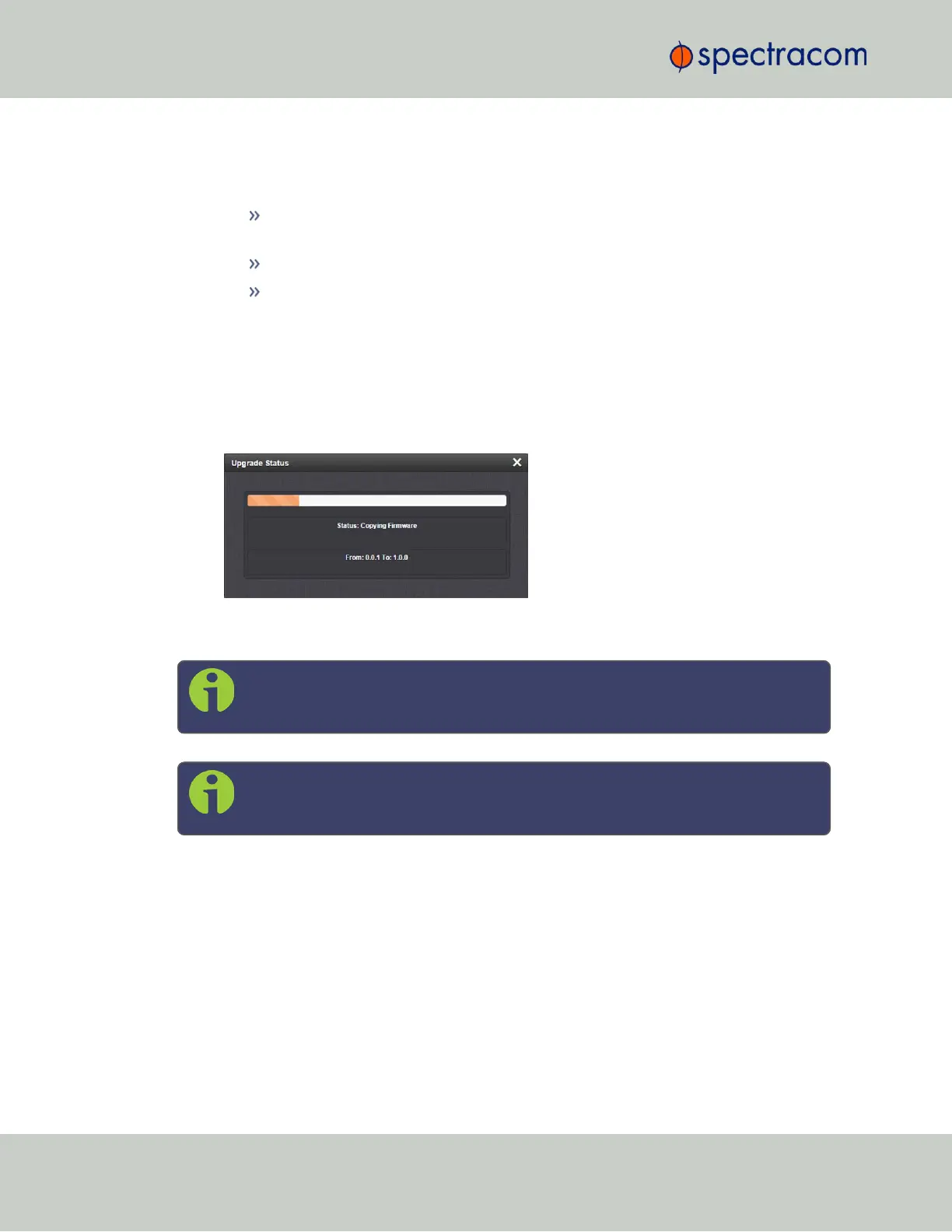
Click Submit to carry out the update. A progress bar will provide real-time status inform-
ation:
7.
Verify that the update was successful: Navigate to Tools > Upgrade/Backup, and confirm
the new SW version in the System Configuration panel.
Note: Should you use DHCP, a new IP address may be assigned to your unit, and
you may have to point your web browser to it.
Note: In the event that the update failed, see "Troubleshooting Software Update"
on page239.
4.7.2 Applying a License File
Software options must be activated by applying a license file (OPT-xyz):
Typically, VersaSync units are shipped with the license file pre-installed, reflecting the system
configuration as ordered. If, however, a feature is to be activated after delivery of the Ver-
saSync unit, please contact your local Spectracom Sales Office first to have a license file gen-
erated. License files are archive files with a tar.gz extension. One license file may contain
multiple licenses for multiple products.
To apply the license file, you need to upload it into your VersaSync unit and install it:
222
CHAPTER 4 • VersaSync User Manual Rev. 6.0
4.7 Updates and Licenses


 To Next Page