2.
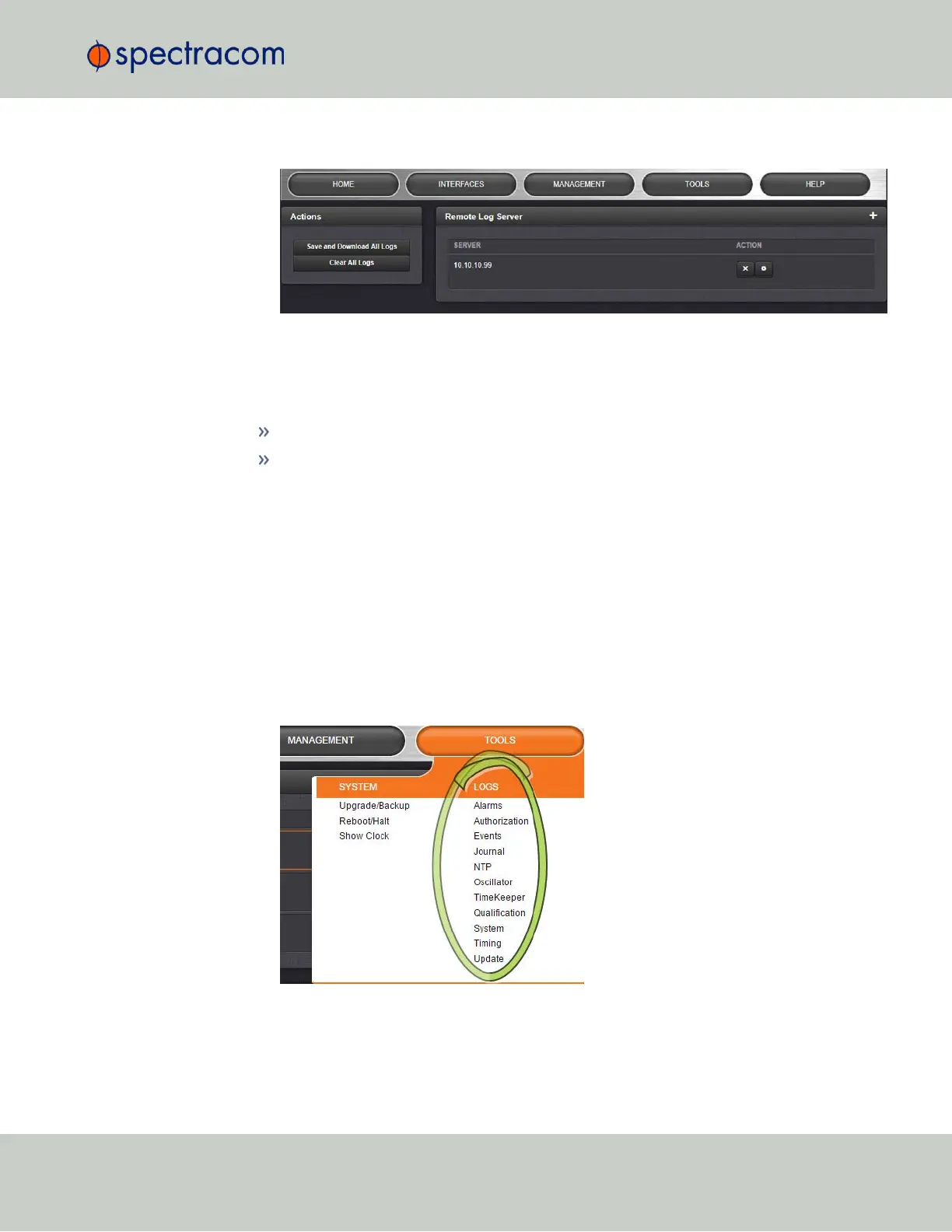
The Logs screen will appear. It is divided into two panels:
The Logs Actions panel
The Actions panel on the upper-left corner of the Logs screen allows you to perform batch
actions on your logs:
Save and Download All Logs—Save and download all the logs on VersaSync.
Clear All Logs—Clear all the logs on VersaSync.
The Remote Log Server panel
The Remote Log Server panel, which is where you set up and manage logs on one or more
remote locations. See also: "Setting up a Remote Log Server" on page219.
4.6.2.3 Displaying Individual Logs
To access individual VersaSync logs:
1.
From the TOOLS drop-down menu, select the desired Logs category (for example,
“Alarms”, or “Events”) from the right-hand column.
4.6 Quality Management
CHAPTER 4 • VersaSync User Manual Rev. 6.0
217


 To Next Page