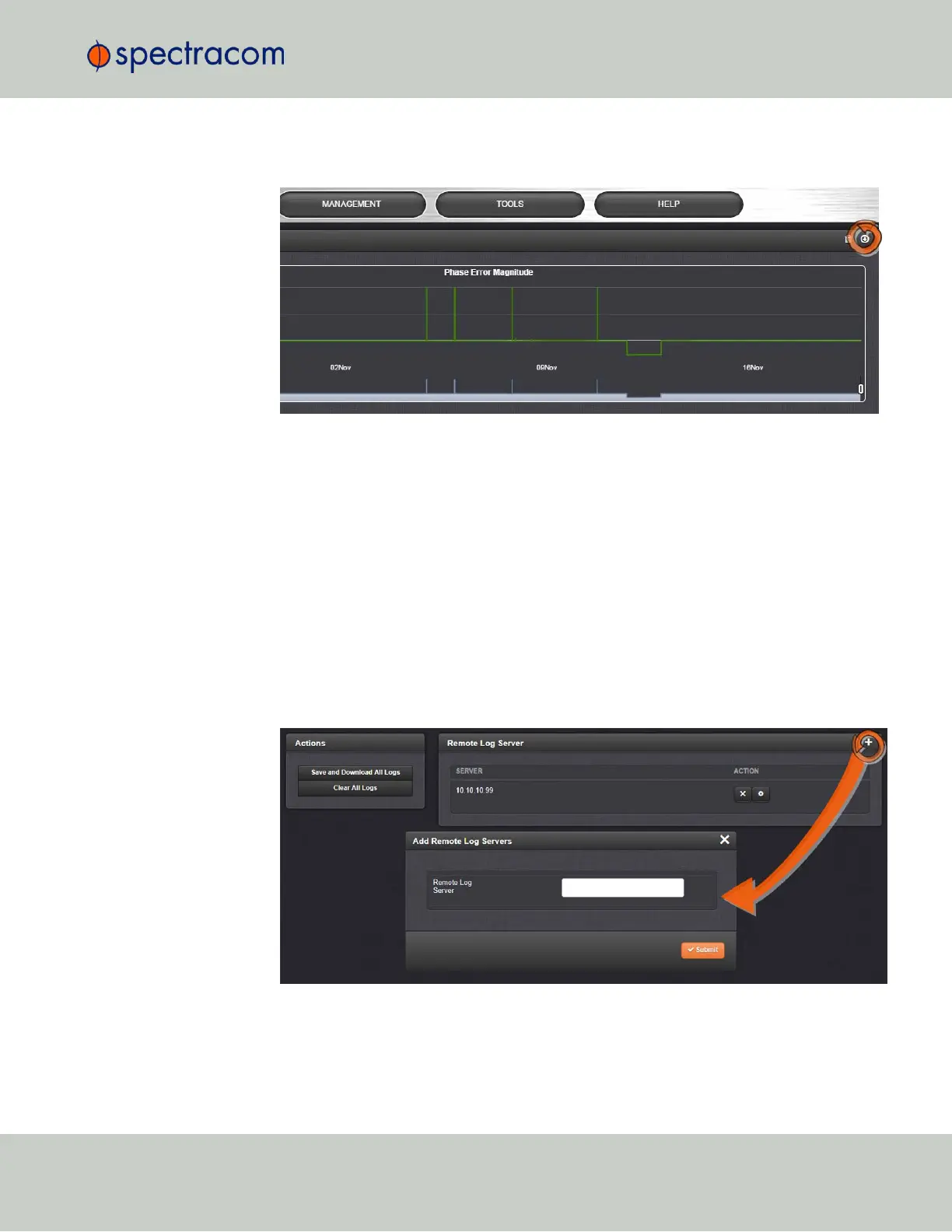
2.
Click on the ARROW icon in the top-right corner of the screen. Save the .csvfile to your
computer.
3.
If so asked by Spectracom Technical Support, attach the oscillator status log file (typ-
ically together with the bundled VersaSync log files, see: "Saving and Downloading
Logs" on the previous page) to your email addressed to Spectracom Technical Support.
4.6.2.5 Setting up a Remote Log Server
Storing log files on a remote log server supports advanced logging functionality.
Adding a remote log server:
1.
Navigate to MANAGEMENT > OTHER: Log Configuration.
2.
In the Remote Log Server panel, click on the PLUS icon in the top-right corner of the panel.
The Add Remote Log Servers window displays.
3.
Enter the IP address or host server name (e.g., “MyDomain.com”) you want to use as a
remote log server.
4.
Click the Submit button.
4.6 Quality Management
CHAPTER 4 • VersaSync User Manual Rev. 6.0
219


 To Next Page