1.
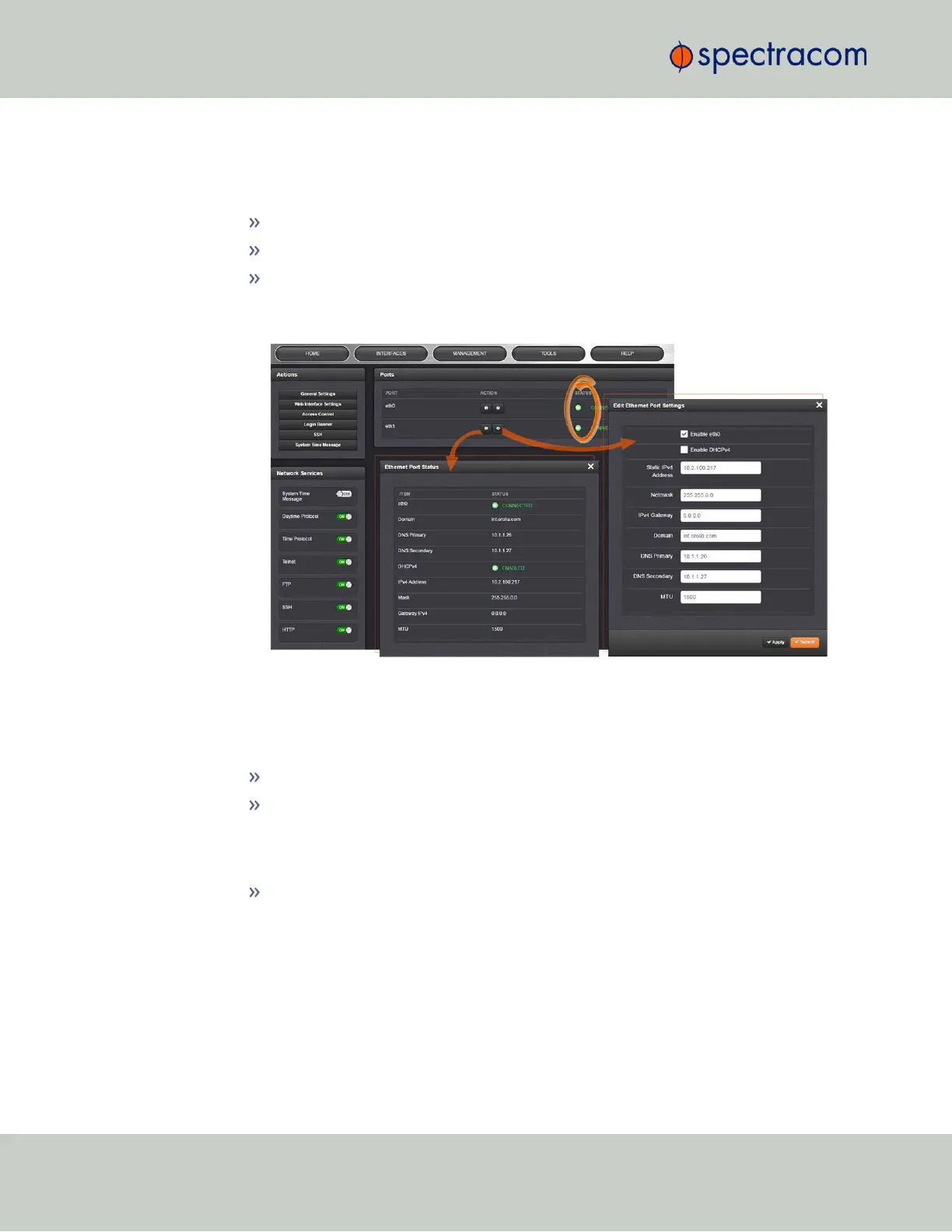
Navigate to MANAGEMENT > NETWORK: Network Setup.
2.
The Ports panel on the right side of the screen lists the available Ethernet ports, and their
connection STATUS:
Green: CONNECTED (showing the connection speed)
Yellow: CABLE UNPLUGGED (the port is enabled but there is no cable attached)
Red: DISABLED.
Locate the port you want to configure (eth0 or eth1) and click the GEAR button to
enable & configure the port, or the INFO button to view the port status.
3.
If the port is not already enabled, in the Edit Ethernet Ports Settings window, click the
Enable check box. The Edit Ethernet Ports Settings window will expand to show the options
needed to complete the port setup.
Fill in the fields as required:
Enable eth0: [Checkbox]
Enable DHCPv4 : [Checkbox] Check this box to enable the delivery of IP
addresses from a DHCP Server using the DHCPv4 protocol. This box is checked
by default. Should you disable (uncheck) DHCPv4, the following fields will dis-
play and must be completed
Static IPv4 Address: This is the unique address assigned by the network admin-
istrator. The default static IP address of the VersaSync unit is 10.10.201.1. In the
format “#.#.#.# ” with no leading zeroes or spaces, where each ‘#’ is a
decimal integer from the range [0,255].
56
CHAPTER 2 • VersaSync User Manual Rev. 6.0
2.7 Configuring Network Settings


 To Next Page