Note that the System Time affects not only NTP output, but also all other aspects of time man-
agement e.g., time distributed via channels other than NTP, logging, and time displayed in the
Web UI.
If VersaSync is operated as a Stratum2 server, i.e. as a client to a Stratum1 server (see "Con-
figuring "NTP Stratum Synchronization"" on page85), the other server will override Ver-
saSync's System Timescale, should it be different.
Note: IMPORTANT: Make sure you select your desired timescale! Using the wrong
timescale will inevitably result in an undesired time error in your NTP clients.
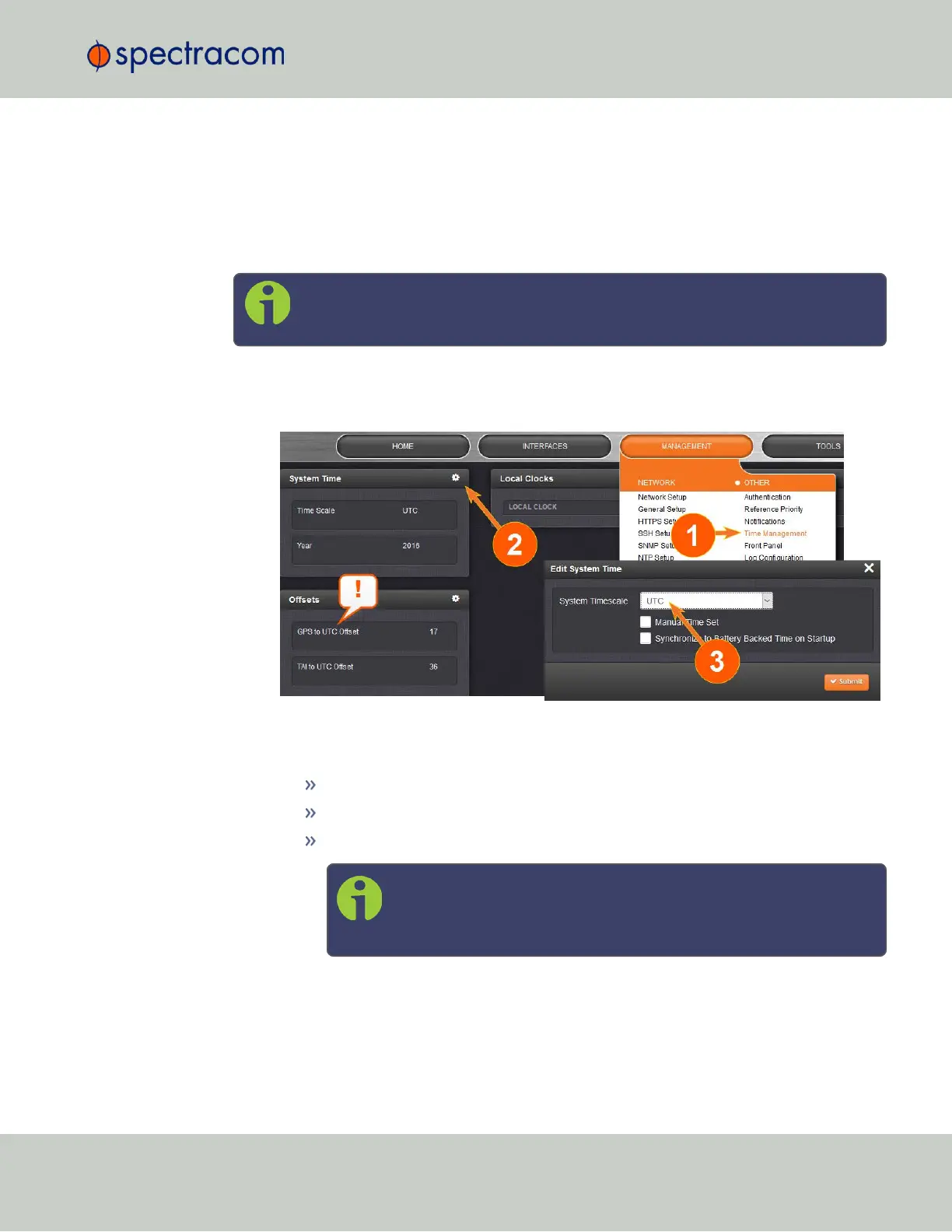
To change the system timescale VersaSync will use for its NTP output (and other outputs):
1.
Navigate to MANAGEMENT > OTHER: Time Management:
2.
In the System Time panel, click the GEAR icon.
3.
In the Edit System Time window, select the System Timescale VersaSync will be in:
UTC: The network PCs will receive UTC time via NTP.
TAI: The network PCs will receive TAI time via NTP.
GPS: The network PCs will receive GPS time via NTP.
Note: When the Timescale is set to “GPS”, the GPS to UTC Offset
must be set correctly. As of July 2018, the offset between UTC and
GPS is 18 seconds.
2.7 Configuring Network Settings
CHAPTER 2 • VersaSync User Manual Rev. 6.0
83


 To Next Page