Working with the Materials Page About the Sample Queue
Page 54
© Copyright 2020 Stratasys. All rights reserved.
Working with the Materials Page
The Materials page displays a detailed representation of the printer’s current materials
configuration. Within this page you can view the printer’s current materials configuration
including material types and colors, view material coil boxvolumes and load statuses, load and
unload materials, view current and set point head temperatures, and perform a variety of head
related maintenance functions.
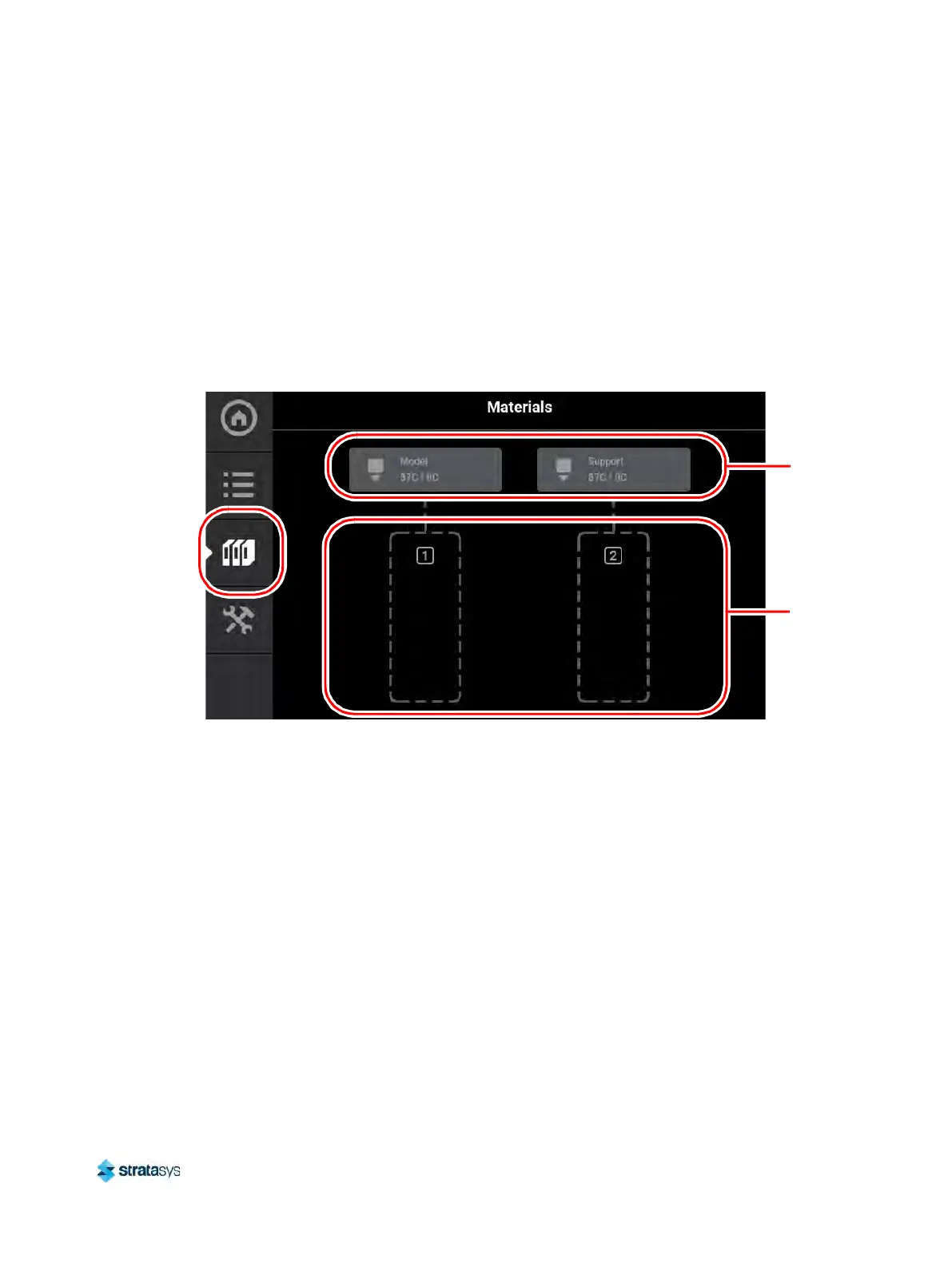
To access the Materials page, press the Ma
terials button within the Navigation Menu; a screen
similar to the one in Figure 25 will be displayed.
Figure 25: Materials Page
Two “Head Status Icons” are displayed within the upper portion of the Display Area. These
icons display load status information as well as the current temperature as compared to the set
po
int temperature of each of the printer’s heads (temperatures are predetermined and based
on material type loaded to the head). The right-most icon pertains to the printer’s support head
while the left-most icon pertains to the printer’s model head. Touching one of these icons on the
screen will open that head’s Head Details page; this page contains additional information
pertaining to the selected head as well as a button for initiating a variety of head maintenance
functions. Icons will be solid gray or solid blue depending on their status.
Two “Material Status Icons” are displayed within the lower portion of the Display Area. These
icons represent the model and support materials loaded/installed within the printer. The right-
mo
st icon indicate the status of the printer’s support material while the left-most icon indicate
the status of the printer’s model material. These icons will take on a variety of colors and
highlighted states depending on their status. Material coil boxes whose material is loaded to
the head, are indicated by a blue border. Touching one of these icons on the screen will open
that material’s Material Details page; this page contains additional information pertaining to the
selected material as well as buttons for performing a material load or unload.
After selecting any icons or opening a details page a "Back" button will be displayed within the
he
ading of the page; press this button to return to the main Materials page.
Material
Status
Icons
Head
Status
Icons













 To Next Page