S CLASS™ 2 cutter User’s Manual
OPOS 3-10
3.3.3 Cutting the same graphic on multiple media sheets
If the same graphic design needs to be printed on multiple sheets, this feature can be used.
The sheets should have more or less the same size, and the graphics on
them should be oriented and positioned the same way.
OPOS sheet mode ignores the parameter OPOS origin, so the tool will always
have to bet set manually for the first job.
First, load the media and check whether the parameters of the OPOS marks are set correctly.
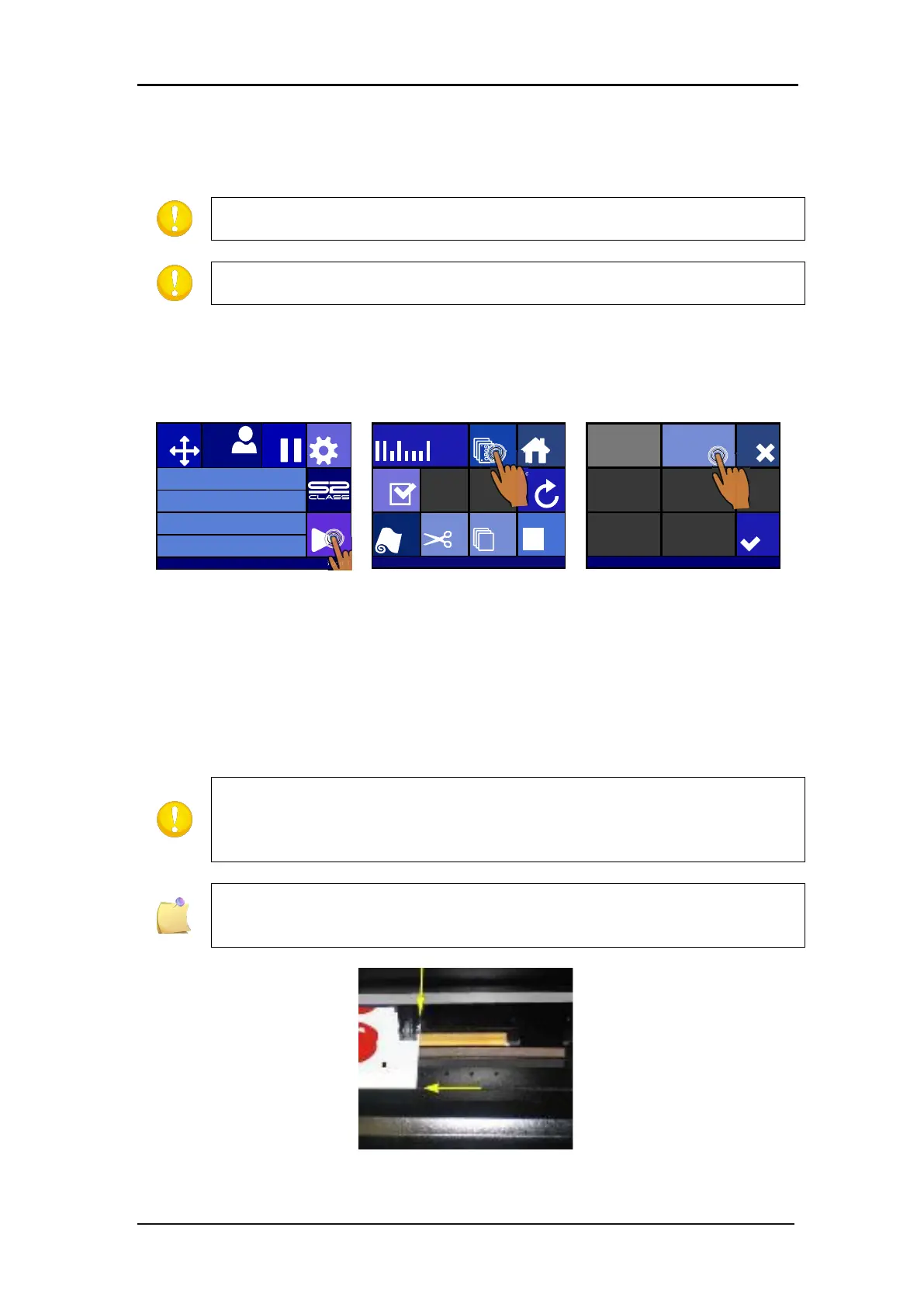
Cutting the same graphic on multiple media sheets:
2. Press OPOS sheet mode.
4. Do the job on the first sheet.
The cutter will stop after the first contour has been cut and will come online again.
5. Raise the pinch rollers and remove the sheet manually.
6. Insert the next sheet into the cutter. Lower the pinch rollers.
The second and any following sheet must be loaded in the cutter at the same
position and orientation as those from the first sheet. When in OPOS sheet mode,
the cutter stores the distance between the edges of the sheet and the first OPOS
Use easy orientation points to be able to quickly position the sheet. In the
figure below, a rim of the base plate and the side of the pinch roller assembly are
used to align the sheets.
FIG 3-3
3-3 POSITIONING THE MEDIA FOR MULTIPLE SHEETS
Knife pressure 95 gr
Velocity 800 mm/s
Tool Tangential knife
Media size 50000 x 718 mm
Actions
Settings
Configuration 1
Pause
Origin
USB port 1
Replot
Home
OPOS sheet
mode
OPOS Bar co de
Cut sheet
Cut offLoad
Reset
Cut tests
USB port 1
Off
Cancel
Apply
On
USB port 1






 To Next Page